Reduce Background Noise in Discord Calls: Enable Krisp and Know Its Limits
Enable Discord Krisp noise suppression on desktop, browser, or mobile, compare speech carefully, and keep saved-recording cleanup separate.
Quick answer
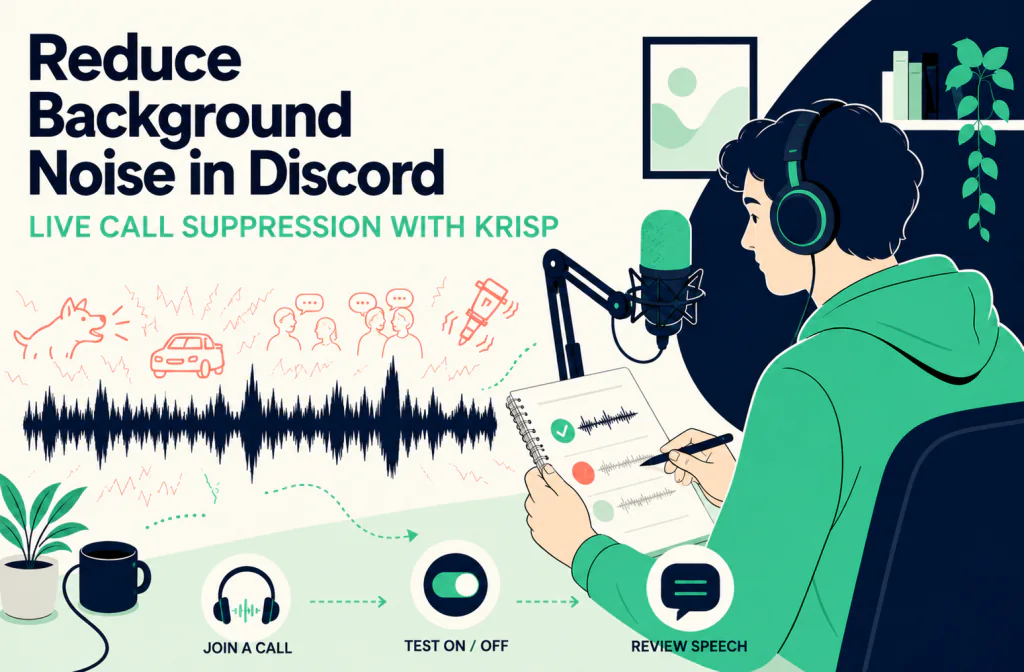
Discord uses Krisp Noise Suppression during a live voice conversation. On the desktop app or a supported desktop browser, join a voice channel and select the Noise Suppression icon, or open User Settings > Voice & Video > Noise Suppression > Krisp. On mobile, use the connected channel controls or open User Settings > Voice > Noise Suppression. Test the same normal sentence with Krisp off and on, then ask a listener whether the background is less distracting without making speech harder to understand.
This is caller-side, real-time filtration. It does not edit a saved recording, change another participant's microphone, or create a Discord export. Noise Cleaner belongs only in a separate, authorized post-recording workflow when you already own an eligible file.
If your live call is in Apple's app instead, use the FaceTime Voice Isolation guide and verify the supported device and Mic Mode path there. Do not copy Discord's Krisp labels into FaceTime.
Confirm client support and the call scope
Update Discord before troubleshooting the setting. Discord's current system-requirements page maintains separate minimums for desktop operating systems, mobile systems, and browsers. It also says mobile-browser use is not supported. The voice-chat client requirements list separate desktop, mobile, and browser floors needed to participate in current encrypted voice conversations.
Record the device, operating system, Discord build, and browser when applicable. A path shown in an older screenshot is not proof that the same button appears in the same place today. If the client cannot join voice chat, solve that support problem before diagnosing suppression.
Discord's Krisp FAQ currently lists Krisp for Windows, Linux, Mac, Android, and iOS. It places additional requirements on Mac and identifies Chrome and Firefox desktop browsers for browser use. Check the live support page for the current boundary rather than treating every browser that can open Discord as a browser that exposes Krisp.
Enable Krisp on desktop or a supported browser
Discord documents two desktop paths. The quickest path begins inside an active voice channel:
- Join the intended voice channel.
- Select the Noise Suppression icon in the voice controls.
- Turn Krisp on.
- Speak one ordinary sentence and listen for any change in clarity.
- Turn Krisp off again before deciding which state to keep.
The settings path is useful when you want to check the control before or during a call:
- Select User Settings beside your avatar.
- Open Voice & Video.
- Scroll to Noise Suppression.
- Select Krisp.
These labels and routes come from Discord's official Krisp documentation. They establish what Discord currently documents; they are not an account-specific interface test. If the control is missing, confirm the client, platform, browser, and current support boundary before following a third-party screenshot.
Do not change input device, input level, automatic gain behavior, and suppression at the same time. A one-variable comparison makes it easier to tell whether Krisp helped, whether the microphone changed, or whether the caller simply moved closer.
Enable Krisp on mobile
Discord also documents two mobile-app paths. While connected to a voice channel, open the channel controls from the channel name, find Noise Suppression, and enable Krisp. The alternative route begins at your avatar: open the settings cog, choose Voice, then find Noise Suppression and select Krisp.
Mobile layouts change more readily with screen size and app updates, so follow the current label rather than memorizing a fixed pixel position. Do not substitute a mobile browser for the native app; Discord's system-requirements documentation explicitly treats mobile-browser use as unsupported.
After changing the setting, return to the live call and test with the phone in the position you will actually use. Moving from a desk to a hand-held position can change microphone distance, handling noise, and room sound more than the toggle itself.
Understand what Krisp changes
Discord describes Krisp as third-party machine-learning noise filtration that runs on the caller's device. It is intended to reduce non-human background sounds from your outgoing side while transmitting your voice. That makes a fan, vacuum, door slam, or other everyday non-human distraction a more relevant test than another participant's noisy room.
Krisp is not a control over incoming audio. When a friend has background noise, that person must address their own microphone or enable suppression on their side. Your toggle cannot repair their signal after it reaches you.
According to Discord's FAQ, enabling Krisp does not send voice, user, or video data to Krisp and the model runs on the device. That is Discord's stated integration behavior; it does not remove the need to follow the rules, consent expectations, and privacy requirements of the conversation itself.
The native filter also cannot reconstruct a word that the microphone clipped, never captured, or buried beneath a much louder source. It does not separate two people speaking into the same microphone, preserve music automatically, or replace better microphone placement.
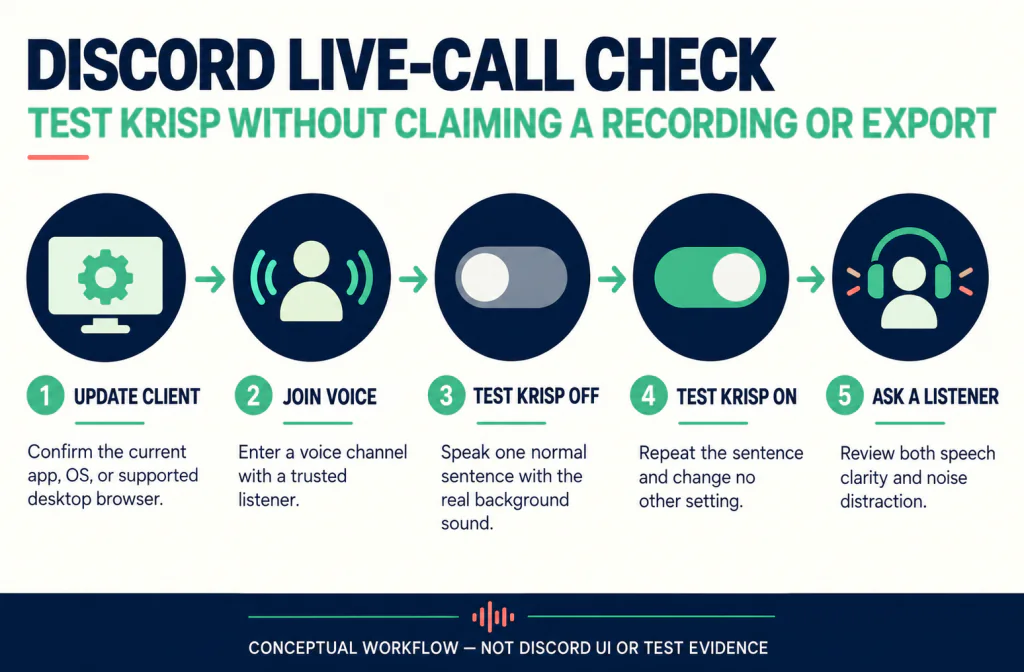
Run a fair live-call check
Use the microphone, headset, device, and room you expect to use. Join a voice channel with a trusted listener. Tell them you are comparing a call setting, then choose one short, ordinary non-human sound that already exists in the environment. Avoid making the call unnecessarily loud or disruptive.
Run the comparison in this order:
- Keep Krisp off and speak one normal sentence.
- Include a quieter phrase and a word with clear consonants.
- Let the real background sound occur while you speak.
- Turn Krisp on without changing any other setting.
- Repeat the same words from the same position.
- Ask the listener about speech and noise separately.
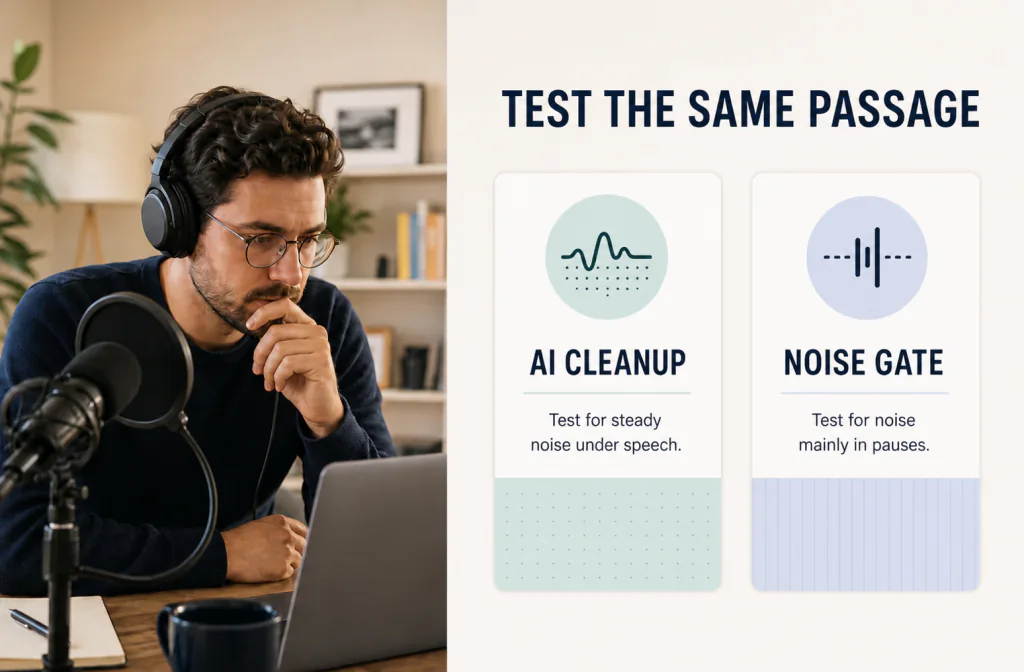
The listener should answer two questions: Is the named background sound less distracting, and are the words still complete and natural? A quieter background does not pass the test if consonants disappear or the voice becomes unstable. The same-passage review method explains the same comparison principle for saved files, but this Discord check remains a live, consented listening exercise rather than a published Before-and-After result.
Troubleshoot by symptom
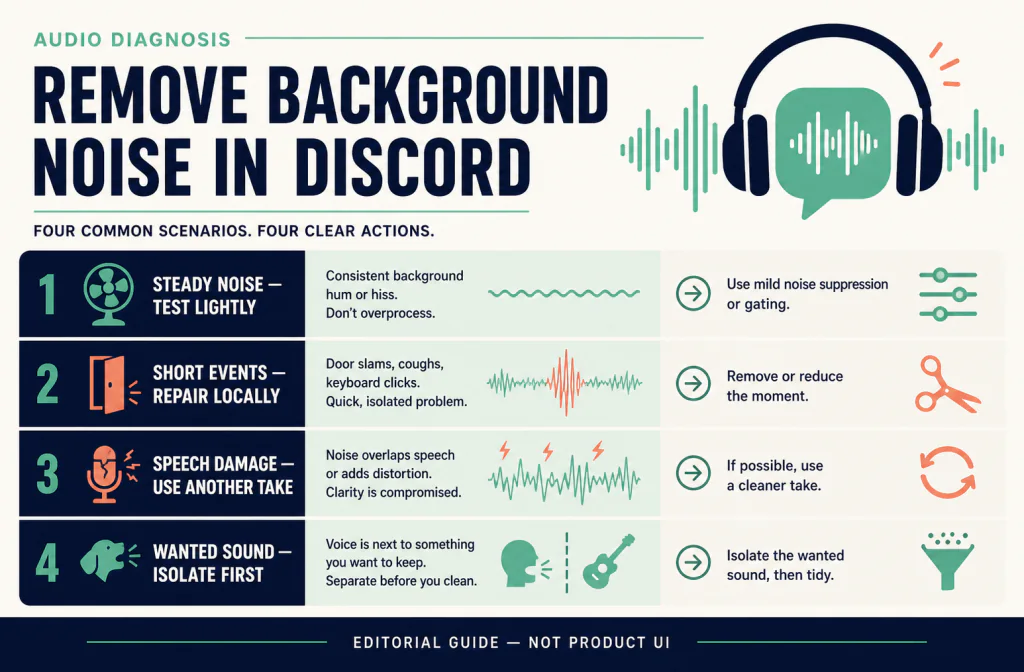
| What happens | Check first | Safer next action |
|---|---|---|
| Krisp is missing | Platform, current client, supported desktop browser, and active voice connection | Update Discord and confirm the current official support boundary |
| Krisp turns itself off | Device CPU load | Reduce heavy background work before enabling it again |
| Voice sounds thinner or less natural | Same-sentence off/on comparison | Turn Krisp off when the room is already quiet |
| Listener still hears another caller's noise | Which microphone is producing the sound | Ask that participant to check their own outgoing audio |
| Keyboard or fan is still obvious under words | Microphone distance and source position | Move closer, redirect the microphone, or reduce the noise at its source |
| Music or wanted ambience changes | Whether the filter is treating wanted sound as background | Disable suppression or use a separate audio arrangement |
| Calls fail before testing | Client and voice-chat compatibility | Fix the update, device, browser, or connection issue first |
Discord says high CPU use can cause Krisp to turn itself off to preserve voice performance. Closing a demanding application or reducing system load is more useful than repeatedly toggling the feature without addressing the cause.
If the main issue is a level-based microphone opening during pauses, do not assume Krisp and a noise gate solve the same problem. The noise reduction versus noise gate guide explains why a gate reacts to level while suppression attempts a broader noise decision. Use Discord's supported native controls for the live call; Noise Cleaner is not a live gate.
Know when to disable suppression
Discord warns that Krisp may reduce perceived voice quality in a quiet environment with a good microphone. Leave it off when listeners cannot identify a meaningful non-human distraction or when the processed voice loses clarity. The best setting is not the one that makes the call sound least alive; it is the one that helps listeners understand the speaker.
Be especially cautious when the call intentionally includes music, another person in the room, subtle ambience, or a performance. A speech-focused filter may not know that those sounds are wanted. Use an appropriate capture arrangement instead of asking a single call setting to preserve a complex mix.
Physical changes often provide a more predictable improvement: move the microphone closer, point its least sensitive direction toward the noise, place the fan farther away, reduce desk vibration, close a window, or use push-to-talk when that fits the conversation. Test one change at a time so you know what solved the problem.
Keep saved-recording cleanup separate
Discord's cited support pages explain live-call suppression and client requirements. They do not establish a Discord-native recording, export, or download workflow. This guide therefore does not instruct you to record a call, extract Discord audio, or export Krisp's output.
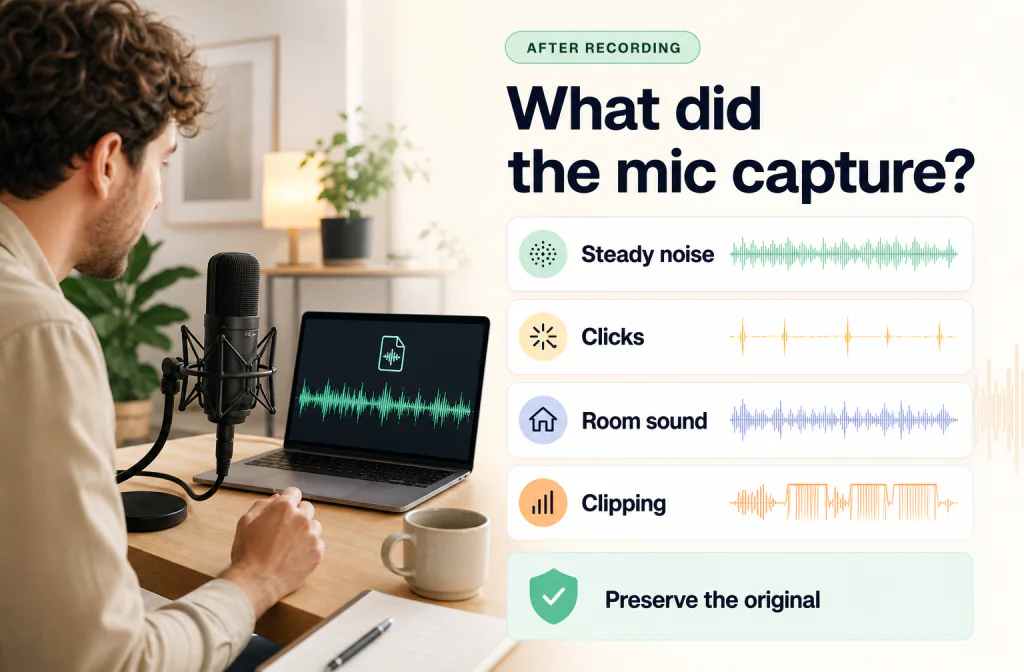
If you independently created and own a saved microphone recording outside Discord, treat it as a different job with its own permissions. Preserve the original using the recording-preparation checklist. The post-capture microphone workflow can then help distinguish steady noise, isolated clicks, room sound, and source damage.
Only after confirming ownership and eligibility should you open the microphone noise remover for that separate file. It processes an uploaded recording after capture. It cannot run inside Discord, alter a live microphone, or prove what Krisp did during a call.
For an independently owned WAV master, keep the source using the WAV preservation workflow. For a separate MP4 recording, follow the MP4 audio checklist and verify timing with the video/audio sync guide. None of these post-recording pages creates permission to capture another person's conversation.
When the separate file is compatible with the current tool, test a working copy with the Noise Cleaner microphone workflow. Compare the same words, retain some background if stronger processing damages speech, and return to the source when important content was never captured.
Make the decision fit the conversation
Gaming voice channel
Use a short on/off test with the keyboard, controller, or fan that listeners actually hear. Keep Krisp when teammates report less distraction and the callouts remain clear. If the keyboard is mechanically coupled to the microphone stand, reduce that vibration at the desk before relying on more processing.
Remote meeting or study group
Prioritize complete names, numbers, and short responses. A quieter call is not better if soft participants become harder to understand. Ask before running a test and avoid turning an ordinary meeting into an audio experiment.
Creator collaboration
Keep the live-call decision separate from the media-production decision. Discord Krisp affects outgoing call audio; an editor's enhancement affects a saved asset. For example, the Canva voice-enhancement guide covers a video-editing workflow and must not be copied into Discord's live controls.
Music or performance discussion
Disable speech-focused suppression when the wanted content includes music or room ambience that the filter may interpret as background. Use a deliberate audio-routing or recording arrangement appropriate to the session instead.
Respect privacy and failure boundaries
Only test with people who understand what you are changing. Do not record, upload, or publish a private conversation merely to compare settings. Consent and applicable rules depend on the people and place involved, not on whether a platform exposes a toggle.
No generated image in this guide is a Discord screenshot, a waveform from a call, or proof that Krisp improved a sample. No account-specific UI capture or rights-cleared listening test is presented. The instructions reflect Discord's current public documentation and a conservative review method; actual availability and results can vary with client, platform, device load, microphone, room, and sound.
Frequently asked questions
Does Krisp remove another participant's background noise?
No. Discord says Krisp filters noise coming from your side. Other participants must manage their own outgoing audio.
Should I keep Krisp on in every call?
No. Test it only when a real non-human background sound is distracting. Discord warns that perceived voice quality may decline in a quiet room with a good microphone.
Why does Krisp turn itself off?
Discord says high CPU use can trigger automatic shutoff to preserve voice performance. Reduce system load before enabling it again.
Does Krisp work in every browser?
Do not assume so. Discord's Krisp FAQ currently names Chrome and Firefox desktop browsers, while its broader system page lists browser requirements for Discord generally. Check both current pages for your setup.
Can Noise Cleaner suppress my Discord microphone live?
No. Noise Cleaner begins with a saved-file upload. Use Discord's native Krisp setting for a live call. Use the microphone noise remover only for an independently owned, eligible recording after capture.
Can this guide be used to record or export a Discord call?
No. The cited Discord pages do not establish a recording or export workflow, and this article does not provide one.
Official sources and test notes
- Discord: Krisp FAQ documents device-local behavior, desktop/browser and mobile setup paths, caller-side scope, quiet-room risk, high-CPU shutoff, and the browsers Discord identifies for Krisp.
- Discord: OS and system requirements documents supported operating-system and browser boundaries and states that mobile browsers are unsupported.
- Discord: minimum client versions for voice chat documents the current client and browser floors for encrypted voice conversations.
These official pages were rechecked on September 11, 2026. They support the labels, paths, platform boundaries, and limitations described here. They do not prove an outcome for a particular account, microphone, room, or call. No current account-specific Discord screenshot, rights-cleared on/off call test, saved call, or technical reviewer result is presented. The three images are conceptual editorial media, not Discord UI or Before-and-After evidence.
Final decision
Use Discord Krisp when a listener can identify non-human background noise from your side and a same-sentence on/off check leaves speech clear. Turn it off when the room is already quiet, speech quality declines, wanted sound changes, or high device load makes the behavior unstable. Reduce the noise physically when practical.
If you later have an independently owned recording, preserve the source and evaluate that file as a separate post-recording task. Do not describe Noise Cleaner as a Discord integration or a live microphone filter.