Reduce Background Noise in FaceTime: Use Voice Isolation and Know Its Limits
Use FaceTime Voice Isolation on a supported iPhone, iPad, or Mac, compare live-call speech carefully, and understand what the mic mode cannot fix.
Quick answer
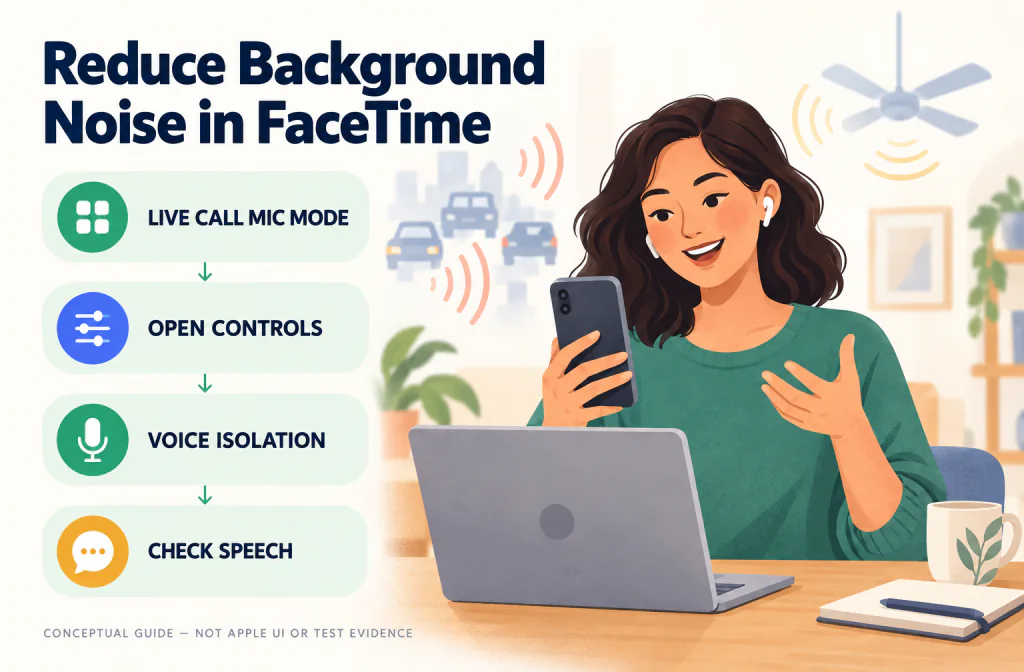
To reduce background noise in FaceTime on a supported iPhone or iPad, join the call, open Control Center, tap FaceTime Controls, then choose Voice Isolation under Audio & Video. On a supported Mac during a video call, click the Video control in the menu bar, open Mic Mode, and select Voice Isolation; during an audio call, use the menu-bar Audio control. Repeat the same sentence with Standard and Voice Isolation, then ask the other person whether the noise became less distracting without losing words.
Voice Isolation changes your outgoing microphone sound during the live call. It does not clean the other participant's microphone, record the conversation, create an export, or repair audio that was never captured. Use the microphone noise remover only for a separate saved recording that you already own and have permission to process.
Confirm that your device supports the mic mode
Apple's current iPhone and iPad Mic Mode guidance says Voice Isolation and Wide Spectrum require iOS 15 or later for FaceTime audio or video calls. It lists iPhone XR, iPhone XS models and later, iPad 8th generation and later, all 11-inch iPad Pro models, iPad Pro 12.9-inch 3rd generation and later, iPad Air 3rd generation and later, and iPad mini 5th generation and later. Apple's current list also includes the 13-inch iPad Pro with M4.
Automatic Mic Mode has a different software boundary: Apple says it requires iOS 18 or later. Do not treat the presence of Automatic as a requirement for Voice Isolation. An older supported device can expose Voice Isolation without exposing every newer option.
Apple's FaceTime audio guide for Mac currently lists Voice Isolation and Wide Spectrum for Mac models from 2018 and later. Menu labels can vary with the macOS version and whether the call is audio-only or video, so update the device and follow the current call control rather than relying on an old screenshot.
If the control is missing, record the exact device model, operating-system version, call type, and whether the call is active. Solve support and update questions before concluding that noise reduction failed.
Turn on Voice Isolation on iPhone or iPad
Use this path while the FaceTime call is active:
- Join or start the FaceTime audio or video call.
- Swipe down from the top-right corner to open Control Center.
- Tap FaceTime Controls at the top.
- Under Audio & Video, select Voice Isolation.
- Return to the call and speak from the position you will actually use.
Apple's general support page labels the control as [App] Controls because the same Mic Mode system can appear in other supported apps. In FaceTime, the current iPhone FaceTime guide identifies the app control as FaceTime. The setting affects only the app you are using, and Apple says the selected mode persists for that app until you choose another mode.
Do not change the microphone, input gain, headset, physical position, and Mic Mode at the same time. One change per check makes the result easier to interpret. If you move the phone closer while turning on Voice Isolation, the listener cannot tell which change helped.
Turn on Voice Isolation on Mac
For a current FaceTime video call on a supported Mac:
- Join the video call.
- Click the Video button in the menu bar.
- Open the disclosure control beside Mic Mode.
- Select Voice Isolation.
- Return to the same sentence and ask the listener about speech and noise separately.
For a FaceTime audio call, Apple's current Mac guide places Voice Isolation under the Audio button in the menu bar. In older macOS releases, the control may appear through Control Center instead. If the path does not match, confirm the selected macOS version in Apple's guide rather than clicking an unrelated camera, speaker, or input setting.
The Mac input-volume control is separate from Mic Mode. Raising input volume can make both the voice and the room louder, while selecting Voice Isolation changes how the system processes the input. Keep the input device and level stable during the comparison.
Understand Standard, Voice Isolation, Wide Spectrum, and Automatic
The modes are different choices, not strength levels on one noise-removal slider.
| Mic Mode | What Apple documents | Useful first situation | Main caution |
|---|---|---|---|
| Standard | Uses standard voice processing | Quiet room or when Voice Isolation changes speech | Background ambience may remain |
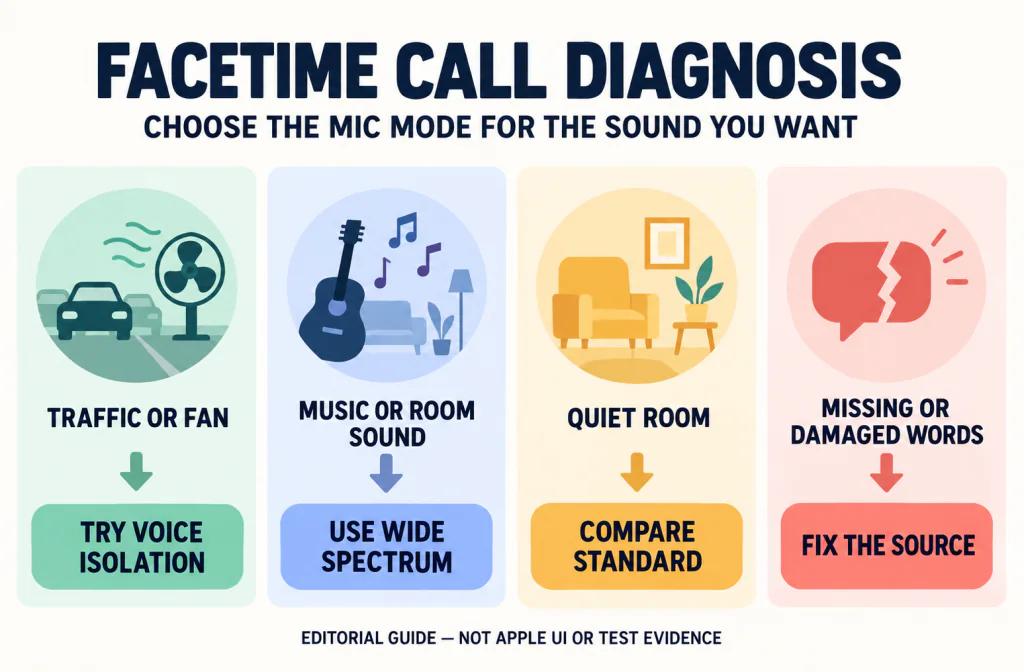
| Voice Isolation | Prioritizes your voice and blocks ambient noise | Traffic, fan, or room noise distracts the listener | Wanted sound or speech detail may change |
| Wide Spectrum | Leaves ambient noises unfiltered | Music, a group, nature, or room sound should be heard | It is not the noise-reduction choice |
| Automatic | Chooses a mode based on the call or recording context | Supported iPhone or iPad on iOS 18 or later | Automatic selection is not proof of the best result for one call |
Use Voice Isolation when the listener identifies background noise from your side. Use Wide Spectrum when the surrounding sound is intentional. Compare Standard when the room is already quiet or when a speech-focused mode makes the voice less complete.
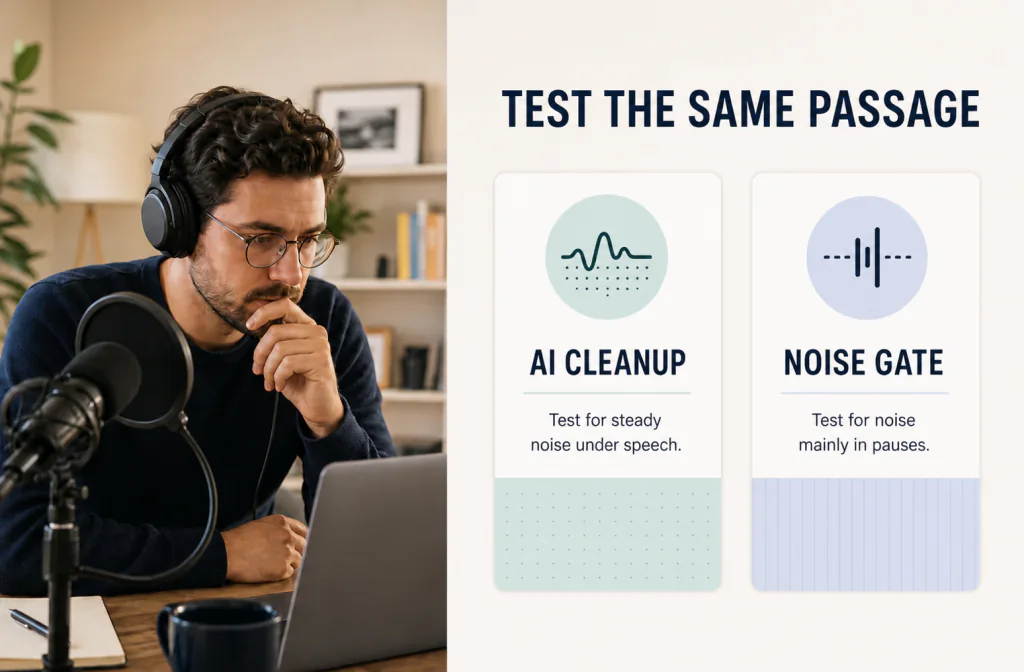
This is also why live call suppression and a level-based gate should not be treated as interchangeable. The noise reduction versus noise gate guide explains how a gate reacts to signal level, while a speech-focused mode makes a broader content decision.
Run a fair live-call check
A setting name cannot prove that the call improved. Use one trusted listener and test the conditions that actually matter.
- Keep the same iPhone, iPad, or Mac, microphone, connection, and room.
- Tell the other person that you are changing one microphone setting.
- In Standard mode, say one ordinary sentence with a quieter phrase and clear consonants.
- Let the normal background sound occur while you speak; do not create an unsafe or disruptive test.
- Switch to Voice Isolation without changing distance or volume.
- Repeat the same words from the same position.
- Ask whether the named noise is less distracting and whether every word remains complete.
The two questions matter equally. A quieter background fails when names, numbers, word endings, or soft consonants become harder to understand. A small amount of stable room sound can be safer than unstable or incomplete speech.
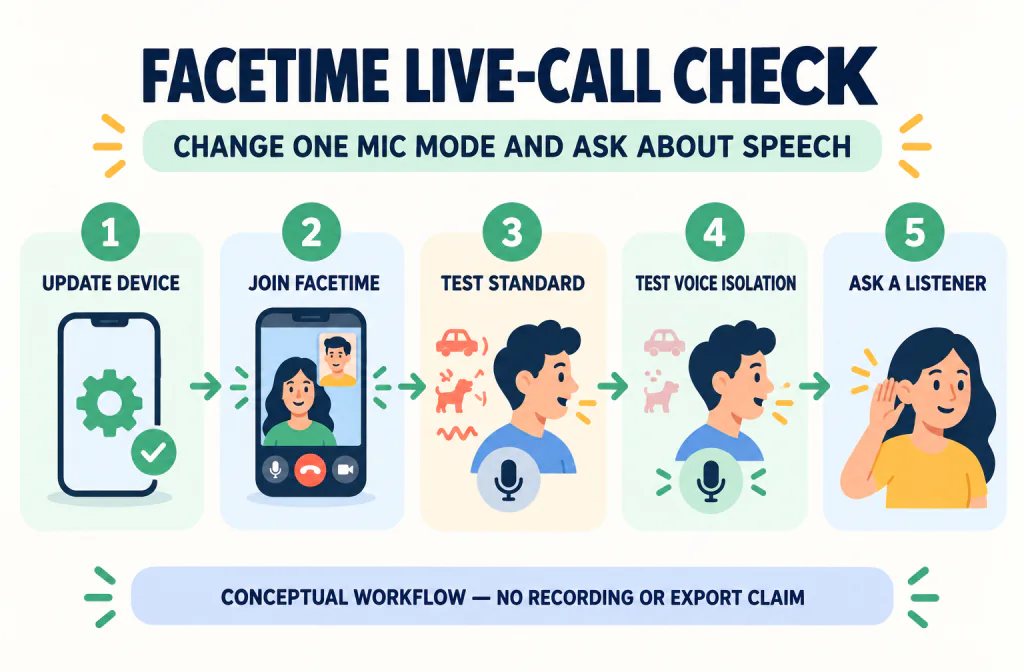
The same listening principle appears in the Before-and-After review guide, but a FaceTime check remains a live, consented conversation. It is not a published audio test or a saved-file comparison.
Troubleshoot the result without guessing
| What happens | Check first | Safer next action |
|---|---|---|
| Mic Mode or Voice Isolation is missing | Supported model, current OS, and an active FaceTime call | Update the device and recheck Apple's current support boundary |
| The wrong app name appears in Control Center | Which app is currently using the microphone | Return to the FaceTime call, then reopen Control Center |
| Music or room sound disappears | Whether that sound is intentional | Compare Wide Spectrum or Standard |
| Speech becomes thin, unstable, or incomplete | Same sentence in Standard mode | Keep Standard and reduce the source noise physically |
| The other participant is noisy | Which caller's microphone produces the sound | Ask that participant to check their own environment and Mic Mode |
| You hear echo or feedback | Speaker volume, microphone distance, and multiple open devices | Use headphones, lower speaker volume, or move the microphone |
| The call breaks up | Network stability and device load | Stabilize the connection before judging audio processing |
Your Mic Mode acts on your device's input; it cannot change sound coming from another caller. That conclusion follows from Apple describing the option as a microphone setting for your active app, not as a control over incoming participants.
Do not use Voice Isolation as a cure for network dropouts, clipped input, a covered microphone, or severe echo. A processing mode cannot recreate packets that never arrived or words the microphone never captured.
Reduce the noise at its source first
Move away from traffic, fans, open windows, hard kitchen surfaces, and other strong sources when practical. Put the microphone closer to the speaker without blocking it, and keep the device stable. A headset can reduce the distance between mouth and microphone, but its own cable, wireless connection, or rubbing noise can introduce a different problem.
Turn off an unnecessary fan only when it is safe. Do not compromise ventilation, equipment cooling, traffic awareness, or personal safety for a cleaner call. When the sound is intermittent, pause briefly rather than expecting a live filter to make a door slam or nearby voice disappear perfectly.
If keyboard noise is the problem, move the microphone away from the keyboard and avoid coupling a laptop or stand to the same vibrating desk surface. If wind reaches the microphone, change position or use a suitable wind barrier instead of increasing processing.
Know the recording and saved-file boundary
Apple's cited Mic Mode documentation explains live application input. It does not establish a FaceTime recording, export, or downloaded audio workflow. This guide therefore does not instruct you to record a call, extract FaceTime audio, or represent a live Mic Mode comparison as a saved Before-and-After result.
Recording laws, platform rules, organizational policies, and consent requirements vary. Voice Isolation does not create permission to capture another person. Keep the live-call decision separate from any later media-production decision.
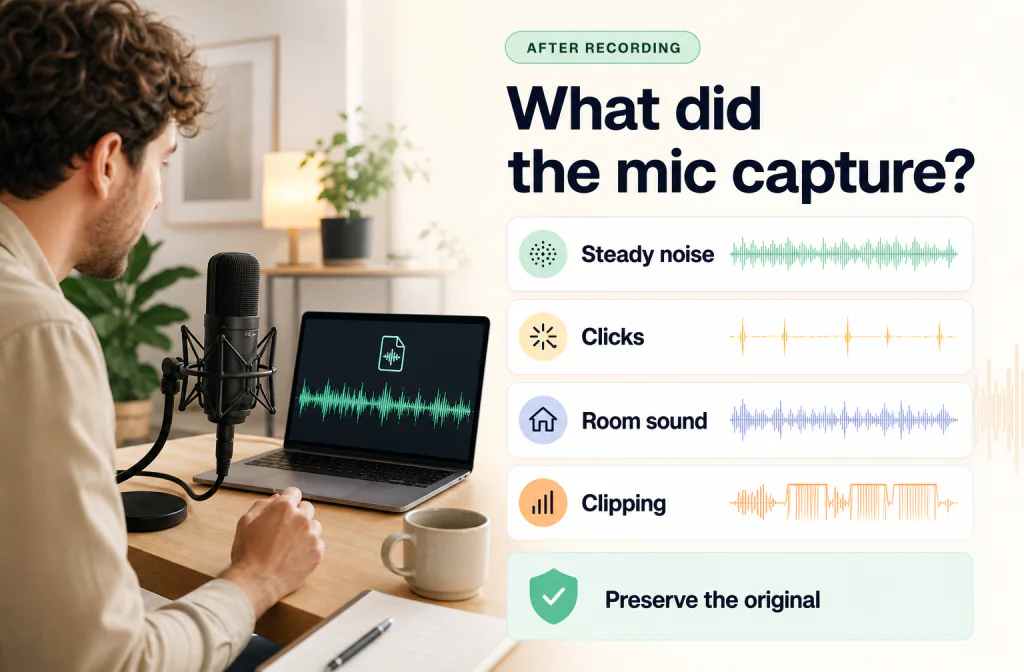
If you independently created and own a microphone recording outside FaceTime, first preserve it with the recording-preparation checklist. Diagnose the saved source with the post-capture microphone workflow instead of assuming the live-call setting transferred into the file.
Only for that separate, authorized saved file should you consider the microphone noise remover. It is an upload, preview, compare, and download workflow after capture. It cannot run inside FaceTime or change a live microphone.
When the saved source is WAV, the WAV cleanup guide explains how to preserve the original and verify the downloaded file. When you need a broad starting point for another owned recording, use the general recorded-file workflow.
Decide when Voice Isolation is the wrong choice
Leave Voice Isolation off when the listener cannot identify a meaningful background problem, when Standard sounds clearer, or when the call intentionally includes music and room sound. Use Wide Spectrum only when the surrounding sound is wanted and the listener needs to hear it.
Return to Standard and improve the source when:
- soft words or consonants disappear;
- the speaker sounds unstable or unnatural;
- the microphone is clipping or physically obstructed;
- echo comes from loud speakers near the microphone;
- connectivity, not room noise, is causing missing audio;
- several people need to be heard from around one device.
For a different live platform, follow that platform's own current controls. The Discord Krisp guide covers an on-device live-call comparison and keeps it separate from post-recording cleanup.
Common FaceTime situations
Call from a room with a fan
Test Standard and Voice Isolation with the fan running at its normal safe setting. Ask about words spoken while the fan is audible, not only a pause. Keep the mode only if speech remains complete.
Family call with several people in the room
Voice Isolation may prioritize the person closest to the device and reduce other wanted voices. Compare Standard or Wide Spectrum when the room itself is part of the conversation, and place the device where the intended speakers can be heard.
Music lesson or instrument demonstration
Do not assume a voice-focused mode will preserve an instrument. Wide Spectrum or Standard is a more relevant first comparison because the non-speech sound is intentional. Ask the listener about both the instructor's words and the instrument.
Outdoor FaceTime call
Move away from direct wind and traffic before changing processing. Wind hitting the microphone can be much more severe than stable distant ambience. Maintain awareness of the surroundings and do not choose an unsafe position for sound quality.
Work call with names and numbers
Prioritize intelligibility. Repeat a name, date, and short number in both modes, then ask the listener to repeat them back. A quieter call is not successful if critical information becomes harder to recognize.
Frequently asked questions
Does FaceTime have background noise removal?
On supported Apple devices, Voice Isolation is the Mic Mode Apple documents for prioritizing your voice and blocking ambient noise during a FaceTime call. Availability depends on the device and operating system.
Where is Voice Isolation on iPhone?
While the FaceTime call is active, open Control Center, tap FaceTime Controls, and choose Voice Isolation under Audio & Video. If it is missing, confirm the device and OS against Apple's current support page.
Can Voice Isolation remove the other person's background noise?
No. You control your own microphone input. The other participant must address their environment or supported microphone controls on their device.
Should I use Voice Isolation for music?
Usually start by comparing Wide Spectrum or Standard because the music is wanted sound. A voice-focused mode can make the surrounding audio less audible.
Does Voice Isolation record or export the call?
No recording or export behavior is established by Apple's cited Mic Mode instructions. This article covers live input processing only.
Can Noise Cleaner work inside FaceTime?
No. Noise Cleaner processes an eligible saved file after capture. It is not a FaceTime extension, live call filter, or control over another participant's microphone.
Sources and evidence notes
- Apple Support: Use Voice Isolation, Wide Spectrum, or Automatic Mic Mode on iPhone and iPad documents current software and device requirements, the Control Center path, mode descriptions, app scope, and persistence.
- iPhone User Guide: Change the FaceTime audio settings documents the FaceTime-specific Control Center path and current mode descriptions.
- FaceTime User Guide: Change audio options for FaceTime calls on Mac documents the current menu-bar paths and the 2018-or-later Mac boundary for Voice Isolation and Wide Spectrum.
These official pages were rechecked on September 12, 2026. They support the labels, paths, device boundaries, and mode descriptions in this guide. They do not prove an outcome for a particular caller, microphone, room, connection, or account. No account-specific Apple interface capture, rights-cleared call recording, saved FaceTime export, or technical-review result is presented. The three images are conceptual editorial media, not Apple UI or Before-and-After evidence.
Make the decision
Use Voice Isolation when a listener can identify distracting ambient noise from your microphone and a same-sentence comparison preserves clear speech. Use Standard when the room is quiet or speech sounds more complete. Use Wide Spectrum when the surrounding sound is intentional.
Fix strong noise physically when practical, change one control at a time, and never treat a live Mic Mode as proof that a saved recording was created or cleaned. If you later have an independently owned file, keep that work separate and use the microphone noise remover only after confirming permission and preserving the source.