AI Noise Reduction vs a Noise Gate: Which Fits a Recorded File?
Compare AI noise reduction and a noise gate by where the noise appears, how each affects speech, and when another repair path is safer.

Quick Answer
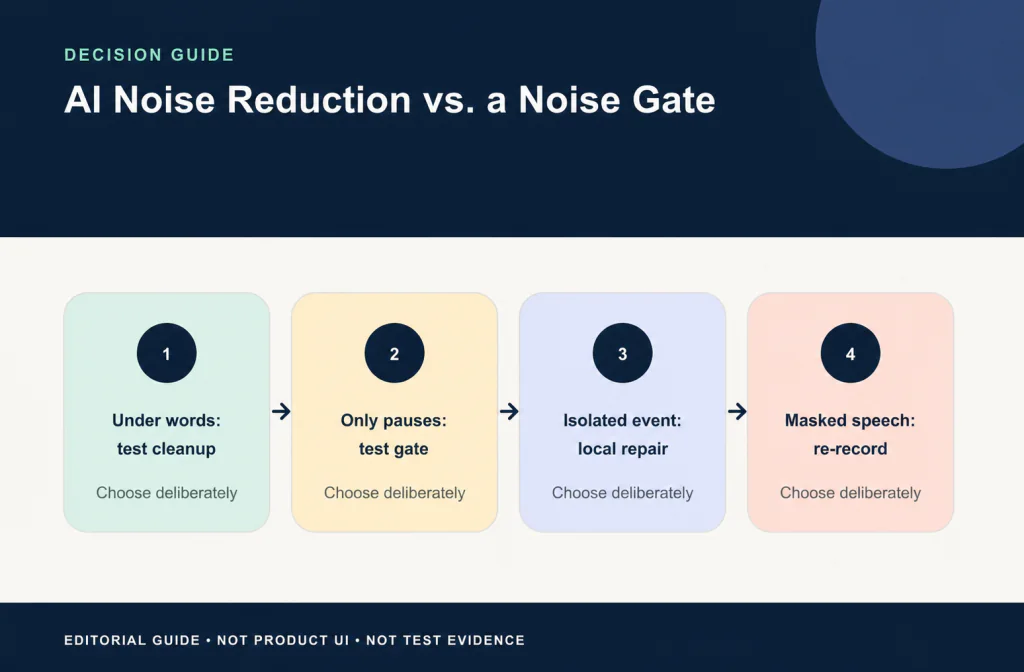
Choose a noise gate or gentle expander as the first test when unwanted sound is mainly noticeable between spoken phrases and remains below a predictable level. Test AI noise reduction when steady noise continues underneath speech in an already recorded file. A gate turns the signal down below a threshold and normally opens again for speech, so overlapping noise can pass with the voice. Saved-file cleanup can address sound under words, but broader processing can also change speech detail.
The Noise Cleaner audio cleaner is a post-recording upload, preview, compare, and download workflow. It is not a live microphone gate. Neither method can guarantee recovery of words masked by loud noise, and either method can sound unnatural when pushed too far.
Decision rule: Test the same passage at a comparable listening level. Choose the version that makes the noise less distracting without losing words, changing the speaker unacceptably, or creating pumping and abrupt silence.
The Practical Difference
A noise gate is a level decision. When the signal falls below its threshold, the gate attenuates it; when the signal rises above that threshold, the gate opens. Attack, hold, and decay or release determine how quickly the transition happens. This can make pauses quieter, but the gate does not independently identify “voice” and “noise.”
AI noise reduction is a broader processing approach intended to reduce unwanted sound across a recording. It can be a more relevant test when noise continues during words, but speech and noise may overlap in the same time and frequency regions. The useful question is not which technology sounds more advanced. It is which method's risks fit this recording.
Match the Method to What the Listener Hears
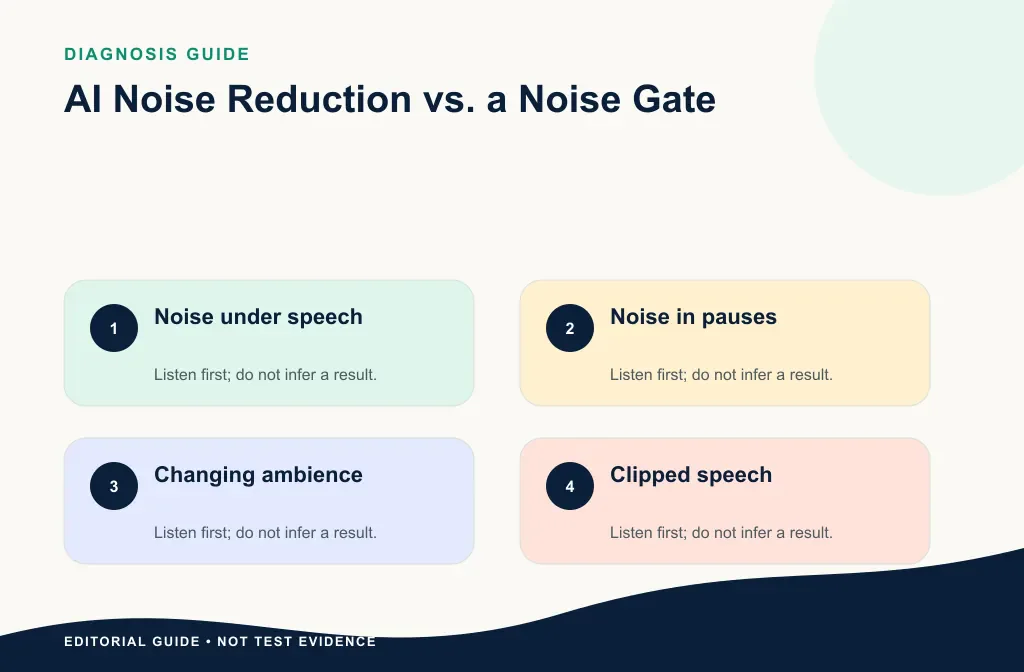
| Recording condition | Better first test | Why | What to watch |
|---|---|---|---|
| Constant fan or room noise under words | Saved-file cleanup | A gate opens for speech, so the noise can remain | Metallic or watery voice |
| Low room tone mainly in pauses | Gate or gentle expander | Below-threshold reduction may solve the audible problem | Chopped breaths and word endings |
| Speaker level changes widely | Careful cleanup or a gentle expander | A hard threshold can miss quiet words | Pumping or uneven ambience |
| A few isolated clicks | Local repair | Neither broad method is precise | Audible edit boundaries |
| Loud noise masks syllables | Alternate take, manual repair, or re-recording | Neither method can guarantee missing detail | False confidence from a quieter output |
| Live microphone in OBS | Native OBS filters | Noise Cleaner works on saved files | Monitoring and filter-order problems |
If the source has several issues at once, begin with the general recorded-file cleanup workflow and identify one listener problem before adding processing.
For a track-level native example, the Ableton Live Gate workflow shows how to test below-threshold reduction on a duplicate track before considering a saved-file handoff.
How a Gate or Expander Behaves
OBS's official Filters Guide describes a noise gate as cutting off background sound while you are not speaking. Its Expander guide explains that an expander reduces signals below a threshold and can use an adjustable ratio for a smoother open and close than a gate. The guide also warns that setting the threshold too high can cut the voice (OBS Filters Guide; OBS Expander Filter).
That makes a gate or expander useful when three conditions are true:
- the speaker remains clearly above the unwanted sound;
- the unwanted sound is mainly a problem between phrases;
- the quietest wanted words also stay safely above the threshold.
The limitation is equally important. When speech opens the gate, background noise occurring at that moment can pass too. A fan under every word or typing that overlaps narration is not automatically removed just because the pauses become quiet.
How Saved-File AI Cleanup Fits
Saved-file cleanup is a reasonable first test when the voice is still understandable and steady unwanted sound remains under speech. You can preserve the original, mark a hard passage, process a copy, and reject the output if it damages the voice.
That broader reach does not guarantee a better result. Strong overlap can cause the processed voice to sound metallic, watery, hollow, or unstable. Residual noise may be safer than missing consonants. Use the actual recording—not the method name—to make the decision.
Build One Fair Comparison
Use a recording you have the right to process and keep one untouched copy. Mark a 20–30 second passage containing:
- a natural pause;
- quiet and louder speech;
- the unwanted sound under words;
- at least one breath or soft word ending.
Create each version from that same source. Do not test a convenient pause with the gate and a difficult sentence with cleanup. Keep the playback device and listening level consistent. If one version is noticeably louder, match it before judging.
For the gate or expander version, record the software, effect type, threshold, ratio or attenuation range, attack, hold, decay or release, and any other active filters. For the AI version, note the saved-file workflow and the date you tested it. These notes let you reproduce a useful result or return to a known-good source.
Use the Before-and-After review method to check the same passage separately for word clarity, residual noise, voice naturalness, ambience movement, and the final downloaded file.
A Careful Noise-Gate or Expander Workflow
- Duplicate the source and select a representative passage.
- Listen to a noise-only section, then the quietest wanted sentence.
- Set the threshold above the unwanted sound but below quiet speech.
- Use only as much attenuation as the pause needs.
- Adjust opening and closing timing so breaths and endings remain natural.
- Bypass the effect frequently and compare at a similar level.
- Review the whole file, because a threshold that works for one speaker may fail for another.
Audacity's Noise Gate manual documents threshold, attack, hold, and decay controls. It recommends testing a short selection and using only the level reduction needed for a transparent result, while warning that stronger settings can cause audible pumping as the gate opens and closes. Those statements describe Audacity's gate rather than a universal preset (Audacity Manual: Noise Gate).
A Careful Saved-File Cleanup Workflow
1. Preserve the source
Duplicate the original and name the working copy. Keep the timestamps for your hard passage and do not overwrite the only recording.
2. Confirm this is a post-recording job
Use saved-file cleanup for an existing audio or video file. If the problem is happening live in OBS, configure and monitor OBS's own filters instead.
If the live conversation is in Discord, follow the Discord Krisp on/off comparison guide and keep it separate from both a saved-file cleanup and a track-level gate.
If the call is in FaceTime, use the FaceTime Voice Isolation comparison instead. It covers Apple's live Mic Modes and keeps them separate from both gates and saved-file processing.
3. Upload the working copy
Open the audio cleaner and use a file accepted by the current upload interface, account byte allowance, and media policy. Preview the hard passage, including noise underneath speech. Do not approve the result from a pause alone.
4. Check speech before quietness
Listen for missing consonants, changed breaths, softened word endings, altered tone, and ambience that moves around the voice. Then decide whether the remaining noise is less distracting.
5. Verify the downloaded file
If the preview passes, download the result and play the beginning, marked passage, and end outside the browser. Keep the source until the final edit or publication has been accepted.
How to Read the Results
A useful gate result
Pauses become less distracting while quiet words, breaths, and endings remain intact. Noise during speech may remain, and that can still be acceptable when the listener's original problem was the gaps.
A useful cleanup result
Noise underneath the marked words becomes less distracting while the speaker remains intelligible and natural enough for the intended use. Some residual noise can remain. A result is not better merely because its pauses are quieter.
A reason to reject either version
- chopped syllables, breaths, or word endings;
- ambience pumping around speech;
- metallic, watery, hollow, or phasey voice tone;
- changed rhythm caused by abrupt silence;
- missing channels, unexpected duration, or playback failure;
- a preference caused mainly by one version being louder.
Return to the untouched source when either method fails. Do not feed a damaged result into more processing and hope that the next stage hides the problem.
When Neither Method Is the Right Choice
Use local repair for a few clicks, impacts, fades, or cable crackles. The keyboard-noise repair guide shows why isolated events and repeated typing need different choices.
Use manual noise-profile reduction when you have a suitable steady-noise section and need explicit control over the reduction. Audacity's official Noise Reduction manual warns that loud or variable noise and speech close to the noise level can prevent a satisfactory result, and that stronger settings can damage wanted audio (Audacity Manual: Noise Reduction).
Use another take or re-recording when a short, important passage is repeatable and the original has clipped or masked words. Quietness cannot substitute for intelligibility that was never captured.
Use specialist restoration for irreplaceable recordings with complex damage. Preserve the source and document every processing stage.
Common Creator Scenarios
Podcast interview
If room tone is mainly audible between stable speakers, try a gentle expander. If fan noise continues underneath the dialogue, compare a saved-file cleanup result. Review every speaker rather than choosing settings from the loudest person.
Screen-recorded tutorial
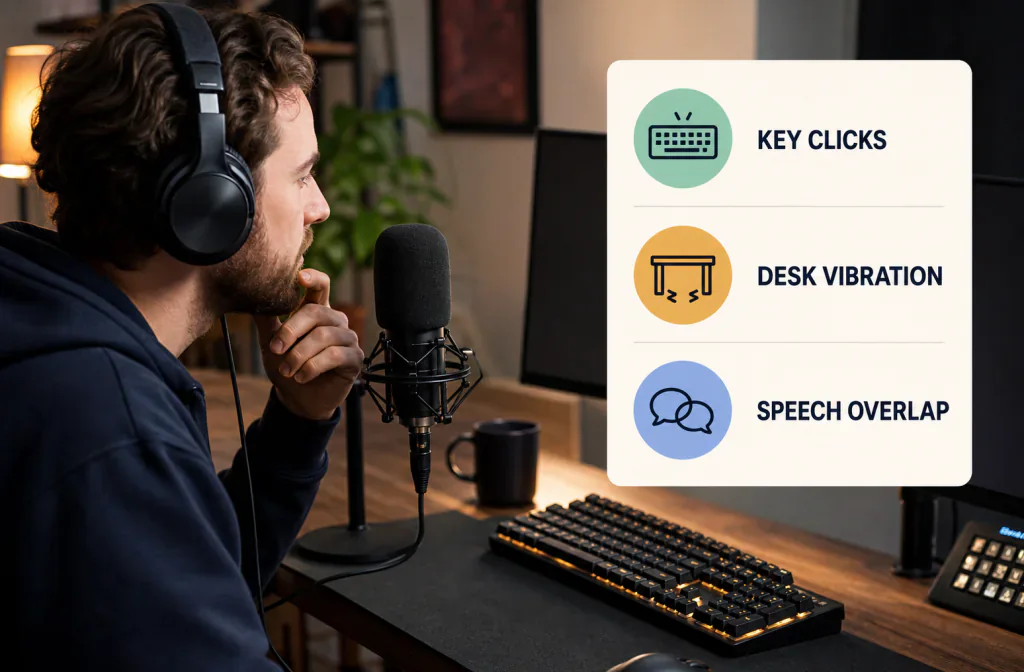
Typing and narration often overlap. A gate may reduce keys in pauses without solving the overlap. Repair a few clicks locally and preserve timeline sync if the audio will return to video.
Course narration
Consistency across lessons matters more than one perfectly silent pause. Test the quietest phrase types across several files and avoid a threshold that cuts a naturally soft instructor.
Live-stream archive
Use OBS filters for the live input. If the saved archive still contains noise, create a separate post-recording copy. Live settings and post-recording cleanup are different workflows with different opportunities to undo a bad result.
Frequently Asked Questions
Does a noise gate remove noise under speech?
Usually not. The gate opens when speech rises above its threshold, so background sound occurring at the same moment can pass too.
Is an expander the same as a gate?
They are related level-based processors. An expander commonly uses a gentler adjustable ratio, while a gate applies stronger attenuation below its threshold. Exact controls and terminology depend on the software.
Can I use a gate and AI cleanup together?
Yes, but test one change at a time and keep intermediate copies. That is the only reliable way to identify which stage helps and which stage harms the voice.
Is AI noise reduction always more natural?
No. Results depend on the source and the overlap between speech and noise. Review the actual file instead of choosing by category.
Which should I try first for fan noise?
If the fan continues under speech in a saved file, test saved-file cleanup. If it is mainly noticeable in gaps and the speaker level is stable, a gentle expander may be sufficient. The fan-noise guide helps distinguish steady wash from airflow, motor whine, and hum first.
Sources and Test Notes
- OBS Filters Guide, accessed August 15, 2026 — distinguishes Noise Gate, Expander, and Noise Suppression roles.
- OBS Expander Filter, accessed August 15, 2026 — documents below-threshold reduction, adjustable ratio, and voice-cutoff risk.
- Audacity Manual: Noise Gate, accessed August 15, 2026 — documents threshold, attack, hold, decay, pumping risk, and a preview-first workflow.
- Audacity Manual: Noise Reduction, accessed August 15, 2026 — documents steady-noise fit and wanted-signal damage risk for Audacity's effect.
These sources establish processor behavior. The article does not present a three-way sample result or claim that one method always wins. All three images are editorial guides, not product interfaces or test evidence.
Make the Decision
Use a gate or expander for predictable low-level noise mainly in pauses. Use Noise Cleaner as a saved-file test when noise remains under speech. Use local repair for isolated events and re-record when essential words are masked. Whichever path you choose, preserve one source, compare the same passage, and keep the version that protects the listener's understanding.