How to Reduce Keyboard Noise in a Recorded Voice Track
Reduce keyboard noise in a recorded voice track with a diagnosis-first workflow, fair A/B review, local repair options, and realistic limits.
Quick Answer
If keyboard noise is already inside a voice recording, first identify whether it appears only in pauses, repeats underneath speech, or completely masks part of a word. Preserve the original, mark one difficult passage, and make the smallest repair that fits the problem. A few isolated clicks are usually better candidates for local editing; low typing mainly between phrases may respond to a gate or expander; repeated typing under speech is a reason to test saved-file cleanup on a copy.
The Noise Cleaner audio cleaner fits the last case: upload a saved working copy, preview the result, and compare the same words before deciding whether to keep it. It is not a live microphone filter, and no cleanup method can guarantee reconstruction of a consonant or syllable that a loud keystroke completely covered.
Keep-or-return rule: Keep the cleaned track only when typing is less distracting, every important word remains intact, and the voice still sounds natural at a comparable listening level.
Diagnose Where the Keyboard Noise Sits
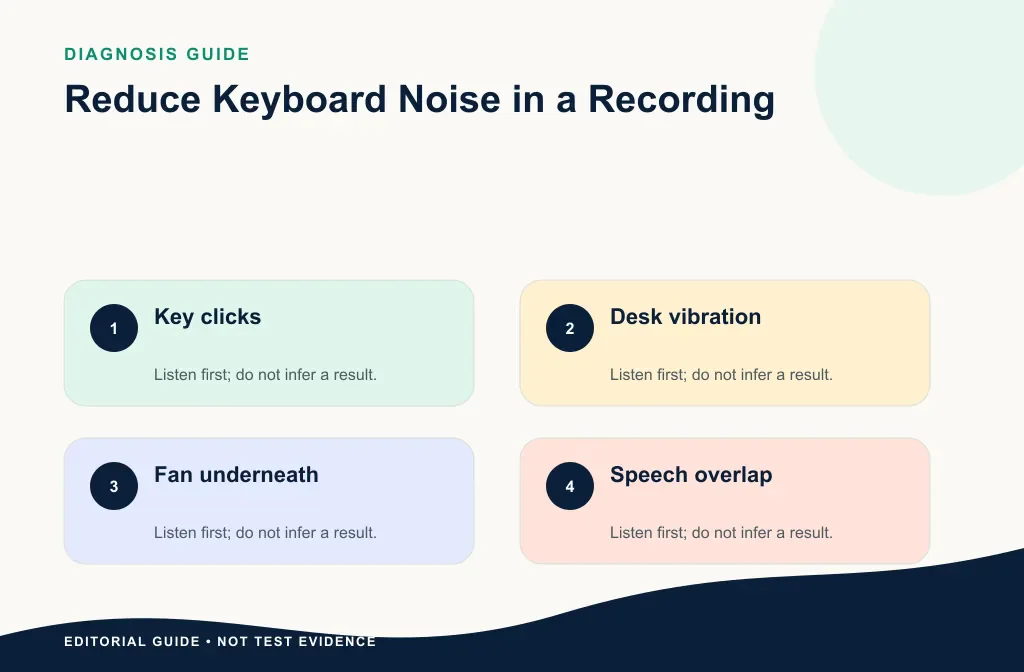
Do not judge the problem from a silent gap alone. Listen to three short places in the untouched recording:
- A pause with typing but no speech.
- A normal sentence with typing underneath it.
- A similar sentence without typing from the same speaker and session.
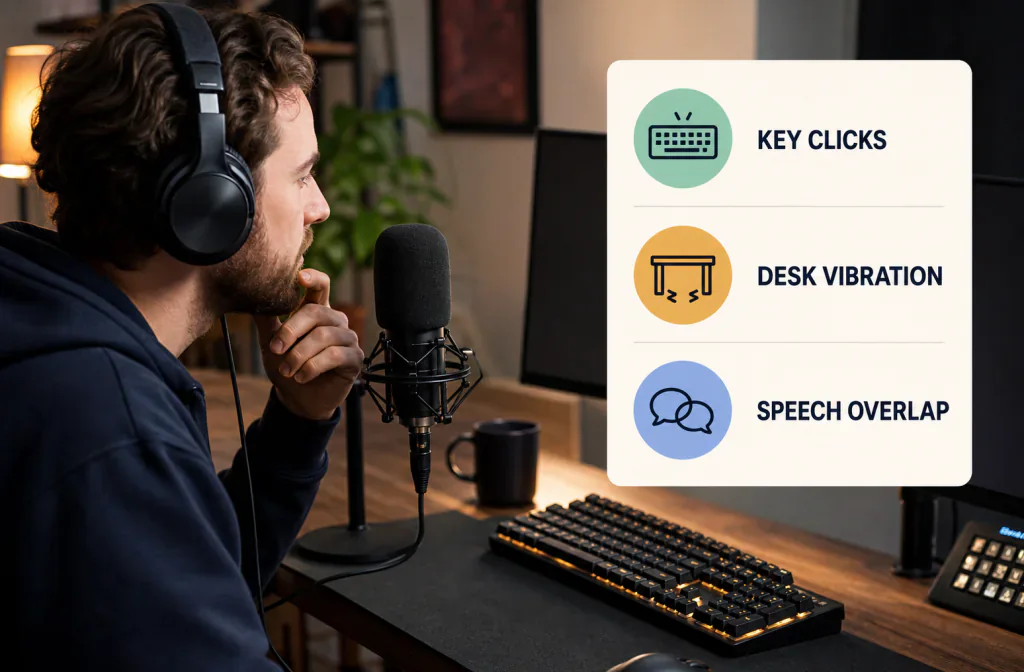
That comparison tells you whether you are dealing with a pause problem, an overlap problem, or a damaged take. It also helps you separate sharp key clicks from dull desk vibration, steady computer-fan wash, and clipping that appears only on loud words.
| What you hear | Likely situation | Sensible first move | Main risk |
|---|---|---|---|
| A few clicks between words | Isolated acoustic events | Reduce or repair only those moments | Making the gap unnaturally silent |
| Light typing throughout a sentence | Repeated transients under speech | Test one broad cleanup pass on a copy | Soft consonants may change |
| Dull knocks with each key | Desk or stand vibration | Local repair now; isolate the mount next time | Removing wanted low voice tone |
| Typing mainly in pauses | Keyboard level sits below speech | Test a gentle expander or gate | Chopped breaths and word endings |
| A click covers a syllable | Destructive overlap | Use another take or re-record | Assuming quietness means recovered speech |
| Typing plus a steady fan | Two different noise patterns | Test one stage at a time | Overprocessing the whole track |
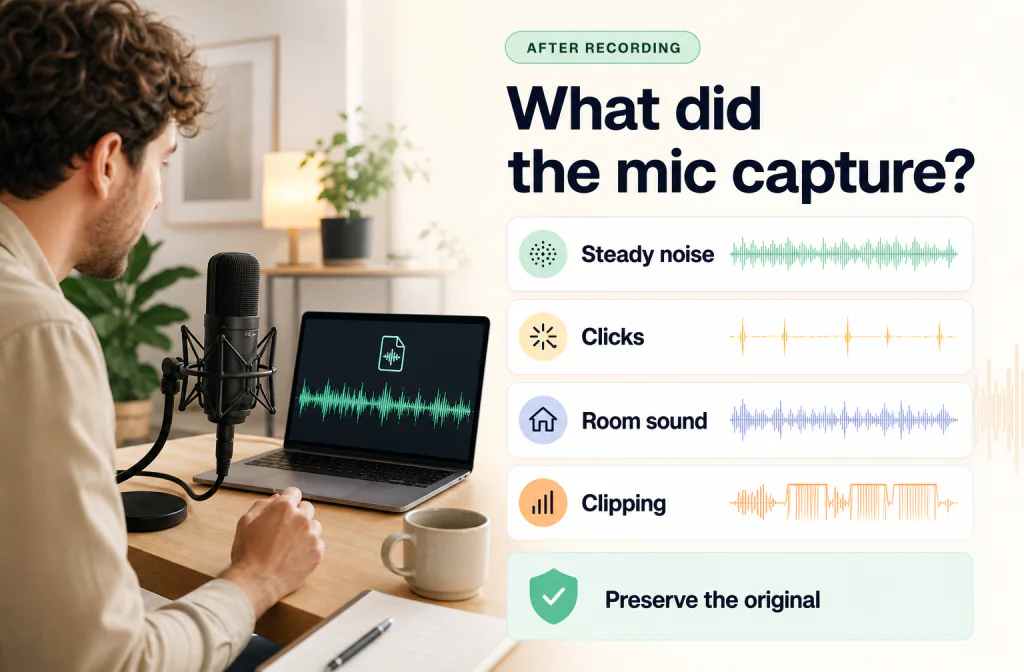
For a wider inspection of fan noise, clicks, room sound, and clipping in the same file, use the post-capture microphone recording workflow.
Why Keyboard Noise Needs More Than One Repair Option
Keyboard sound is usually a series of short events, not a single steady layer. The switch produces an attack, the keycap can add a brighter clack, and bottoming out may send a lower knock through a shared desk. A microphone stand on that desk can capture the impact mechanically as well as through the air.
Those parts do not all respond the same way. Whole-track processing may be excessive for three clicks. A gate can quiet pauses but normally opens again when speech rises above its threshold, allowing keyboard noise during the words to pass too. A local repair can solve one obvious impact while doing nothing for continuous typing under a paragraph.
The goal is not to find one processor for every keyboard. It is to match the repair to the position of the unwanted sound in your recording.
Build a Fair Test Passage
Duplicate the source and choose a 15–30 second window containing a pause, normal speech, quiet speech, and representative typing under words. Record the exact start and end time. A short transcript makes missing consonants easier to catch.
Keep the original and every test at a comparable playback level. A quieter version can feel cleaner even when it has lost speech detail. Use the five-pass Before-and-After checklist when you want a repeatable way to review word clarity, residual noise, voice tone, ambience changes, and the downloaded file.
Ask these questions in order:
- Are the clicks or knocks less distracting while the speaker is talking?
- Are word beginnings, endings, breaths, and soft consonants still complete?
- Does the room tone pump or disappear abruptly around speech?
- Does the voice sound metallic, watery, gated, or distant?
- Is the improvement still useful on an everyday laptop or phone speaker?
If one method fails, return to the untouched source. Do not use the failed output as the input to another cleanup pass.
Step-by-Step Keyboard-Noise Repair Workflow
1. Preserve the original
Keep the source file untouched and make a clearly named working copy. If the recording came from a video editor or multitrack session, preserve that project too. The original is your only reliable way back when an edit damages speech.
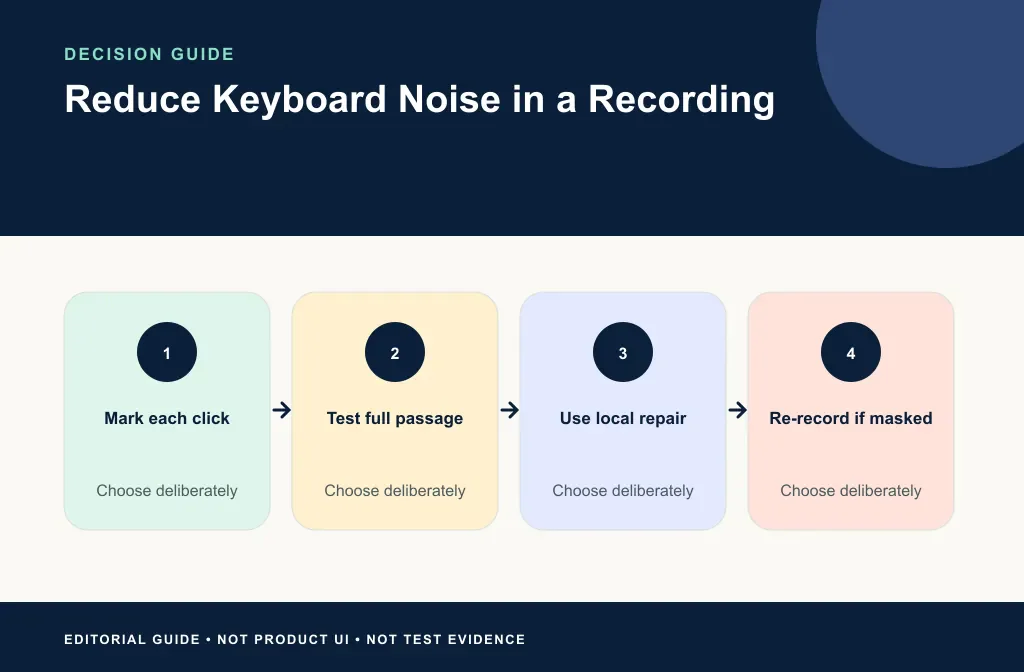
2. Mark easy and hard events
Note which clicks occur in pauses and which overlap words. Include both types in your review. A method that fixes an empty gap but harms the spoken passage has not solved the listener's problem.
3. Repair a few isolated clicks locally
For a small number of events, a waveform editor gives you more control than processing the entire track. Reduce only the event, use very short fades where needed, and preview each edit boundary. Replacing every click with absolute silence can create an equally distracting vacuum.
4. Test a gate or expander for pause-only typing
If the keyboard is mainly audible between phrases and stays below the quietest speech, a gentle expander or gate may be enough. Set the threshold from a representative section, then test the softest sentence and word ending—not only the loudest line.
OBS describes a noise gate as cutting background sound when you are not speaking. Its official Expander guide describes below-threshold reduction with an adjustable ratio and a smoother open and close than a gate, while warning that a threshold set too high can cut the voice. Those descriptions explain why these tools can help in pauses but do not promise removal of typing underneath speech (OBS Filters Guide; OBS Expander Filter).
5. Test saved-file cleanup when typing continues under speech
When repeated typing runs through a spoken passage, upload the working copy to the audio cleaner. Use only a file accepted by the current upload interface and account policy. Preview the marked hard passage and compare the same words; a quiet pause does not prove that overlap improved.
Run one pass for the first comparison. Stacking suppression, gating, compression, and enhancement before you listen makes it harder to identify which stage helped and which stage changed the voice.
6. Verify the whole download
If the preview passes, download the result and open it outside the browser. Check the beginning, the marked passage, several later typing moments, and the end. For a video narration track, return it to the original timeline and verify sync at the beginning, middle, and end.
Choose Cleanup, Local Repair, a Gate, or Re-recording
- Choose saved-file cleanup when repeated typing remains underneath speech and the words are still understandable.
- Choose local repair for a small number of obvious clicks or impacts.
- Choose a gate or expander when the keyboard is mostly noticeable in pauses and the speaker level is stable.
- Choose re-recording or an alternate take when a keystroke masks essential speech or every repair makes the voice worse.
If you are unsure whether the broad method or the level-based method fits, the AI noise reduction versus noise gate guide compares their different failure modes on a saved recording.
Prevent Keyboard Noise Next Time
The next recording is often easier to improve than the damaged one. Test your actual microphone and room before a long session:
- move the microphone closer to your mouth without creating plosives;
- move the keyboard farther from the microphone;
- keep the microphone stand and keyboard off the same resonant surface when practical;
- aim the least-sensitive part of a directional microphone toward the keyboard, following its manual;
- type more lightly during speech or record narration separately;
- monitor one short test in headphones before recording the full session.
Shure's guidance explains that closer microphone placement increases direct sound relative to room sound and that properly aimed directional microphones can reduce pickup from unwanted directions. Treat those principles as setup guidance, not a universal distance or angle, because pickup patterns, rooms, and voices differ (Shure: The IT Professional's Guide to Great Corporate Sound).
Common Problems After a Repair
The typing is quieter, but speech sounds dull
Return to the original. Repair only the most distracting events or choose a less global method instead of processing the damaged result again.
The gate removes word endings
Lower the threshold or use gentler attenuation and slower closing behavior. Retest quiet phrases and breaths. If the voice level changes widely, a hard threshold may be the wrong method.
Desk thumps remain
Treat them as impact or handling noise rather than sharp key clicks. Repair the worst moments locally and isolate the microphone mount from the desk next time.
The result works in headphones but sounds brittle on a phone
Review both devices before keeping it. Your audience's everyday playback matters more than making one listening setup sound exceptionally quiet.
Frequently Asked Questions
Can AI remove every keyboard click under speech?
No. Cleanup may reduce the distraction, but it cannot guarantee recovery of a word part that a loud impact completely masked.
Should I use a noise gate before or after cleanup?
Test one method at a time. If typing mainly sits in pauses, a gate or expander may be enough. If it overlaps speech, compare a saved-file cleanup test first. Add another stage only when the first comparison gives you a specific reason.
Should I remove all room tone between clicks?
Usually not. Abruptly silent gaps can sound unnatural. Aim for continuity and intelligibility, not a visually flat waveform.
Can I fix keyboard noise in a video narration track?
You can repair the saved audio, but preserve the original timeline. After replacing the track, check sync and duration across the complete video.
Sources and Test Notes
- OBS Filters Guide, accessed August 15, 2026 — distinguishes Noise Gate, Expander, and Noise Suppression roles.
- OBS Expander Filter, accessed August 15, 2026 — documents below-threshold reduction, adjustable ratio, and the risk of cutting quiet speech.
- Shure: The IT Professional's Guide to Great Corporate Sound, accessed August 15, 2026 — supports the microphone-distance and directional-pickup prevention guidance.
These official sources explain processor and recording behavior. The images are editorial illustrations, and this article does not present a keyboard-specific Noise Cleaner test result.
Choose the Next Action
Start with the smallest repair that matches the actual problem: local editing for a few clicks, a gentle gate or expander for pause-only typing, or Noise Cleaner for a review-first test when repeated typing runs underneath a saved voice passage. Keep the original and re-record when preserving a masked word matters more than preserving the take.