Remove Background Noise in Ableton Live: A Native Gate Workflow and Careful File Handoff
Use Ableton Live's Gate carefully, export a review copy, compare the same passage, and choose a safer fallback when noise overlaps speech.
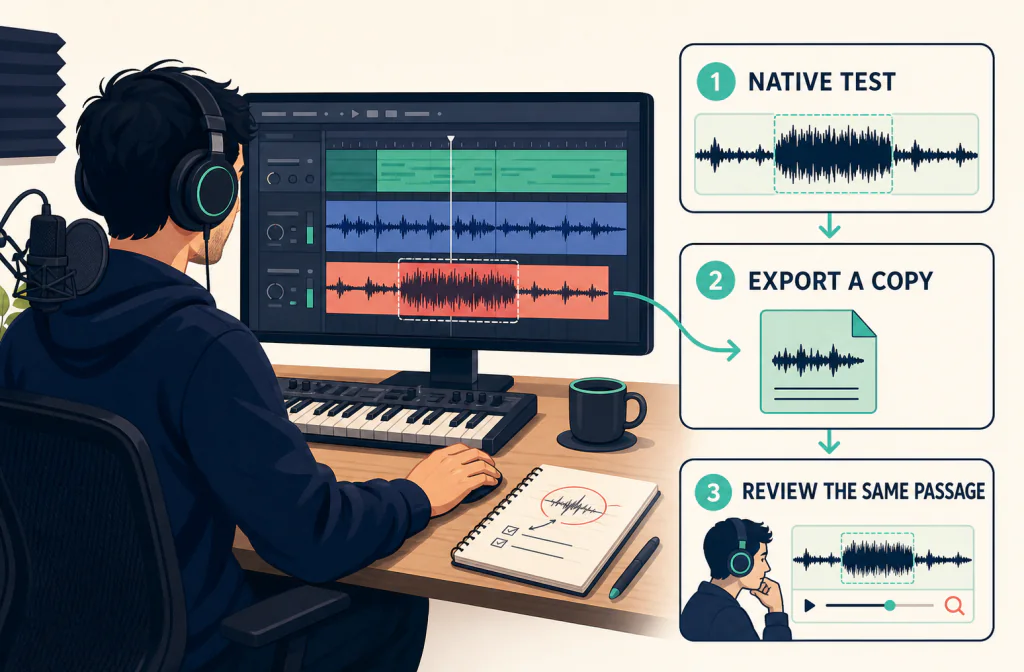
The useful Ableton Live answer is usually to control noise between phrases, not to try to erase every sound from a vocal while it is being spoken. Ableton's Gate can attenuate a signal below a threshold, so it can be a sensible first tool for steady hiss or hum that is most noticeable in pauses. It will not separate a voice from traffic, music, another person, or noise that overlaps the words. Keep an untouched source, work on one short representative passage, and use bypass to compare the same phrase.
If the native pass leaves a saved audio or video file that still needs a separate cleanup review, use a compatible copy with Noise Cleaner's audio-cleaning route. That is a post-recording file handoff, not a live input filter, a replacement for Live's editing tools, or a promise to reconstruct clipped or covered words.
Start with a copy and identify the sound
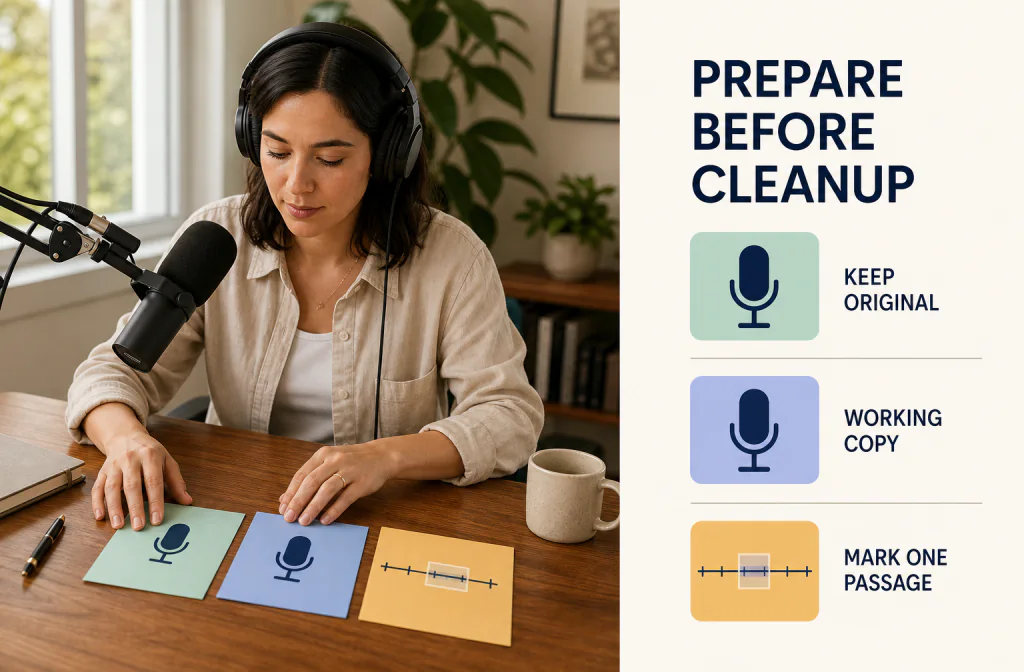
Save the Live Set, then duplicate the relevant audio track or make a new working Set before inserting an effect. If the recording is part of a song, soloing the vocal can make a cleanup decision easier to hear, but listen again in the mix before committing. A gate applied to a whole mix can cut tails, ambience, or quiet instruments that are supposed to remain.
Make a 20-to-30-second loop containing a pause, a quiet word, a normal phrase, and the noisiest moment. Note whether the unwanted sound is a constant bed, a low hum, clicks, a rumble, or another sound under the speaker. The reversible recording-copy guide is useful before any destructive rendering, and the same-passage comparison guide helps avoid judging a louder version as a cleaner one.
Use Gate for pauses, not for overlapping noise
In Live 12, find Gate among the built-in audio effects and confirm that the device is available in your installed edition. Ableton's current Live Audio Effect Reference describes Gate as a threshold-based device that can reduce low-level noise between sounds. That makes it a level-based decision for pauses, not a continuous broadband denoiser and not a promise to separate overlapping sounds.
Do not copy values from another recording. Threshold, Return, Attack, Hold, Release, Floor, and Lookahead need to be judged against the actual words in the review passage. Ableton also notes that editions can have different feature sets, so use the controls that are actually present in your installation.
- Select the audio track that contains the problem. If there are several microphones, work on the affected track rather than the complete mix.
- Add Gate to that track's audio-effect chain. Make one change at a time and keep notes about its position.
- Loop the representative passage and raise the Threshold only until the unwanted bed reduces in the pauses. If soft syllables disappear, lower it again.
- Use a partial Floor rather than treating total silence as the only goal. A hard close can make edits conspicuous when room tone should continue.
- Adjust Hold or Release if the gate chatters at the ends of words. If a very fast Attack creates a click, slow it carefully while checking that consonants still arrive naturally.
- Toggle the device off and on while the same words play. Keep the change only if it removes the named distraction without swallowing beginnings, endings, breaths, or intended decay.
Match the tool to the symptom
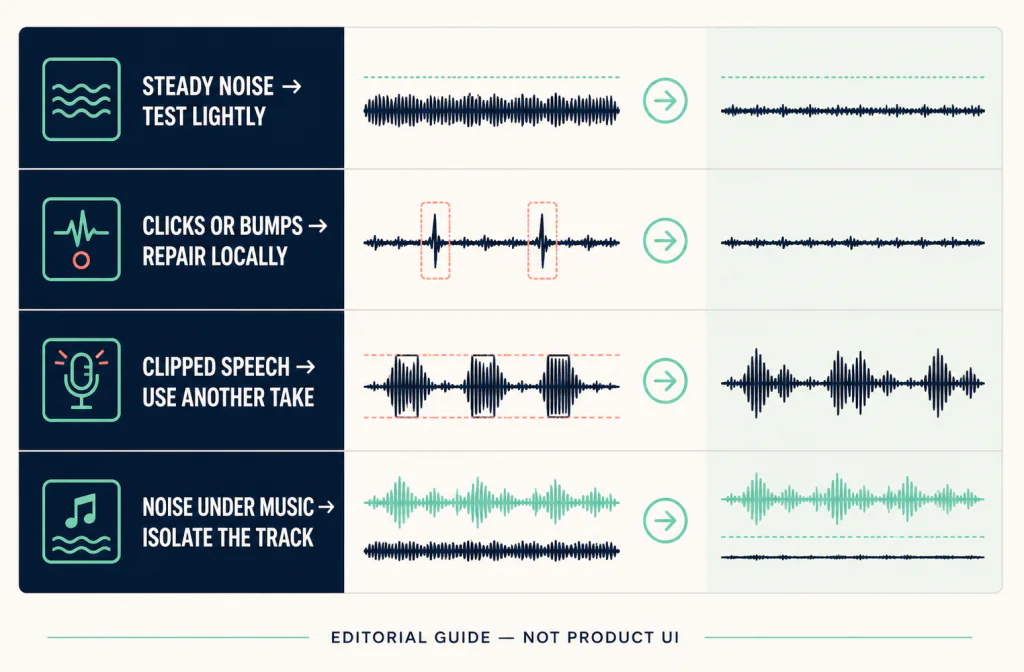
A gate is most useful when the noise sits below the speech level in the gaps. It has a different job from broad noise reduction, a high-pass filter, or local clip repair. The noise-reduction-versus-gate explainer can help make that distinction before effects are stacked.
| What you hear | Native first move | What to watch for |
|---|---|---|
| Hiss or hum mainly in pauses | Gate on a duplicated vocal track | Lost word endings or unnatural room tone |
| Low rumble below the voice | Review a high-pass filter on a copy | A thinner voice or loss of wanted bass |
| Single click, bump, or rustle | Edit the local event or choose another take | Damaging nearby speech with a global fix |
| Noise throughout every spoken word | Do not expect a gate to separate it | Speech and noise may be inseparable in the mix |
| Clipping, crackle, or distorted peaks | Stop and assess the original take | Noise reduction cannot restore missing waveform detail |
Avoid setting a threshold from a silent section alone. A setting that looks tidy during silence can cut a quiet consonant when the speaker begins a sentence. For a recording that must remain editable outside Live, preserving a WAV source gives a useful format-and-copy check before a handoff.
Export a review copy from Live
Keep the project and its source audio intact. When you are ready to assess the native result outside the Set, use File > Export Audio/Video and choose the rendered signal deliberately. Ableton's current Managing Files and Sets manual documents the Export Audio/Video command, the Rendered Track choices, Render Start and Render Length, sample-rate behavior, and available encoding options.
For a spoken track in a larger production, a selected-track render may be easier to evaluate and reimport than a full Main mix. A Main export captures the Main output, while Selected Tracks Only or an individual track option lets you choose a narrower signal. Export under a new name, retain the intended sample rate and channel layout, and record whether the file is a track render or a mix render.
Before moving the review copy elsewhere:
- Play the export in a second player and confirm that it opens, lasts as expected, and contains the intended channel content.
- If the session includes video, check one visual cue near the start, middle, and end. The audio/video sync checklist is designed for that review.
- Do not repeatedly encode a compressed source. The MP4 audio workflow explains why a new encode should be treated as part of the comparison, not ignored.
- Keep the native export separate from any later cleanup result so you can identify which stage changed the sound.
Use a saved-file handoff only after the native review
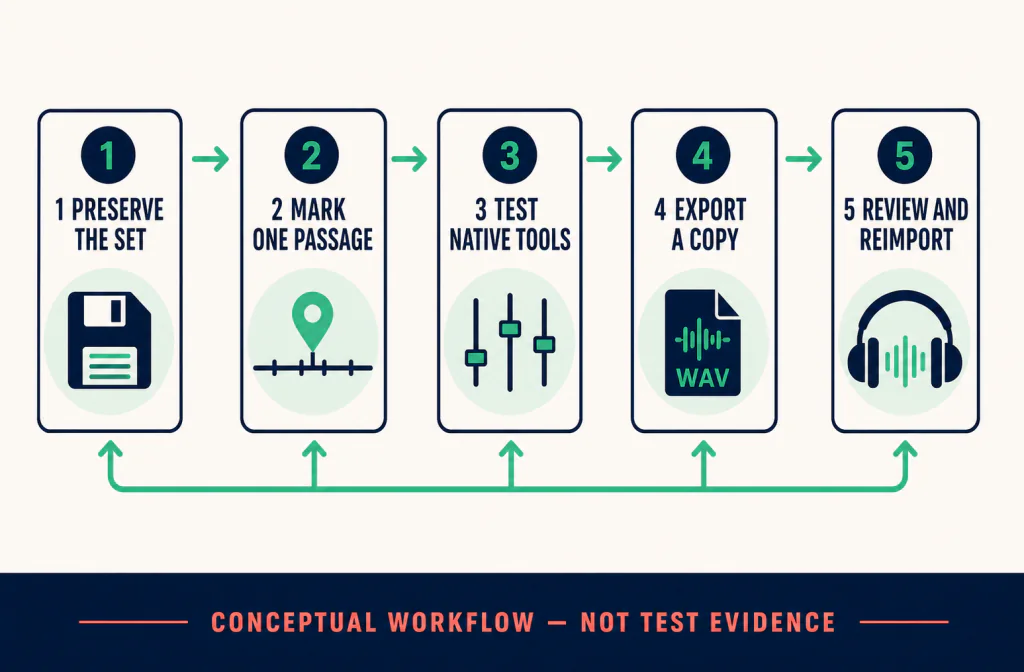
If the Gate pass is not enough, take a compatible exported copy—not the sole original—to Noise Cleaner's audio cleaner. Check the current upload policy before sending a file; filename extensions alone do not establish that a particular file will be accepted. Review the returned file at the same playback level, then reimport it to a duplicate track rather than replacing the source.
After reimport, line up the start exactly and compare a spoken consonant at several points in the timeline. Confirm that the imported file has not changed duration, channels, pitch, or edit alignment. If it does not match, do not compensate by stretching or overwriting the original; return to the exported copy and find the mismatch first. The final decision can remain the native Gate pass, the separate file review, a local repair, or a new recording.
Review the whole take before keeping a version
Use headphones for artifact checks, then a normal speaker or phone for intelligibility. Listen to the transition into each phrase, soft word endings, breaths, musical tails, and the return of room tone. A louder result may initially seem clearer, so match perceived loudness as closely as practical before comparing.
| If this happens | Safer response |
|---|---|
| The voice becomes choppy | Reduce the Threshold, add more Hold or Release, or remove the gate |
| Room tone pumps in and out | Use less attenuation with Floor or use a local edit instead |
| Music fades with the vocal | Remove the process from the mix and work on an isolated track |
| The export differs from Live playback | Inspect the rendered-signal and export choices before processing again |
| Reimport no longer aligns | Preserve the original timing and investigate the file handoff |
Do not process an already damaged output repeatedly. Go back to the earliest clean copy, make one targeted change, and compare again.
Limits that matter more than a quieter waveform
Gate cannot remove a fan, street, or crowd sound while it overlaps a quiet word; it reacts to level. It can also truncate intended reverb, breaths, drum decay, or low-level performance detail. Strong room reflections, clipping, and competing speakers need a different production decision: local editing, another microphone track, subtitles, a new take, or acceptance of a small amount of residue.
Live interface labels and effect availability can change by edition and release. This guide uses Ableton's current Live 12 manuals but does not substitute for checking the installed interface. Work only with media you are entitled to edit or upload, especially when interviews, client material, or private calls are involved.
Frequently asked questions
Can Gate remove background noise during speech?
Not reliably. It is designed around level, so it is most useful where speech pauses and the unwanted bed remains below the threshold. Noise sharing the same moment as a word needs a more cautious evaluation.
Should Gate be first in the effect chain?
There is no universal order. Put it where it solves the stated problem with the fewest side effects, then compare with bypass. Changing several effects at once makes the cause of an artifact hard to trace.
Is an exported file the same as the Live Set?
No. The export is a rendered audio or video file. Keep the Set and source samples so timing, edit decisions, and original material remain available.
When should I use a separate cleanup route?
Only after the native pass has been reviewed and a compatible saved copy is available. Use the audio file handoff as an additional comparison, not as a replacement for source preservation or native Live editing.
Official sources and test notes
- Ableton Live Audio Effect Reference: Gate documents Gate's threshold, Return, Flip, Lookahead, Attack, Hold, Release, Floor, and sidechain behavior, and notes that available effects can differ by Live edition.
- Ableton Managing Files and Sets: Exporting Audio and Video documents the export command, Rendered Track choices, render range, sample-rate behavior, and encoding options.
- Ableton Live Manual links to the current Live 12 reference manual.
These official sources were rechecked on September 7, 2026. They support the native control and export scope described here; they do not prove a result for a particular recording. The three illustrations are conceptual editorial media, not Ableton screenshots, measured waveforms, or Before-and-After evidence.
Decision summary
Use Gate conservatively when the unwanted noise is mainly in pauses. Export a named review copy, verify it outside Live, and reimport only into a duplicate track. If a separate saved-file comparison is appropriate, test Noise Cleaner on a compatible copy. If the recording contains clipped speech, heavy overlap, or an artifact that becomes worse with processing, preserve the original and choose local repair or a new take instead.