How to Clean Audio in an MP4 File: Upload, Review, and Export
Clean audio in an MP4 file with a preserved source, a tested direct-video or audio-export path, matched dialogue review, and sync verification.
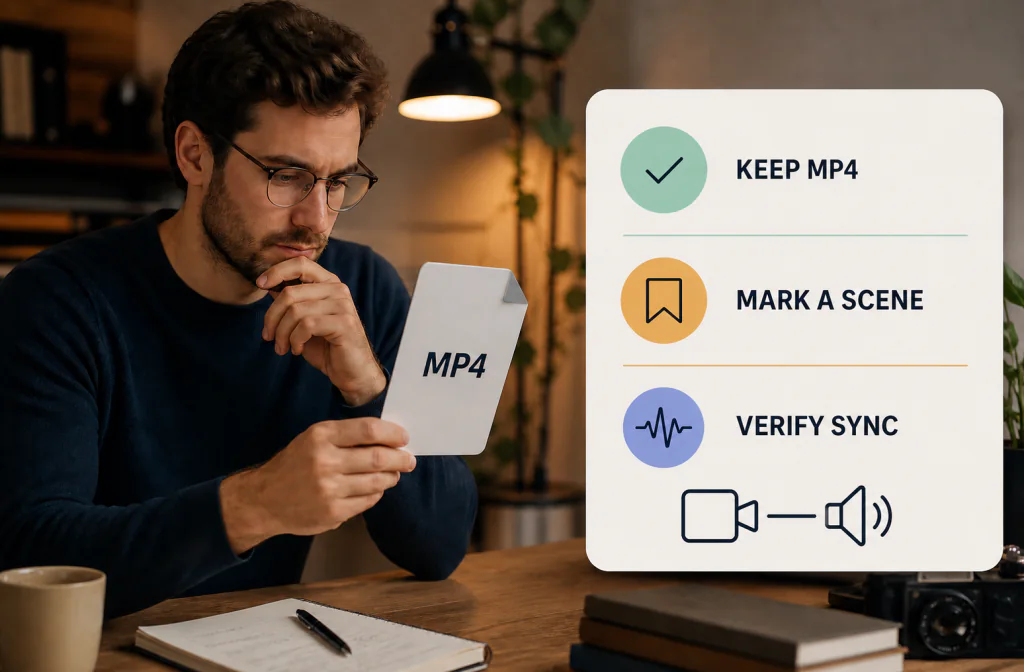
To clean audio in an MP4 safely, preserve the original, identify whether the tested workflow accepts the MP4 directly or needs an audio export, and mark one scene where the noise overlaps speech. After processing, compare the same words and verify video duration, audio duration, container, and sync. Noise Cleaner supports saved-file cleanup at a high level, but direct MP4 preservation must be confirmed in the current build. Cleanup may reduce distracting noise; it cannot reconstruct dialogue hidden by clipping, wind, or louder sounds.
Do not let the .mp4 extension decide the workflow for you. The file is a timed package that may contain different video and audio encodings. The useful question is whether your exact file can travel through the chosen path without losing picture, timing, channels, or speech quality.
Inspect the MP4 before upload
An MP4 can contain different video and audio codecs, frame rates, channel layouts, and metadata. Record what your operating system or editor shows: duration, frame rate, audio channels, resolution, and the app or device that created the file. You do not need to become a codec specialist; you need enough information to confirm the output still fits your workflow.
Preserve the original and follow the recording preparation checklist before making conversions.
Listen before you inspect settings
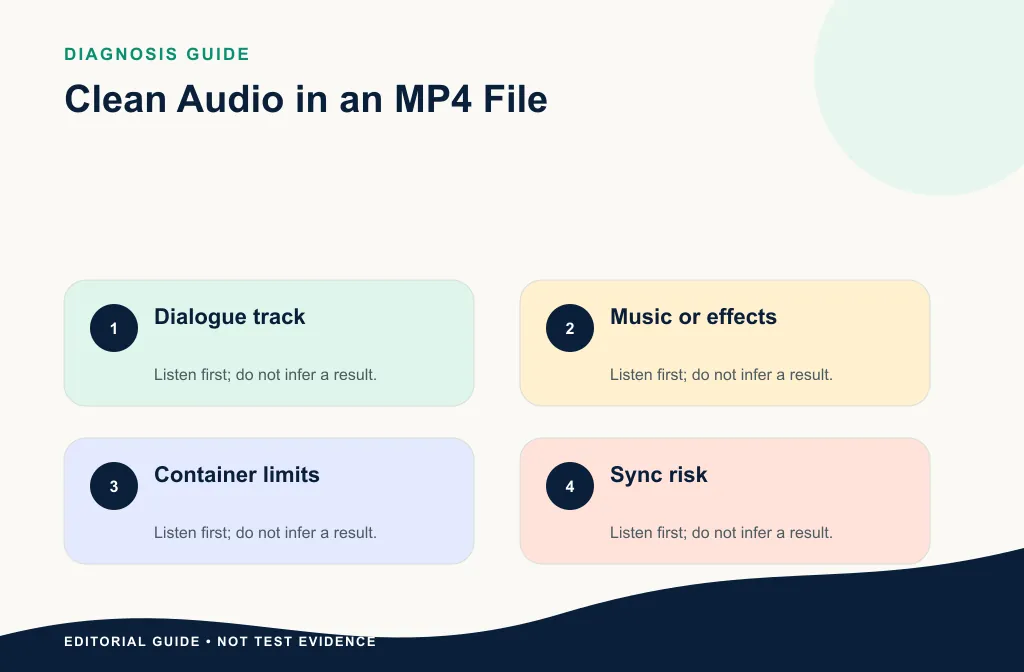
Play the file outside your editor and note whether the problem is steady fan noise, room wash, intermittent clicks, wind, clipping, or another speaker. Check whether music and effects share the same audio track. If the problem occurs only in one scene, a local repair may be safer than a whole-file pass.
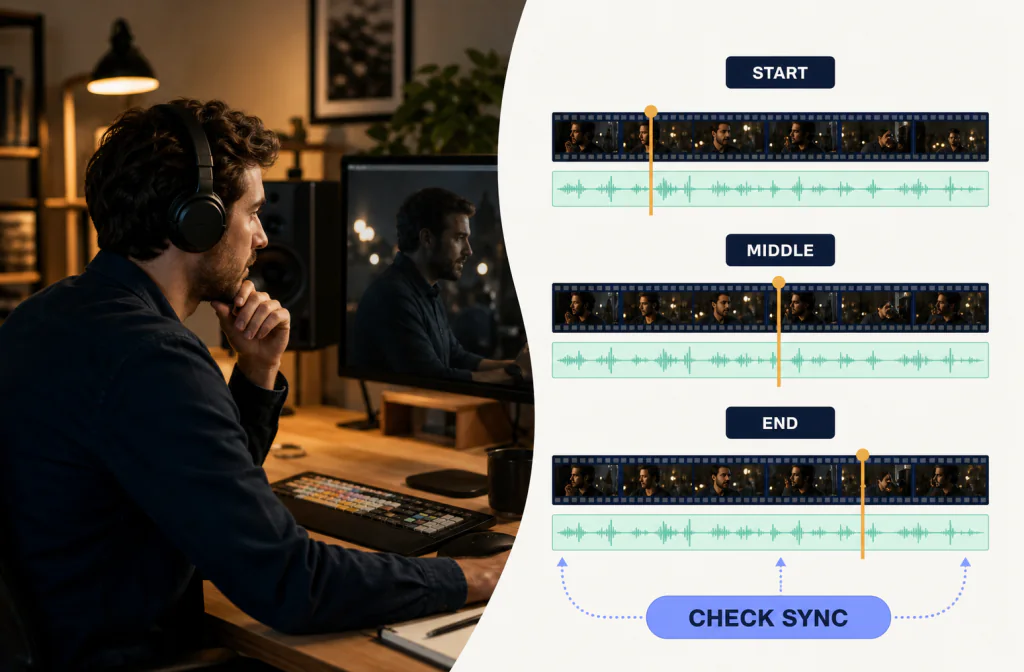
Choose a visible sync cue near the start, middle, and end. A clap, closed-lip consonant, keyboard action, or hard cut with sound works better than a long vowel. Record those timeline positions before the handoff.
Choose the tested route
Route A: direct MP4 processing
Use this route only after the current product accepts the MP4, keeps the video, returns a documented output container, and passes sync checks. Record the actual behavior rather than assuming it from a file picker.
Route B: export, clean, and reimport audio
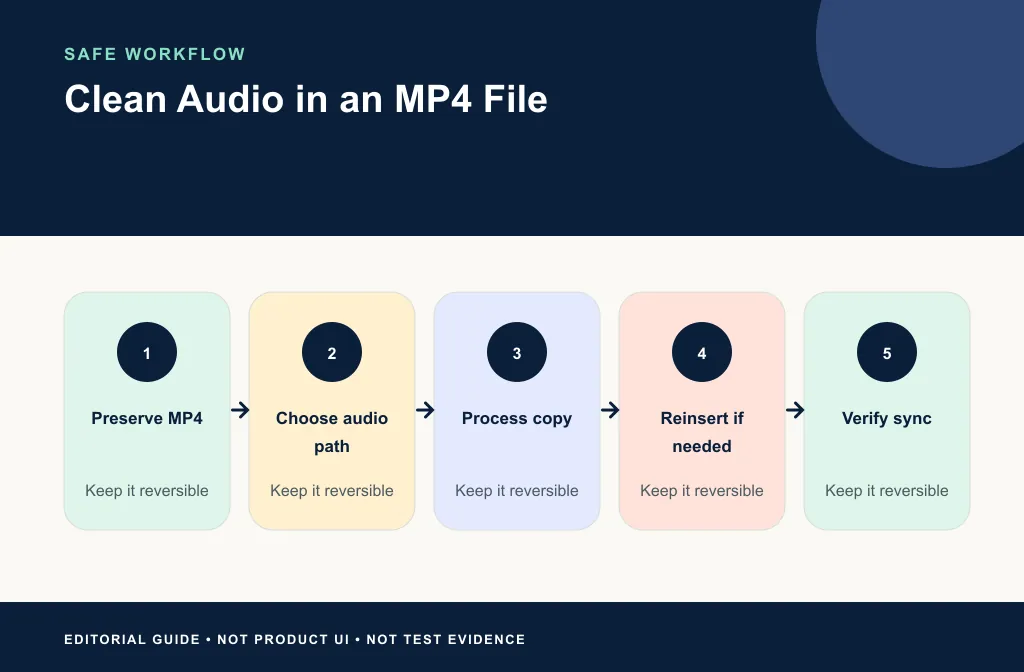
Duplicate the video project, export a dialogue track from a known start time, clean that file, then reimport it on a new track. Keep the original muted until the replacement passes review. The video/audio sync guide explains the beginning–middle–end check.
For a Camtasia timeline, follow the Camtasia native Noise Removal and short-export workflow before deciding whether a separate audio handoff is necessary.
Canva users can use the Enhance Voice and MP4 export-review workflow before choosing a direct-video or audio handoff.
Filmora users can follow the Audio Denoise and local-export check before deciding whether an MP4 or isolated-audio handoff is necessary.
| Decision | Prefer direct MP4 only when | Prefer audio handoff when |
|---|---|---|
| Product path | The exact file is accepted and returned as usable video | Audio is the verified supported input |
| Editorial control | The full mix can receive one treatment | Dialogue can be isolated from music or effects |
| Timing | Returned duration and sync have been checked | Your editor can preserve a known start point |
| Rollback | The untouched MP4 remains available | The original timeline track remains muted |
Neither branch is automatically safer. Direct processing can avoid reintegration but must preserve the container. Audio handoff gives you control but creates a sync and channel-layout check.
Mark a representative scene
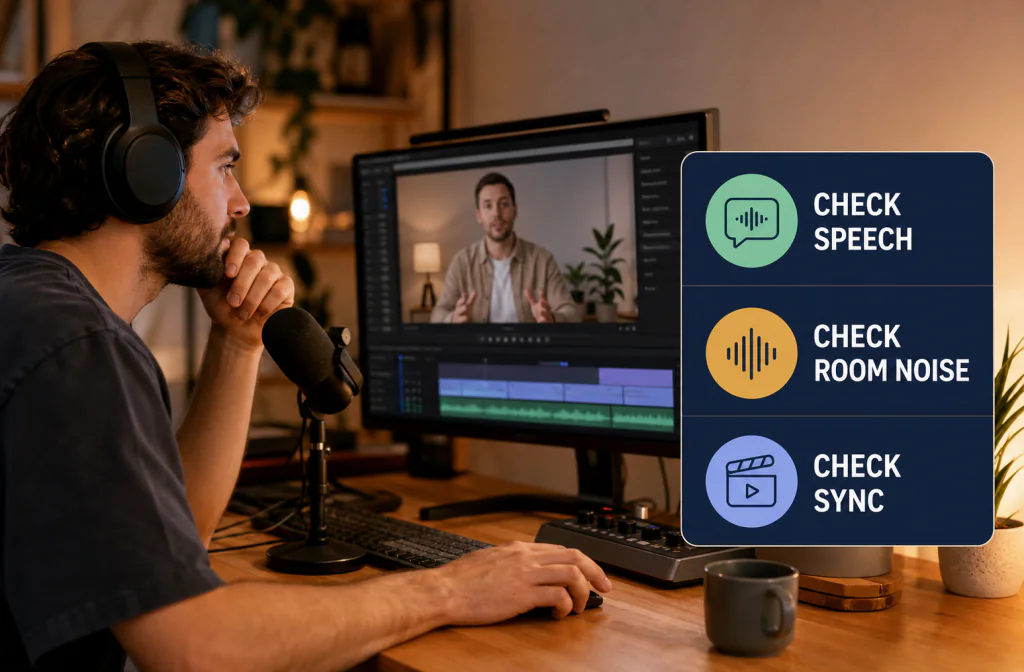
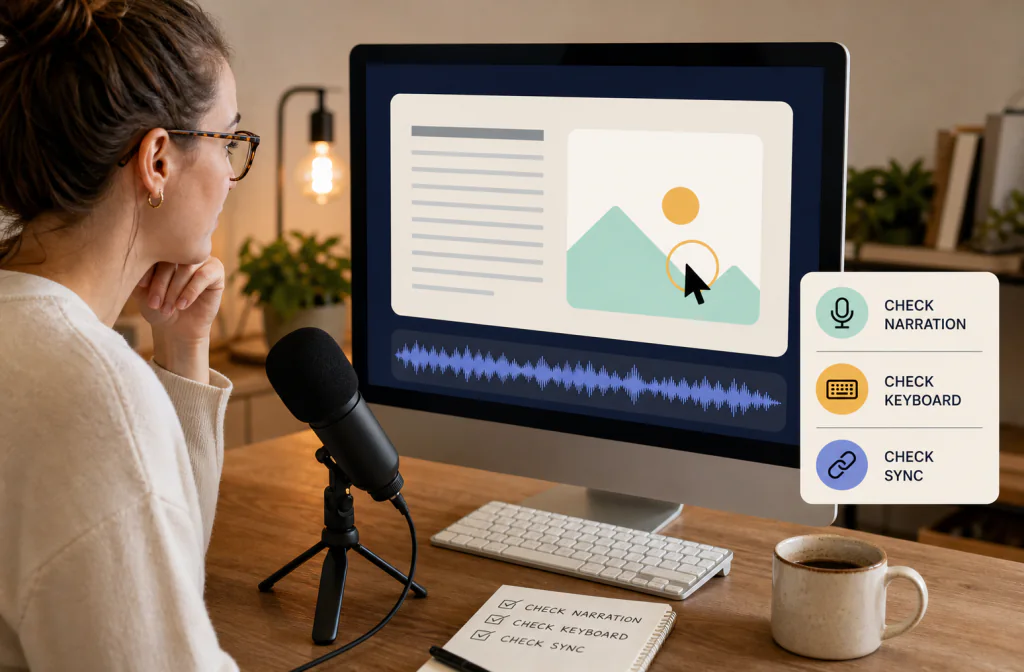
Choose a 15–30 second scene with clear lip movement, a pause, and the main noise under speech. Record the transcript and timeline positions. If the video is a talking-head piece, use the talking-head audio guide for the publishing decision. If it is a narrated capture, use the screen-recording workflow.
Add a second scene when conditions change. A clip recorded outdoors, a quiet voice-over, and a music-backed introduction may need different decisions. One easy pause is not a representative test when the real complaint is noise under speech.
Process and review
- Duplicate the MP4 or project.
- Confirm the supported route in the current build.
- Upload the MP4 or exported dialogue to Noise Cleaner.
- Preview the marked scene and compare the same words.
- Download the actual output and record its type and duration.
- Reimport when required and align it to the original start point.
- Check sync near the beginning, middle, and end.
- Render a short proof and play it outside the editor.
Inspect the downloaded file
Open the result in a normal player before importing it anywhere. Confirm that picture and sound both exist, the beginning and end are intact, and the marked scene plays. Then compare duration and sync. If the route returns audio only, confirm its exact start, channels, and duration before placing it under the picture.
Use similar playback levels for the original and result. A louder file can seem clearer; a quieter file can seem cleaner. The comparison should answer whether the distraction fell without making speech less natural.
Review what matters to viewers
Listen for complete words, natural tone, stable ambience, and reduced distraction. Watch lips and hard visual actions. A waveform that looks smoother does not prove that dialogue improved, and a file that plays in the browser does not prove the final export is in sync.
For CapCut users, continue with the CapCut native and exported-video workflow once the platform/version is confirmed.
Limitations and failure cases
- A container-cleanup path cannot restore words hidden by clipping or overload.
- Music and ambience on the same track may change with dialogue processing.
- Replacing audio can introduce offset or drift when start time or duration changes.
- A file that previews in a browser may still fail in your editor or destination.
- Different scenes may need different treatment; one setting may be too strong elsewhere.
- A clean-looking waveform does not prove intelligibility or sync.
If dialogue can be re-recorded, compare that option before aggressive repair. For isolated clicks, use local editing. For severe wind, start with the wind-noise recovery boundary.
When another path is safer
Use local repair for isolated clicks. Use the editor’s native tools when you need timeline context or a small adjustment. Re-record when critical dialogue is clipped or masked and the scene can be recreated. If a cleaned track shifts in time, return to the source rather than forcing the video to match a damaged handoff.
Troubleshooting
The audio is cleaner but the video is missing
You used an audio-only route or received a different output than expected. Preserve the source, verify the actual product path, and reinsert the reviewed audio through your editor instead of assuming the picture will be returned.
Sync is correct at the start but wrong at the end
Compare source and output durations and check for trimming or time stretching. Do not nudge the endpoint until you know why the track drifts.
Speech improves but music pumps
Export isolated dialogue when the project allows it, or use a lighter pass on the complete mix. Do not treat wanted music as disposable noise.
Frequently asked questions
Does every MP4 use the same audio format?
No. MP4 is a container, so inspect the actual file and test the exact workflow.
Can I clean only the audio and keep the video?
Yes through a verified export/reimport workflow. Direct video preservation must be tested separately.
How do I know the result is usable?
Check speech, duration, sync, playback, and final export—not only the cleanup preview.
Should I convert the MP4 before cleanup?
Only when the verified input route or your editor requires it. Unnecessary conversion creates another generation and another place for timing or format assumptions to change.
Can one pass clean every scene?
Not always. Test scenes with different speakers, microphones, or backgrounds separately, then choose the least aggressive path that works across the file.
Related guides
- Clean talking-head video audio
- Clean screen-recording audio
- Keep cleaned audio in sync
- Prepare the source file before cleanup
- Remove noise in CapCut
Sources and test notes
- Apple QuickTime file-layout documentation explains how timed containers can organize and interleave audio and video media.
- Zoom recording-format documentation is an official example of a platform delivering video as MP4 and audio-only media as M4A.
These sources explain container and platform context. They do not prove that a specific MP4 is supported or that any sample improved.
Final decision
Keep the result only when the same spoken scene is easier to follow, the voice remains natural, the returned file opens, and all three sync checkpoints pass. Use Noise Cleaner on a working copy when its verified route fits the actual MP4; otherwise use an audio handoff, local editor repair, or re-recording. Preserve the original until the final rendered and uploaded video has been reviewed.