How to Clean Screen-Recording Audio Before You Share It
Clean screen-recording audio without breaking timing. Test representative narration, preserve the source, and verify the final share file.
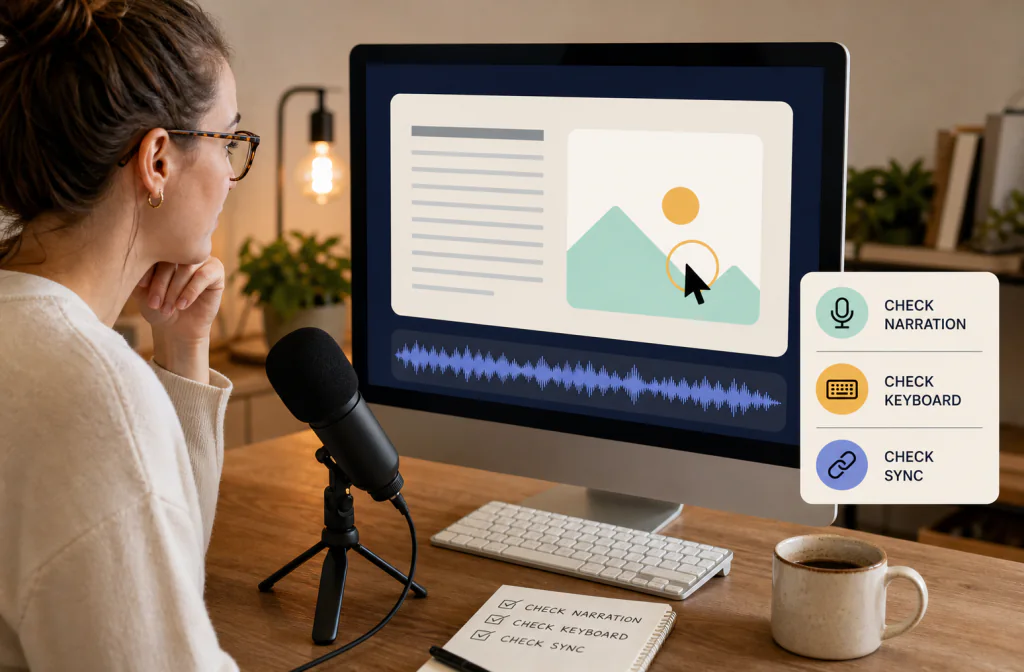
To clean screen-recording audio, preserve the original capture, mark a passage containing narration and the distracting sound, and choose a verified direct-video or exported-audio route. Compare the same words after processing, then check that cursor actions, clicks, and narration remain aligned. Noise Cleaner can support a saved-file cleanup step, but direct video handling and sync preservation must be confirmed with the current build. Keyboard clicks, overlapping alerts, clipping, and speech masked by noise may require local editing or re-recording.
Viewers need more than clean narration: the spoken instruction must still land on the correct cursor move, menu choice, slide, or typed example. Preserve timing references and judge the final shared file, not just an audio preview.
Diagnose what viewers will notice
Common screen-recording problems include keyboard clicks, mouse impacts, laptop fan noise, room reflections, notification sounds, and changing microphone distance. Listen to a quiet explanation, a faster section, and a moment with a visible action.
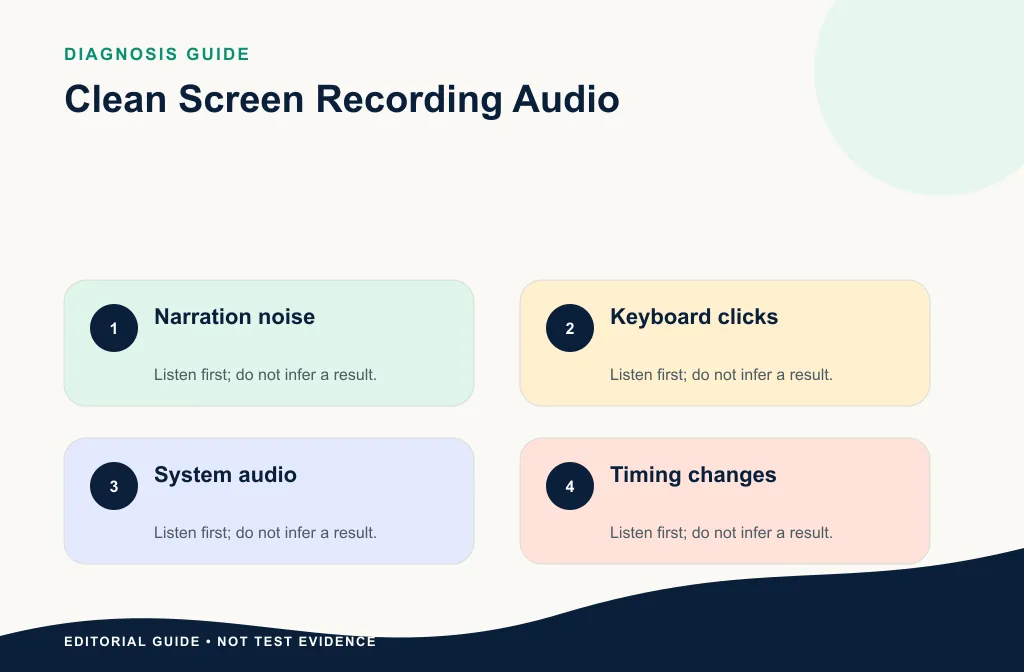
Use the keyboard-noise guide when typing is the main distraction. For longer lessons, the online-course audio workflow adds cross-lesson consistency checks.
Separate narration noise from useful screen sound
Not every non-voice sound is unwanted. A click may confirm that a button was pressed. Keyboard audio may be part of a shortcut demonstration. A notification can be a distraction, while system audio from the app may be essential. Inventory the tracks or mixed content before cleanup.
| Sound | Typical role | First decision |
|---|---|---|
| Steady laptop fan | Usually unwanted | Test light cleanup under speech |
| Repeated typing during explanation | Often distracting | Compare broad cleanup with local reduction |
| Single mouse click on a demonstrated action | May be useful | Keep unless it distracts or clips |
| Notification alert | Usually unwanted event | Cut, replace, or re-record locally |
| App playback or tutorial media | Wanted content | Protect it from dialogue processing |
| Clipped narration | Source damage | Find another take or re-record |
If narration and system sound are on separate tracks, preserve that separation. It gives you more control than processing a finished mixed video.
Decide between direct video and audio export
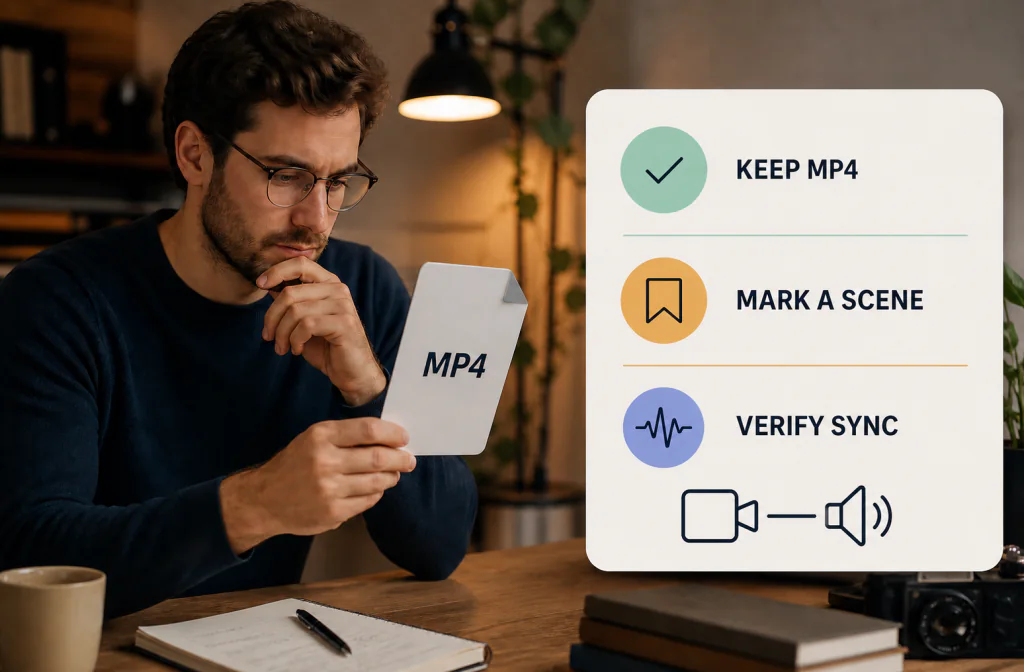
Direct processing is simpler only when the current product accepts the capture and returns a verified video output with unchanged timing. Otherwise, export the narration or mixed audio from a duplicate project, preserve its exact start point, clean that file, and reimport it.
Follow the video/audio sync guide before replacing a track. Keep the original muted on the timeline until the new version passes review.
Choose direct video only when the exact capture is accepted and returned with picture, duration, and sync intact. Choose audio handoff when your editor can export narration from a known start and reimport it without moving the clip. If system sound is separate, export only the narration when possible so wanted app audio is not treated as noise.
Build a representative test
Choose 15–30 seconds containing spoken instructions, a visible cursor or click, and the main noise under speech. Record the timeline range and transcript. Compare at a similar playback level and watch the screen while listening.
Your decision should include:
- speech clarity and completeness;
- reduction in keyboard, fan, or room distraction;
- cursor/click alignment;
- unchanged duration;
- no metallic voice, pumping, or abrupt silence.
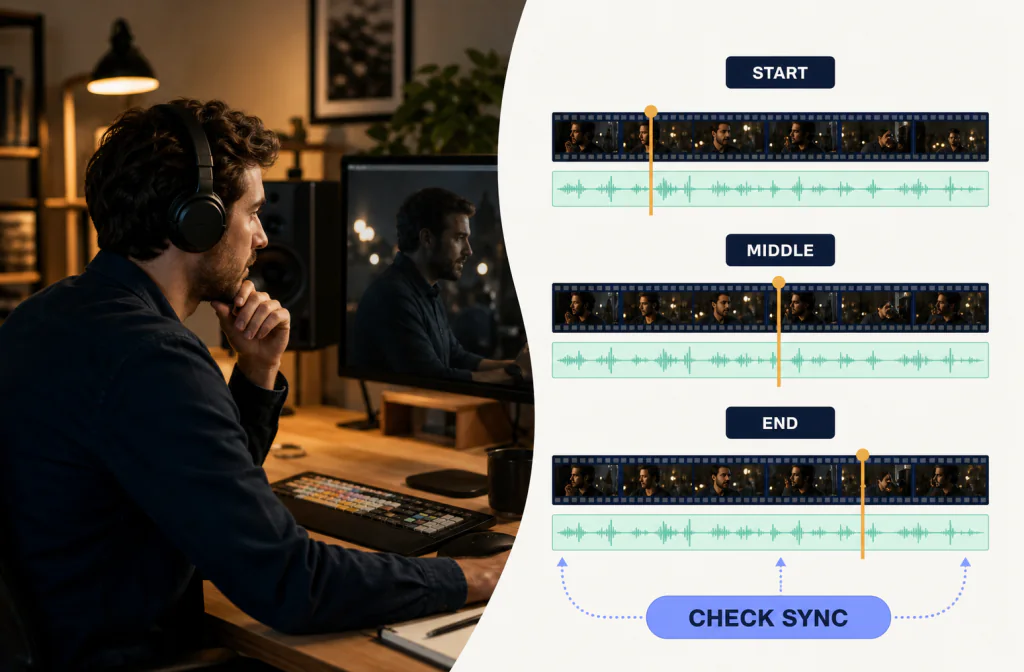
Include one quiet phrase and one fast instruction. Quiet consonants show whether processing removed speech; faster narration shows whether word boundaries remain intelligible. Add a section with visible cursor movement near the beginning, middle, and end so progressive drift cannot hide behind a perfect opening.
Process the working copy
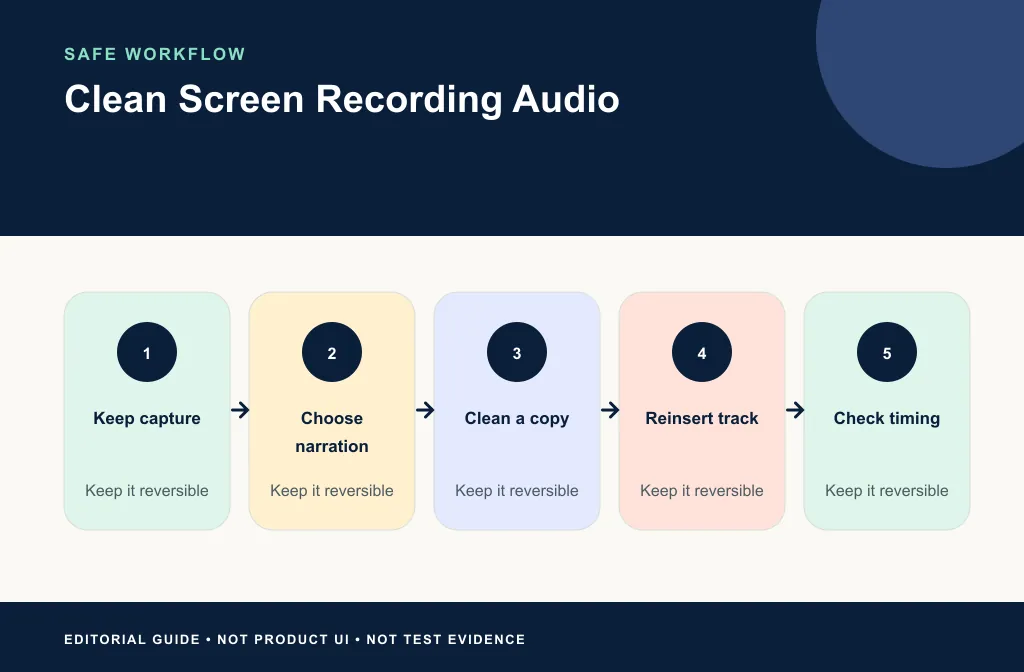
- Duplicate the recording and project.
- Record source app, format, duration, and sync points.
- Verify the current supported input route.
- Upload the video or exported audio copy to Noise Cleaner.
- Preview the marked section and compare the same narration.
- Download, reimport if needed, and verify sync.
- Export a short test and play it outside the editor.
- Keep the source until the shared file is approved.
Review the narration, actions, and full render
Listen to the same instructions at similar levels. Check whether the viewer can still distinguish product names, menu labels, shortcut keys, and numbers. Then watch the action without scrubbing. Does the pointer arrive when the instruction says “click”? Does a typed result appear when the voice describes it?
Finally, render a short test and play it outside the editor. Editor previews can lag or use proxies. If the external render is aligned, do not shift media to compensate for timeline stutter.
Review the final share file
Do not stop at the editor preview. Play the exported file on a laptop and phone. Confirm that mouse clicks, slide changes, typing demonstrations, and spoken instructions line up. Check the beginning, middle, and end for drift.
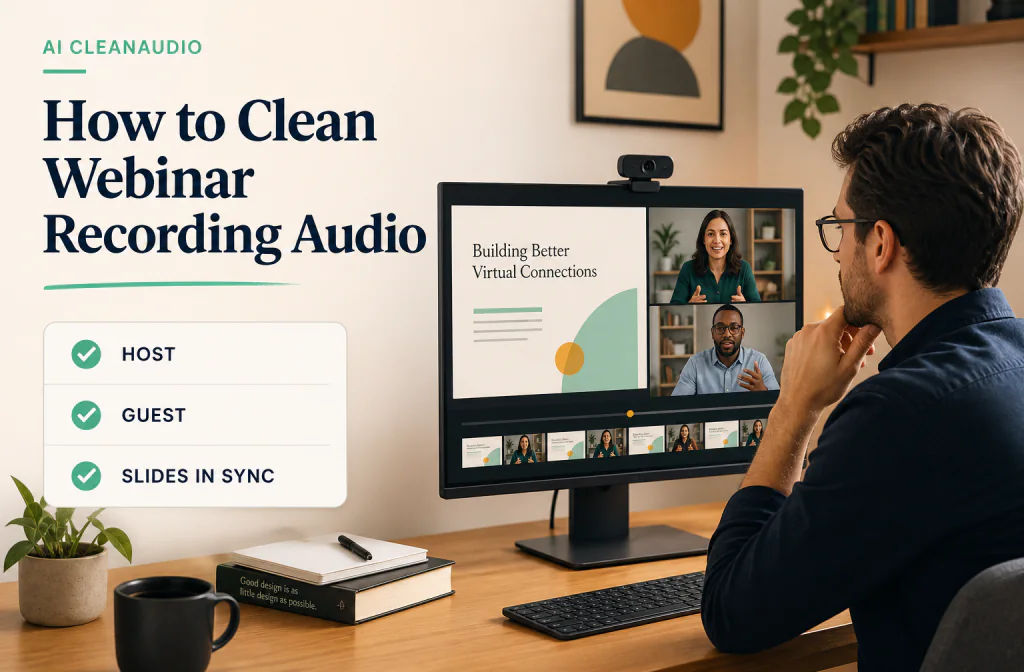
For a webinar replay, use the webinar cleanup guide. DaVinci Resolve users can follow the Resolve native and fallback workflow after its current edition and version are verified.
Review captions after audio is locked. If cleanup or re-recording changes a word or timing, update the caption segment instead of assuming the old transcript still matches. Also check the share platform's processed preview when the lesson is important, because transcoding may reveal brittle consonants or sync errors.
When re-recording is faster
Re-record a short narration when a notification covers a key instruction, clipped audio makes words hard to understand, or the microphone changed drastically mid-sentence. Local repair is useful for a few mouse or keyboard impacts. Broad cleanup is most appropriate for consistent noise across a saved section.
Re-recording is especially efficient for modular tutorials. Replace one sentence or scene while keeping the original screen action as a guide. Match pacing and room tone, then crossfade carefully. Do not push a global cleanup pass harder just to save a replaceable line.
Limitations and failure cases
- Cleanup cannot recreate a menu name that was covered by an alert.
- Broad processing may alter wanted system sound or demonstration audio.
- Reimported narration can offset or drift when its start or duration changes.
- A mixed capture gives less control than separate narration and system tracks.
- Strong room echo or clipping may remain after conservative cleanup.
- Cleaner narration does not prove that captions or actions stay synchronized.
For isolated impacts, use local repair. For a live-source problem that will recur, improve microphone placement and capture settings before the next session. For a damaged but short instruction, re-recording is usually the safest fix.
Keep a consistent series sound
If this recording belongs to a course or documentation series, compare it with one approved lesson. Match intelligibility and reasonable level, but do not force every room to sound identical. Store a short voice reference, export preset, and review checklist for future captures. The online-course guide covers grouping lessons by source condition instead of processing an entire library blindly.
Troubleshooting
The voice is cleaner, but shortcut sounds disappeared
Return to the source and isolate narration if possible. Wanted demonstration sound should not be sacrificed to make the voice track quieter.
Cursor actions drift later in the recording
Compare source and output duration, then check export range and any time-stretch settings. Do not align only the first click.
The final share sounds harsher than the local file
Compare the platform preview with your master and use a less aggressive cleanup if transcoding exposes artifacts. Keep the local approved source for another export.
Frequently asked questions
Can cleanup remove keyboard clicks during speech?
It may reduce distraction, but a loud click that covers a word can leave damage. Compare the exact word before deciding.
Will the cursor stay in sync?
Only a real output and render test can prove that. Use checkpoints throughout the recording.
Should I process the whole lesson first?
No. Test a representative short section before committing to a long file.
Should I keep mouse clicks?
Keep clicks that help viewers follow an action and reduce only those that distract or clip. The screen context decides whether the sound is useful.
Can I clean narration separately from system audio?
Yes when your capture or editor preserves separate tracks. That is usually safer than processing a finished mix, provided you maintain the original start time and verify sync.
Related guides
- Clean audio in an MP4 file
- Keep video and audio in sync
- Clean webinar recording audio
- Clean an online-course video
- Remove background noise in DaVinci Resolve
Sources and test notes
- Apple QuickTime media-layout documentation provides official context for timed audio and video streams in a container.
- OBS Filters Guide distinguishes live audio filters from post-recording file repair and documents a render-delay control for live timing.
These sources explain media timing and live-filter context. They do not prove a sample-specific cleanup result or a particular screen-capture workflow.
Final share decision
Use Noise Cleaner on a working copy only when the saved-file route is clear. Keep the result when narration is easier to follow, wanted system sound remains intact, actions and captions still align, and the external render passes from beginning to end. Otherwise return to the source and choose a lighter pass, local repair, or a short re-recording.