Remove Background Noise in DaVinci Resolve: Voice Isolation, Limits, and Export Cleanup
Remove background noise in DaVinci Resolve by checking version and edition, testing native dialogue tools, and verifying an export-clean-reimport path.
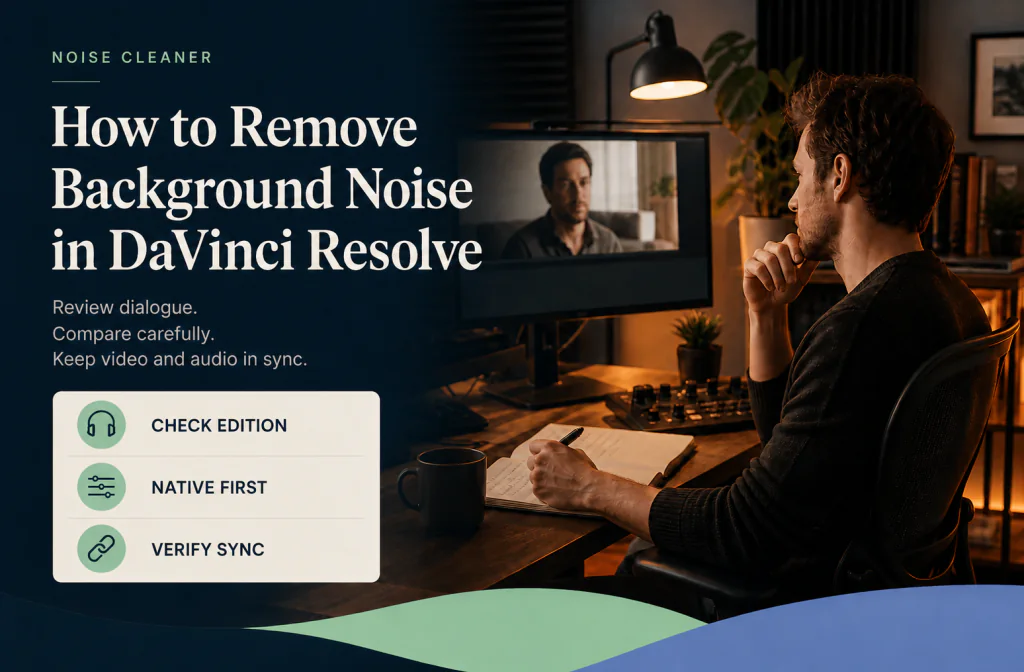
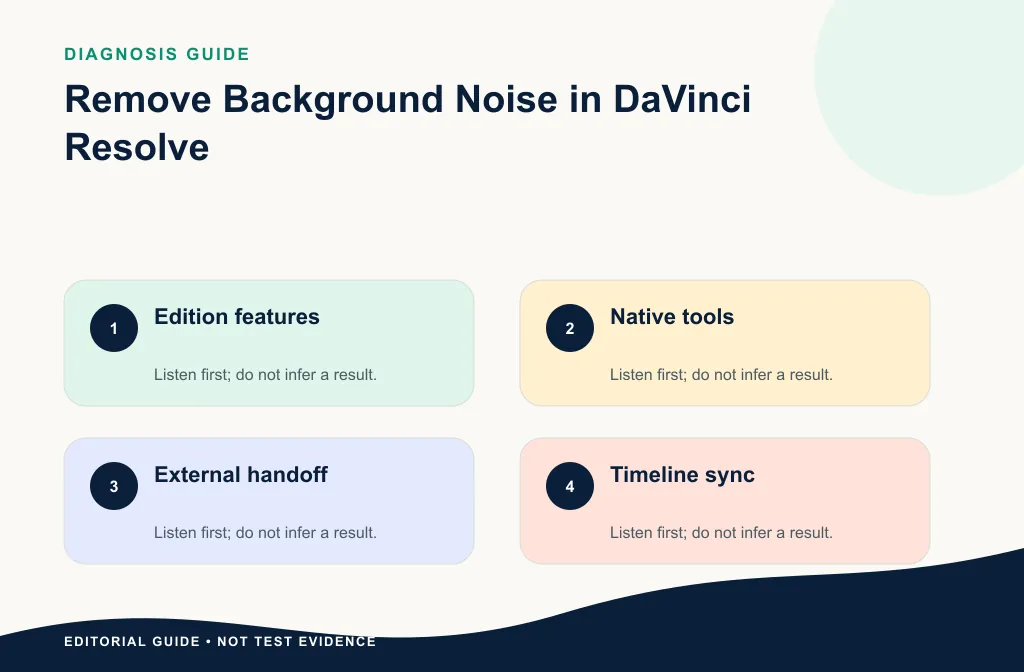
In DaVinci Resolve, first confirm your exact version and edition because audio features and availability can differ. Use the current Fairlight or Inspector controls shown in that installation, test the native voice-cleanup option on a duplicate timeline, and compare the same dialogue with it bypassed. If the native result is not acceptable, preserve the project and test a separate saved-file cleanup through Noise Cleaner. The handoff must use verified export settings, output behavior, and sync checks. Do not assume Voice Isolation exists in every edition or that any process can restore clipped or masked speech.
Resolve owns the edit, tracks, timing, and render, so test its native path first. Move to a file handoff only when you know what the native option changed and why it did not meet the listening goal. Keep the untouched media and timeline available throughout.
Confirm version, edition, and source
Record Resolve version, Free or Studio edition, operating system, sequence frame rate, source media, and audio track layout. Open the actual project and locate the controls available to you. Use the current Blackmagic Design manual for that release; do not borrow screenshots or menu paths from an older tutorial.
For screen-recorded lessons, use the screen-recording cleanup guide. For MP4 source checks, use the MP4 audio workflow.
Before enabling a voice tool, identify the real problem: steady room noise, hum, wind, isolated clicks, music under dialogue, clipping, or strong reverb. A native voice-isolation option and a local Fairlight repair do different jobs. Do not turn on multiple processes simply because they appear in the panel.
Record a bypass reference and select a passage with quiet and normal dialogue plus noise under speech. Add a visible sync cue and a section containing wanted music or ambience when those elements remain in the program.
Test the native option first
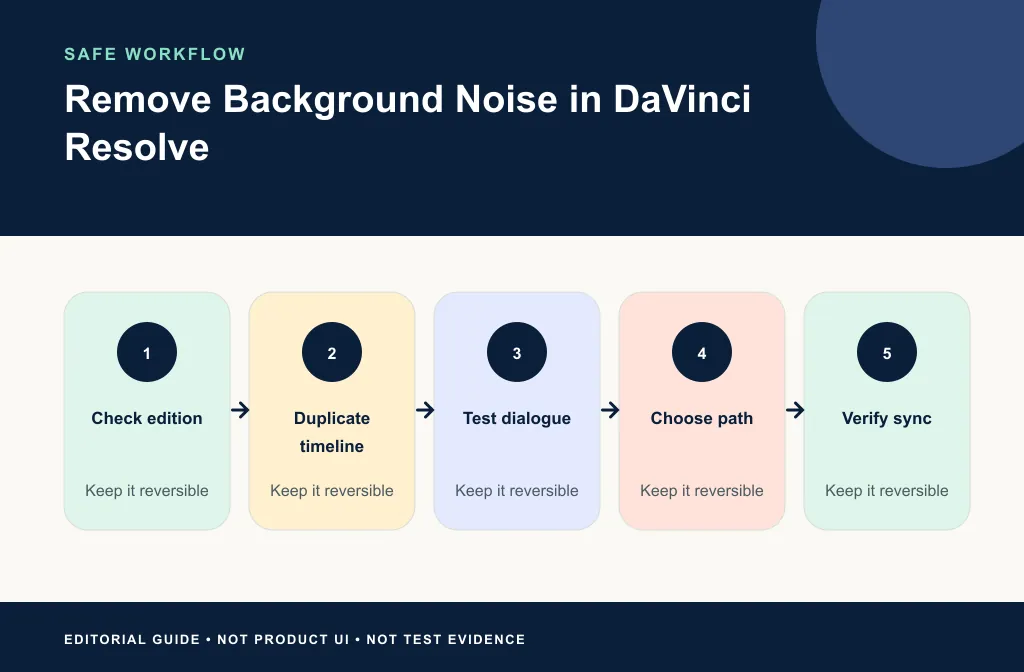
- Duplicate the timeline.
- Mark a 15–30 second dialogue passage with the real noise.
- Locate the current native voice or noise control in your installed edition.
- Enable it conservatively.
- Compare the same words with the control bypassed.
- Listen for metallic tone, missing consonants, ambience pumping, or music changes.
- Render a short proof and play it outside Resolve.
If the feature is not present, say so for the tested edition. Do not convert an availability gap into a product comparison claim.
Review the native result in the timeline and render
Toggle the control while listening to the same sentence at a similar level. Check word beginnings, quiet consonants, breaths, room continuity, music, and other speakers. Then render a short proof using the intended output route and play it outside Resolve.
Keep the native result when dialogue is easier to follow, remains natural, and the render stays in sync. If the voice becomes artificial or ambience pumps, reduce or bypass the process before trying another stage.
Decide whether to export a cleanup copy
Use local Fairlight repair for isolated problems or when timeline context matters. Test a saved-file cleanup when steady noise remains under dialogue and an export/reimport path is acceptable. Re-record when critical words are clipped or masked and the scene can be recreated.
The CapCut guide covers a different editor, not a substitute menu path. For course videos, use the online-course workflow to keep lessons consistent.
| Problem | Prefer Resolve native/local | Consider saved-file handoff | Prefer another source |
|---|---|---|---|
| Mild steady dialogue noise | Test available voice tool | When native result is insufficient | Rarely |
| A few clicks or bumps | Local Fairlight repair | Usually unnecessary | For a repeatable line |
| Music under dialogue | Work with isolated dialogue tracks | Only if the handoff excludes music | When mix is inseparable |
| Wind or heavy overlap | Limited local repair | Set modest expectations | Use backup audio or re-record |
| Clipped speech | Specialist/local attempt | Not a noise-reduction task | Alternate take |
Export, clean, and reimport
- Preserve the original media and timeline.
- Export the exact dialogue range from a known start point.
- Record format, duration, sample rate, channels, and frame rate.
- Verify the current Noise Cleaner build accepts the file.
- Process and compare the same passage.
- Download and verify duration and playback.
- Reimport on a new track at the original start.
- Check sync near the beginning, middle, and end.
- Render a proof clip before replacing the full program audio.
Preserve track position and duration
Export from a known timeline start and record the exact range. Keep leading silence when it anchors the track. Reimport on a new track, mute the original, and compare duration before moving clips. Check visible consonants or hard actions near the beginning, middle, and end.
If the returned file drifts, inspect sample rate, render range, clip speed, frame-rate assumptions, and time-stretch settings. Do not force endpoints to match before finding the cause.
When dialogue, music, and effects are on separate tracks, hand off only the dialogue that needs cleanup. A complete mix can cause wanted music or ambience to be reduced with the noise.
For webinar replays, use the webinar cleanup guide. For any replacement track, follow the video/audio sync workflow.
Effect order and rollback
Duplicate the timeline or track before native repair. Change one process at a time and name test renders clearly. Approve dialogue cleanup before final compression, music balance, or delivery encoding when practical, because later stages can reveal residual noise or magnify artifacts.
Do not delete the original track after reimport. Keep it muted until the full render and platform preview pass.
Limitations and failure boundaries
- Voice Isolation availability can differ by version and edition.
- Native voice processing can change speech, music, and ambience.
- File handoff adds format, channel, timing, and render checks.
- Clipping, missing words, and strong overlap cannot be guaranteed recoverable.
- A timeline preview does not prove the final render.
- Noise Cleaner is not a replacement for Fairlight editing, mixing, or delivery.
Use local repair for isolated events, another microphone track when it is cleaner, and re-recording for short damaged lines. Accept some residual noise when stronger processing makes dialogue less natural.
Troubleshoot the result
| Symptom | Next action |
|---|---|
| Voice Isolation is missing | Confirm edition/version and official feature availability |
| Voice sounds artificial | Lower or bypass processing and return to the source |
| Music or ambience changes | Isolate dialogue more carefully or use local repair |
| Reimported track drifts | Inspect duration, sample rate, frame rate, and time-stretch settings |
| Render differs from preview | Test the actual rendered file and review delivery settings |
The native control affects music
Move cleanup to isolated dialogue when possible or use a lighter process. Do not treat wanted music as background noise.
A long course lesson changes halfway through
Split the review by source condition. A microphone move, fan start, or guest clip can require a new treatment rather than one whole-timeline value.
The reimported file has different channels
Inspect the actual render and handoff output. Recreate it with the intended layout instead of duplicating or dropping channels blindly.
The rendered file is out of sync but the timeline looks right
Play the render outside Resolve, compare duration and settings, and test a short range. Do not move the original media based only on one preview.
Frequently asked questions
Is Voice Isolation available in every Resolve edition?
Do not assume it is. Verify the current official manual and your installed Free or Studio edition.
Should I clean before editing?
Test early on a duplicate timeline, but keep the original and avoid irreversible replacement before sync and render checks pass.
Can Noise Cleaner replace Fairlight?
No. It is a saved-file cleanup option, not a complete editor, mixer, or Fairlight replacement.
Should I use Voice Isolation and another cleanup together?
Only after each stage solves a documented problem. Test one at a time from the source so you can identify artifacts and roll back.
Should I export video or audio for the handoff?
Use the verified route for the exact media. Video avoids reimport only when picture and sync are preserved; audio offers track control but requires timing and channel verification.
Related guides
- Clean screen-recording audio
- Clean audio in an MP4
- Clean webinar recording audio
- Clean an online-course video
- Remove background noise in CapCut
Official sources and test notes
- Blackmagic Design: Fairlight Audio Guide to DaVinci Resolve 20 is the current official guide found during drafting; recheck against the installed release.
- Blackmagic Design: DaVinci Resolve 20.1 New Features Guide documents current Fairlight feature changes in that release family.
These official documents establish current Blackmagic guidance but must be matched to the installed version and edition. They do not prove a result for a particular clip or handoff.
Final choice
Verify the Resolve version and edition, test the available native tool on a duplicate timeline, and approve a real render. If the native result is not acceptable, preserve the project and test Noise Cleaner on a supported dialogue copy, then reimport from a known start and run the three-point sync check. Keep the simplest version that protects natural speech, wanted ambience, and the final edit.