How to Clean Webinar Recording Audio Before On-Demand Publishing
Clean webinar recording audio by reviewing host, guest, and screen-share passages, preserving timing, and verifying the final on-demand replay.
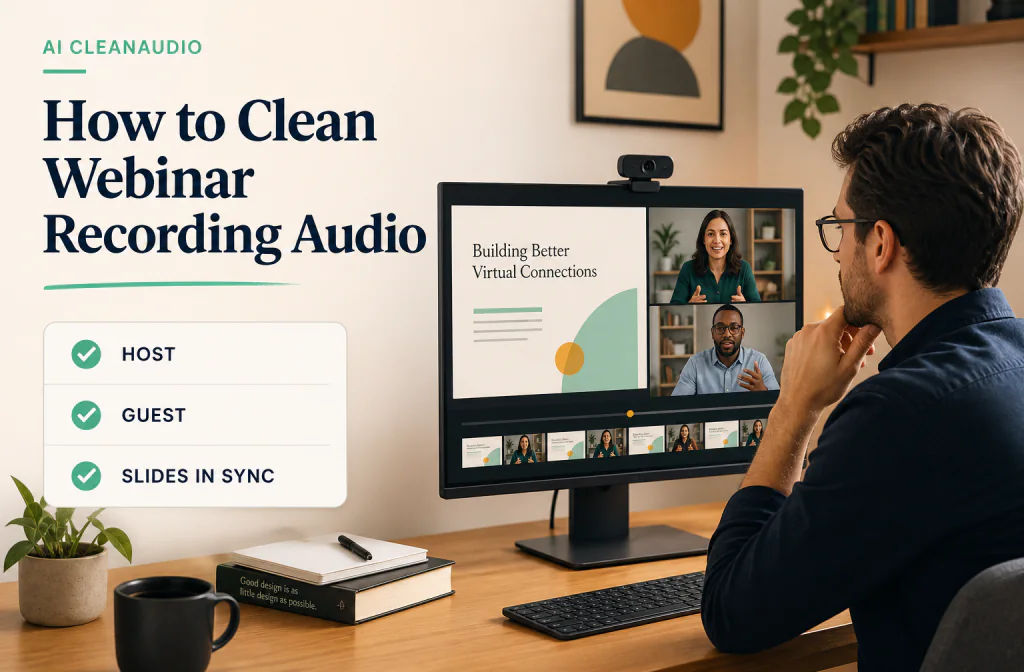
To clean webinar recording audio, preserve the original replay and platform exports, choose passages from the host, guest, screen-share narration, and the worst realistic noise, then test cleanup on copies. Noise Cleaner can support a saved-file workflow, but the direct-video or exported-audio route must be verified and it cannot be described as live webinar processing. Compare the same words and check slide changes and lips for sync. Overlapping speakers, platform compression, clipping, and missing remote audio may limit the result.
An on-demand replay is a package: video, speech, slides, captions, chapter points, and sometimes separate host or participant files. Clean the source that gives you the most control, then verify the full replay. Do not approve a long event from one clear opening sentence.
Inventory the webinar files
Record the platform, export type, duration, video frame rate, available audio tracks, and whether chat, captions, or screen shares are part of the final replay. Preserve the raw and downloaded versions. If the source came from Zoom, start with the Zoom post-meeting workflow.
For a long narrated lesson sequence, use the online-course cleanup guide to compare consistency between files.
Choose the best export before processing
Compare the platform replay, audio-only file, separate participant tracks, and any local recorder backup. Zoom, for example, documents MP4 video, M4A audio, and optional separate participant audio for computer recordings. When isolated files exist and rights allow, they may let you clean a noisy speaker without changing everyone else.
Keep the full export folder intact. Record whether the webinar was local or cloud recorded, the actual file type, duration, and which layout is intended for publication. A converted or incomplete recording should not be mistaken for a noise problem.
Choose representative sections
Select at least three short passages:
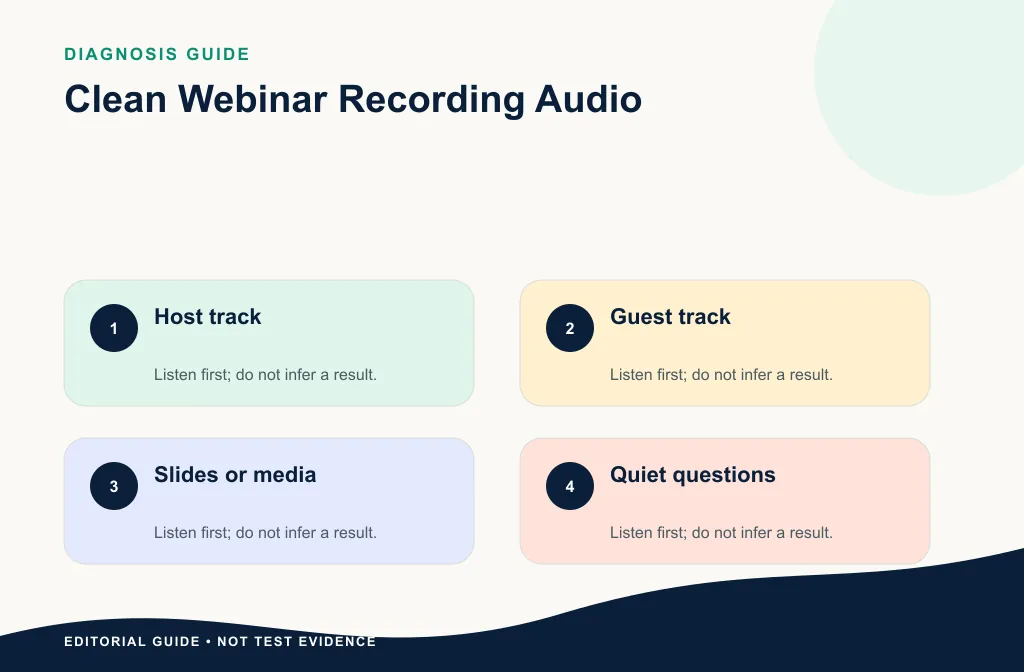
- the host’s normal voice;
- a quieter guest or remote speaker;
- a screen-share section with the main noise and a visible sync cue.
Record transcript excerpts and timestamps. Do not approve a two-hour replay from one clean opening sentence.
Add a Q&A passage, a slide transition, and a difficult proper name or number. If audience questions use a different microphone path, include them as a separate source condition. For panels, test every speaker who will appear in the replay.
Use a plain acceptance checklist:
- host, guests, and questions remain intelligible and natural;
- noise under speech is less distracting;
- slides, lips, cursor actions, and audio remain aligned;
- captions still match names, numbers, and timing;
- the returned file plays from beginning to end;
- residual limitations are acceptable for on-demand viewing.
Process a test copy
- Duplicate the replay or exported audio.
- Record the real input and intended output.
- Verify the current product accepts the file path.
- Upload the authorized copy through Noise Cleaner.
- Compare every marked passage at a similar playback level.
- Download and verify format and duration.
- Reimport when required and check slide/action sync.
- Render a short replay proof before processing the full event.
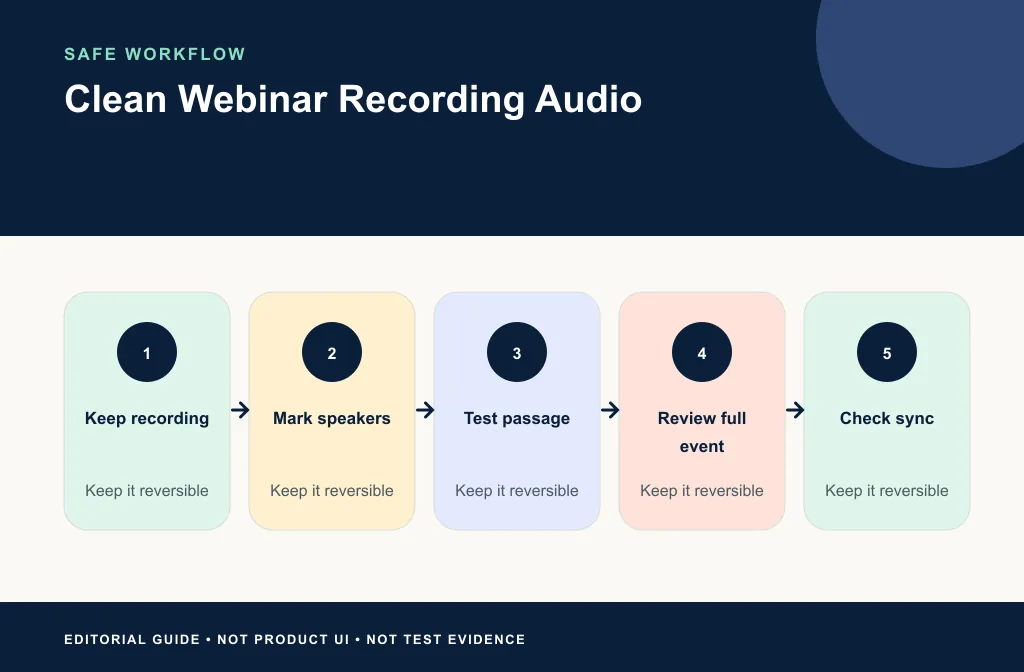
Review the downloaded output
Play the actual file outside the browser or editor. Check the opening, every marked passage, a middle section, and the end. Compare original and result at a similar level. A quieter output can seem cleaner even when words are less complete.
If you reimport audio, align from a known project start and keep the source muted. Check visible consonants, slide changes, and hard actions near the beginning, middle, and end. If duration differs, rebuild the handoff rather than stretching by eye.
Review for on-demand viewers
Check names, figures, calls to action, and Q&A answers. Listen on headphones and laptop speakers. Verify captions against difficult names or quiet responses. Cleaner audio does not automatically make captions accurate.
Keyboard noise during a demo may need the keyboard-noise repair guide. For screen-capture narration, use the screen-recording workflow.
Review the replay like an attendee. Can a laptop listener understand the quiet guest? Are calls to action, dates, prices, and URLs complete? Does room tone jump after edits? Do audience questions remain usable? Then test the final upload preview when the event is important, because hosting platforms may transcode the file.
Preserve timing and layout
If you replace audio, follow the video/audio sync guide. Keep the original track muted, not deleted, until the final replay has been checked near the beginning, middle, and end.
DaVinci Resolve users can use the Resolve native and export-cleanup workflow after the current version and edition are confirmed.
Choose the repair by webinar problem
| Problem | First choice | Main limit |
|---|---|---|
| Steady host fan noise | Test host or mixed copy conservatively | Can dull quiet words |
| One noisy guest | Treat authorized isolated track | Mixed replay gives less control |
| Keyboard during demo | Local repair or targeted cleanup | Clicks under speech may remain |
| Overlapping panelists | Editorial cut or preserve overlap | Both voices are wanted content |
| Clipped remote question | Alternate recording or transcript support | Lost speech cannot be recreated |
| Slide/cursor mismatch | Repair sync and edit timing | Noise cleanup is a separate task |
Privacy, consent, and publishing scope
Webinars can include attendee names, questions, chat, screens, and confidential material. Confirm recording consent and publication rights before uploading files for processing or sharing a replay. Redact private filenames and account details from any instructional images. Possessing the host export does not automatically grant permission to republish every participant.
Limitations and safer alternatives
- Platform compression may have removed speech detail before cleanup.
- One setting may not suit host, guests, and audience microphones.
- Overlapping speakers are not background noise.
- Replacing audio can introduce offset or drift.
- Cleaner audio does not guarantee correct captions.
- Direct-video and audio-export paths both require output verification.
Use local edits for isolated clicks, separate tracks for different speakers, and pickup narration for short damaged introductions or calls to action. For irreplaceable Q&A, preserve the best source and support the replay with a corrected caption rather than claiming restored audio.
Troubleshooting
The host improves but audience questions sound worse
Return to isolated sources or use section-level treatment. With only a mix, reduce the global strength and repair host noise locally.
Slides drift after audio replacement
Compare source and output duration and verify the exact export range. Follow the sync guide before moving individual sections.
Captions no longer match a corrected line
Update captions after the approved audio and edit are locked, then spot-check proper names, figures, and Q&A timing.
Frequently asked questions
Can I process the entire webinar at once?
Test representative short passages first. Long files can contain different speakers, microphones, and noise conditions.
Can cleanup separate overlapping speakers?
No reliable speaker separation is assumed. Treat overlap as a limitation and use isolated tracks or editorial choices when available.
Should I edit captions before or after cleanup?
Use the cleaned, approved audio for the final caption check, but preserve the original transcript and media for comparison.
Should I process the audio-only file or the MP4?
Use the source that best matches the verified cleanup and publishing path. Audio-only media can offer control; MP4 can preserve layout only when the exact direct-video workflow is proven.
Can I clean a live webinar with this workflow?
No. This is for a saved recording after the event. Improve live capture separately and test the recorded output afterward.
Related guides
- Clean screen-recording audio
- Clean a Zoom recording after the meeting
- Clean audio in an online course video
- Reduce keyboard noise
- Remove noise in DaVinci Resolve
Sources and test notes
- Zoom: Starting a computer recording documents local recording outputs and optional separate participant audio.
- Zoom: Understanding recording file formats lists MP4, M4A, and companion recording formats.
These official examples support file-inventory decisions for Zoom-origin webinars. Use the official export documentation for the actual event platform. The sources do not prove a sample-specific cleanup result.
Final on-demand decision
Use Noise Cleaner on authorized copies when the saved-file path fits the actual export. Approve every important speaker, check slides and captions, render the full replay, and keep the source until the hosted preview passes. Choose local repair, isolated tracks, or replacement narration when those paths protect the event better than stronger global cleanup.