How to Clean a Zoom Recording After the Meeting
Clean a saved Zoom recording after the meeting with speaker-by-speaker review, privacy checks, realistic limits, and a verified final export.
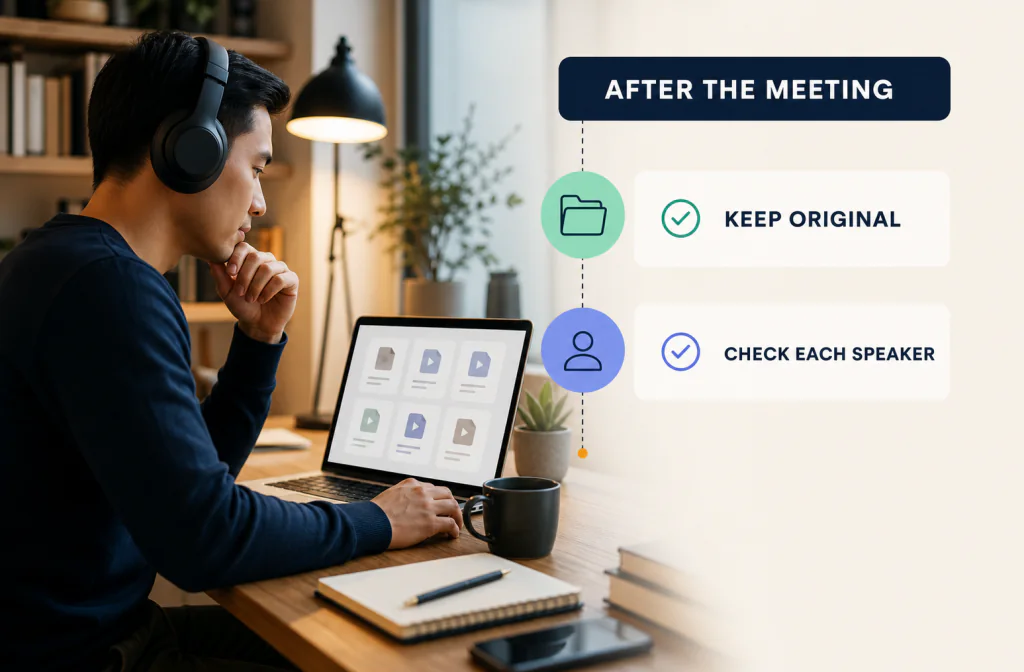
To clean a Zoom recording after a meeting, locate the downloaded recording, preserve the original files, identify the track containing the speech you need, and test cleanup on a short passage where noise overlaps words. Noise Cleaner is relevant only after the meeting as a saved-file workflow; it does not remove noise during a live Zoom call. Compare the same sentence before and after processing and keep the new file only if speech stays natural and complete. Platform compression, overlapping speakers, clipping, and severe echo limit what can be repaired.
Treat the meeting as a set of source files, not one anonymous upload. A local recording may include an MP4, an audio-only M4A, chat text, and—when enabled—separate participant audio. Choosing the right source can matter more than applying a stronger cleanup pass.
Find and preserve the recording files
Zoom computer recordings are stored on the device that made the recording, while cloud recordings follow a separate cloud workflow. Use Zoom’s official recording interface to locate the file, then duplicate the original before editing or uploading it elsewhere. Do not rename or discard companion files until you know which one your publishing workflow needs.
If your export is M4A, use the M4A voice-recording guide for format-specific checks. If a fan is the main problem, use the fan-noise diagnosis before broad processing.
Choose the cleanest available source
Zoom's official computer-recording guidance says local recordings can include an MP4 video, M4A audio, and separate participant audio when that option was enabled. If separate tracks exist, listen to them before processing the mixed video. A close participant track may contain clearer speech and fewer interruptions than the combined mix.
Keep the original folder intact. Work from duplicates and preserve filenames long enough to understand which media belongs together. If the recording has not finished converting, let Zoom complete that step before cleanup; do not treat an incomplete or corrupted file as a noise problem.
Choose a passage that represents the meeting
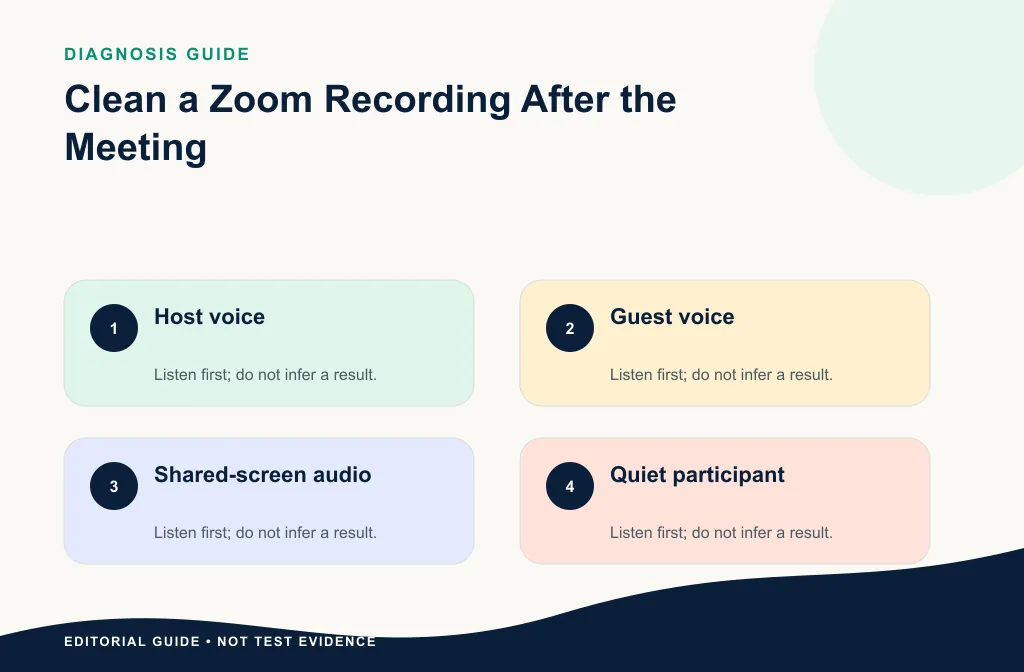
A useful test contains normal speech, a quieter speaker, a pause, and the main distracting sound. If several people talk over one another, include that moment but do not promise separation. Write down the start and end time and a short transcript.
For long meetings, test more than one speaker. A process that helps a close microphone may damage a quieter participant.
Build a small review set:
- one normal sentence from the host;
- one quiet sentence from another participant;
- one moment where the main noise overlaps speech;
- one pause with room tone;
- one difficult moment such as echo, crosstalk, or clipping.
Write down names or roles and timestamps privately. Do not place participant identities in public screenshots or filenames.
Clean the downloaded copy
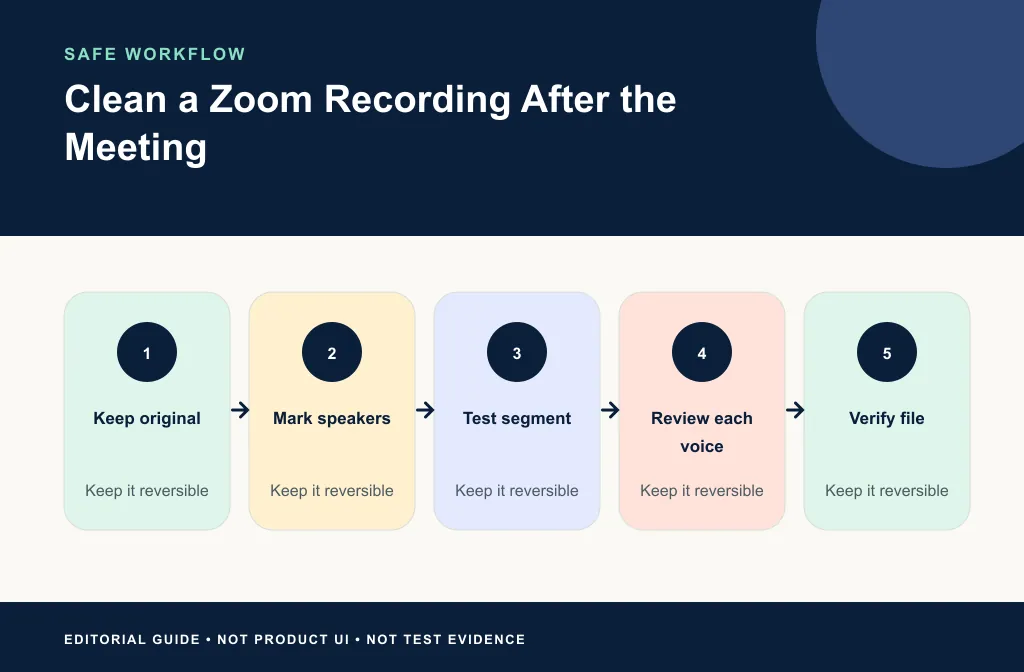
- Preserve the full Zoom source and make a working copy.
- Record whether the source was a computer or cloud recording and its actual format.
- Mark one or more representative passages.
- Verify the current product accepts the exact file.
- Upload the copy through Noise Cleaner.
- Preview the same words and listen for artifacts.
- Download the result and verify duration, playback, and file type.
- Keep the original until the cleaned meeting has passed review and delivery.
Review speaker by speaker
Switch between original and cleaned versions at a similar level. Check names, numbers, quiet endings, and technical terms. A result that improves the host but damages a softer guest is not ready for the whole meeting. When separate tracks exist, treat them individually and rebuild the mix in an editor rather than forcing one setting across everyone.
After download, play the beginning, marked sections, and end. Confirm the file duration and any video sync. If the cleaned audio will replace audio in an MP4, use the sync-safe handoff guide before deleting or disabling the source.
Decide what can and cannot be improved
Steady fan or room noise may be suitable for a cleanup test. A brief click may be better repaired locally. Two speakers talking over each other are not a generic background-noise problem. Clipped speech or a word missing from the recording cannot be recreated reliably.
Use the hiss, hum, or static guide when the sound is unclear. For a webinar produced from the meeting, continue with the webinar recording workflow.
Choose a repair by symptom
| Symptom | Better first move | Why |
|---|---|---|
| Steady fan or room wash | Light cleanup test on representative speech | The noise is continuous enough to compare |
| One keyboard hit or notification | Local repair | A whole-file pass is unnecessary |
| Different noise on each participant | Treat authorized separate tracks | One mixed setting may hurt the quiet speaker |
| Overlapping speakers | Manual edit or accept the limitation | Voices are both wanted content |
| Severe echo | Conservative repair with modest expectations | Reflections overlap the words |
| Clipped or missing speech | Alternate source, transcript, or re-record | Noise reduction cannot rebuild it |
Review for meeting use
Check whether names, numbers, and action items remain intelligible. Listen on headphones and a common laptop speaker. If the cleaned recording will support captions or transcription, spot-check the transcript against the output rather than assuming cleaner audio guarantees accuracy.
For live capture settings and a post-recording fallback, see the OBS noise workflow.
Check the final listening context. A team archive can tolerate more room tone than a public course or webinar. For action minutes, intelligibility of names and numbers matters more than a perfectly quiet background. For a public replay, also check video sync, captions, slides, and privacy.
Privacy and sharing checks
Meeting recordings may contain participant names, private chat, screens, or confidential discussion. Confirm consent and your organization’s policy before uploading or sharing. Redact filenames and account details from screenshots used in the article.
Do not assume permission to process a recording because you possess the file. Check the meeting notice, participant consent, client agreement, and any workplace retention rules. Upload only the working media needed for the task, and store the untouched original according to the policy that governs the meeting.
Limitations and safer alternatives
- Platform compression may already have removed detail before you receive the file.
- Overlapping speakers are not generic background noise.
- A mixed track can make one participant's problem inseparable from another's voice.
- Strong echo and clipping can remain after cleanup.
- Automatic processing may change quiet speakers more than loud speakers.
- Cleaner audio does not guarantee accurate transcription.
Use an editor for speaker-specific level changes, local cuts, and rebuilt mixes. Use the transcript to clarify an unrecoverable word, but do not present guessed audio as restoration. When a public segment can be recorded again, a short pickup may be safer than aggressive processing.
Troubleshooting
One participant sounds metallic after cleanup
Return to the original and test that participant's track separately if available. Use a lighter pass or keep more residual room noise.
The M4A sounds fine, but the MP4 is out of sync after replacement
Align from the original project start and compare beginning, middle, and end. Preserve the source MP4 until a rendered test passes.
The recording contains private screen content
Do not solve that with audio editing. Edit or redact the video in an authorized workflow before sharing.
Frequently asked questions
Can this remove noise during the meeting?
No. This article covers a downloaded recording after the call.
Should I clean each participant separately?
If separate authorized tracks exist, testing them separately can make review easier. Do not claim that a mixed track can be separated automatically.
What if the recording has echo?
Treat echo as a distinct problem and expect partial improvement when reflections overlap speech.
Is the audio-only M4A always the best source?
No. Compare it with the MP4 and any separate participant tracks. Use the cleanest authorized source that preserves the content and timing your project needs.
Should I clean the whole two-hour meeting at once?
Test several speakers and conditions first. Long meetings often change microphones, rooms, and noise, so section-level decisions may be safer.
Related guides
- Clean an M4A voice recording
- Reduce fan noise in recorded speech
- Diagnose hiss, hum, or static
- Clean webinar recording audio
- Configure OBS and clean the saved recording
Sources and test notes
- Zoom: Sharing computer recordings explains that computer recordings are saved locally and can be located from Zoom.
- Zoom: Starting a computer recording documents default MP4/M4A outputs and optional separate participant audio.
- Zoom: Understanding recording file formats lists the recording media and companion formats Zoom may produce.
These official sources explain where files come from and what Zoom can record. They do not establish a sample-specific cleanup result.
Final post-meeting decision
Start from the cleanest authorized file, test every important speaker, and keep the result only when words remain natural and complete. Use Noise Cleaner on a copy for a supported saved-file cleanup, local editing for isolated events, and separate tracks when the meeting provides them. Preserve the original folder until the reviewed recording, transcript, privacy check, and final delivery all pass.