Remove Background Noise in OBS: Native Filters and a Post-Recording Workflow
Remove background noise in OBS with a current native-filter test, saved recording review, troubleshooting guidance, and a post-recording fallback.
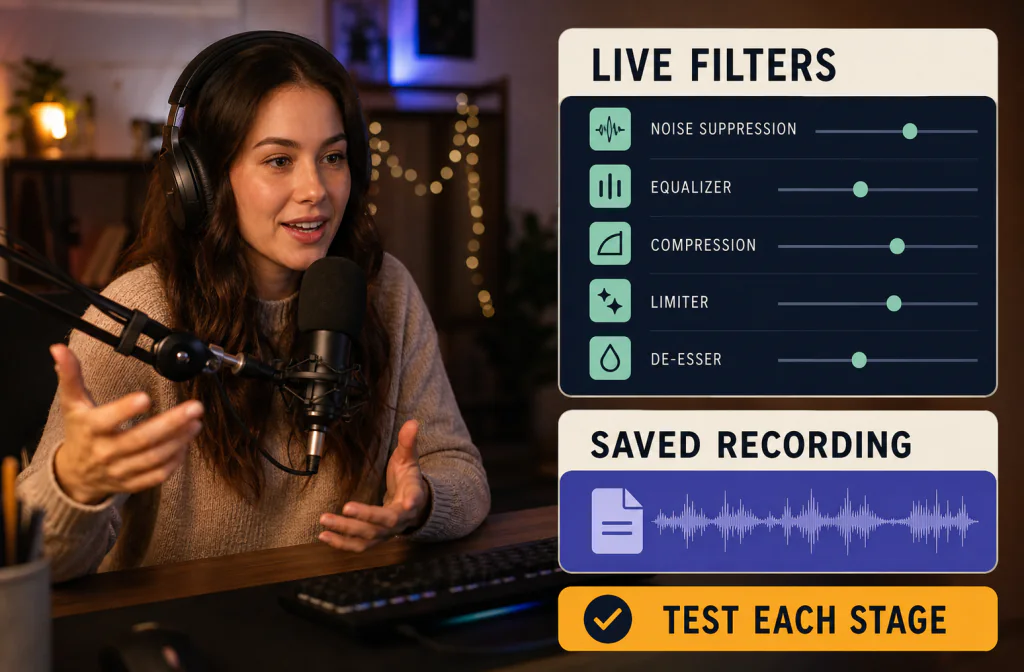
In OBS, add Noise Suppression to the correct microphone source and test RNNoise, Speex, or another option actually available in your installed version. Use a Noise Gate or Expander only when level-based reduction fits the problem, and listen for clipped word beginnings or distorted speech. These are live recording controls. If a finished OBS recording still contains noise, preserve the original and test a separate saved-file cleanup through Noise Cleaner. Noise Cleaner should not be presented as a real-time OBS filter. Loud keyboard impacts, overlapping voices, clipping, and heavy room echo may need local repair or re-recording.
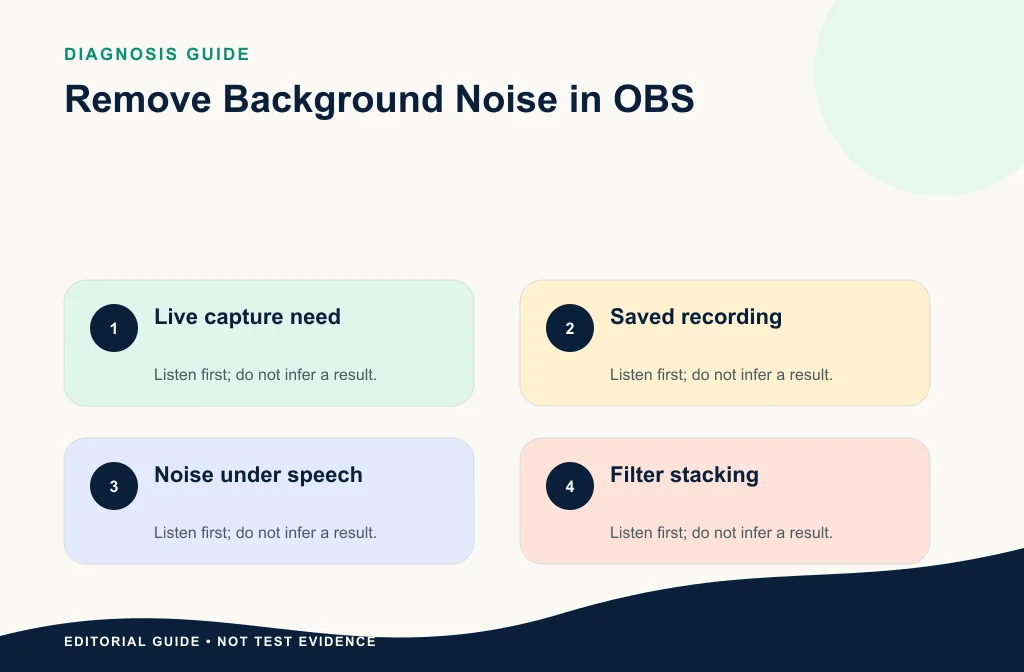
The safest order is source setup, one native filter at a time, a saved test recording, and only then post-processing if the recorded file still needs it. Do not tune against silence alone; use quiet speech, normal speech, and noise under speech.
Confirm the source and OBS version
Open the current OBS installation and record its version, operating system, microphone source name, and existing filter order. In the Audio Mixer, use the source’s menu to open Filters. OBS’s official overview also allows adding filters by right-clicking the relevant source.
Capture a screenshot with enough interface context to identify the source, but remove private scene names or account information. Do not reuse screenshots from another version.
Before adding a filter, confirm that the correct microphone is active and that its level is reasonable. A very distant microphone, excessive gain, or a fan aimed toward the capsule gives every filter a harder job. Record ten seconds with all filters bypassed so you have a source reference.
Choose the native filter that matches the problem
Noise Suppression
OBS documents Noise Suppression for mild background or white noise. Its official page lists RNNoise and Speex, and may show additional hardware-dependent options. Stronger settings can distort the voice, so compare with the filter bypassed.
Expander
An expander makes quieter sounds quieter with adjustable behavior. OBS notes that it can reduce sounds such as fans, mouse or keyboard clicks, breathing, and mouth noises. It can sound smoother than a hard gate when tuned conservatively.
Noise Gate
A gate reduces sound below a threshold. It can quiet pauses, but when you speak and the gate opens, noise under the voice remains. A threshold set too high can cut soft words.
Filter order and restraint
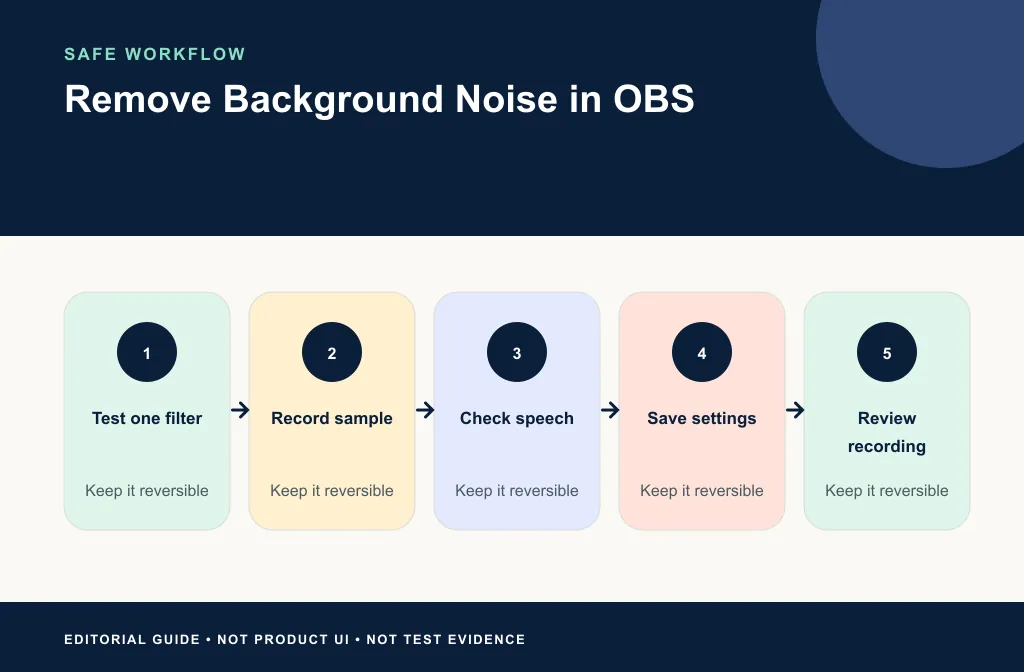
OBS's official Expander guide places an expander near the end of a chain, after compression or other effects and before a limiter. Treat that as product documentation for the current filter, not a reason to stack everything. Add one stage, save its settings, make a recording, and bypass it before adding the next. If two stages solve the same problem, keep the simpler chain.
The AI reduction versus noise gate guide helps make the method decision. For typing problems, use the keyboard-noise guide.
Test the native OBS path
- Save or screenshot the original filter settings.
- Record a short test with a pause, quiet speech, normal speech, and the real noise.
- Add one filter at a time.
- Toggle bypass while monitoring the same words.
- Watch for distortion, chopped endings, or pumping ambience.
- Make a new local recording and play the saved file outside OBS.
Do not judge only through live monitoring; the recorded file is the actual deliverable.
Use a repeatable script: one quiet sentence, one normal sentence, one louder sentence, a pause, and the real keyboard or fan sound. Speak off-axis and at your usual distance if that happens during streams. Watch CPU and recording stability when you test a method that uses more processing.
Compare the saved recording with filters on and off at a similar level. Listen for missing first consonants, shortened breaths, watery texture, pumping, and a sudden vacuum between phrases. A quieter noise floor is not a win when the voice is less intelligible.
Use a post-recording fallback when needed
If the saved recording still has steady noise under speech, preserve it and select a short passage. Verify that the current product accepts the exported audio or video path, then upload the copy to Noise Cleaner, compare the same words, and download only after review.
Keep the live and saved-file jobs separate
OBS filters change the signal during capture. A post-recording process works on the file after the stream or session. Keep an unprocessed or lightly processed recording track when your OBS setup allows it and your workflow needs rollback. Do not tell viewers that a later cleanup can restore words that live gating or clipping already removed.
For a saved file, mark the same difficult passage and test the verified saved-file path on a copy. Review and download the result, then compare it with the original recording—not just with the live monitor.
For a Zoom recording after the call, use the Zoom cleanup guide. For narrated video, use the screen-recording cleanup workflow.
Troubleshoot by symptom
| Symptom | What to inspect first |
|---|---|
| Voice sounds distorted | Reduce suppression strength or bypass filters one at a time |
| Word beginnings disappear | Lower the gate threshold or lengthen attack/release behavior |
| Noise remains during speech | A gate is not designed to remove overlap; test suppression or post-processing |
| Keyboard clicks remain | Check microphone placement, expander behavior, and local repair |
| Recording sounds different from monitoring | Play the saved file outside OBS and inspect the recording track |
If processed speech sounds metallic, follow the artifact recovery guide.
Limitations of the native and fallback paths
- Noise Suppression is intended for mild background or white noise, not every loud room.
- A gate and expander respond to level; noise under active speech can remain.
- Strong suppression can distort the voice.
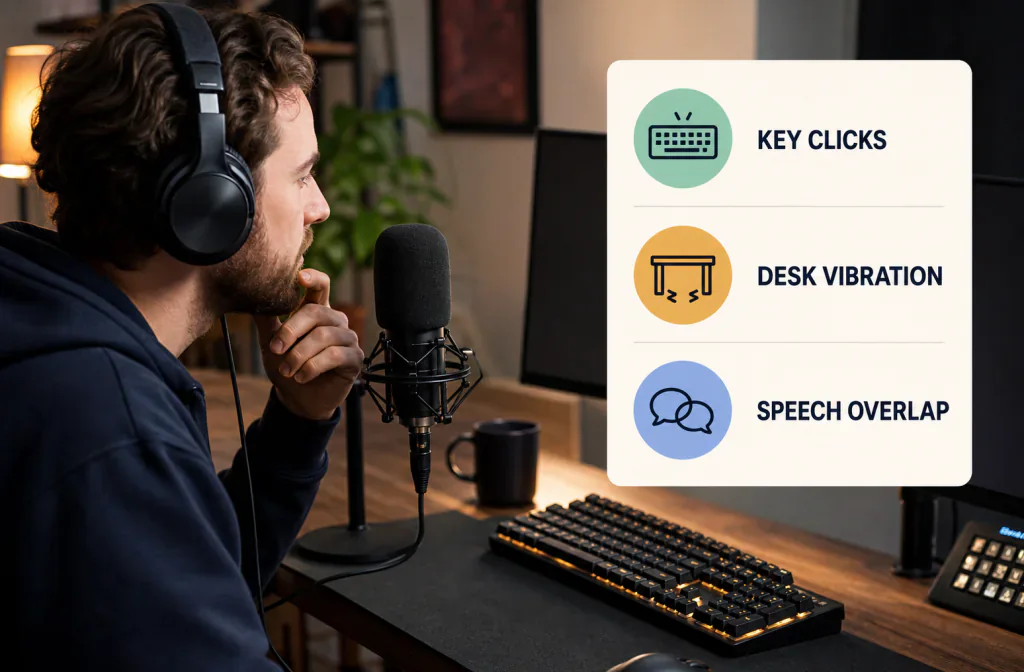
- Keyboard impacts that cover syllables cannot be recreated reliably.
- Live filter mistakes become part of the saved recording unless you retain another track.
- Post-processing cannot guarantee recovery from clipping, dropped audio, or destructive overlap.
When the setup is repeatable, prevention wins: move closer to the microphone, aim its least-sensitive direction toward the unwanted source, isolate the keyboard from the mic stand, and reduce the fan at the source. Use the microphone-recording cleanup guide for the saved output.
Troubleshooting a filter chain
The gate chatters around quiet words
Lower the threshold or use a gentler expander. Check attack and release behavior on normal sentences, not just a loud test phrase.
RNNoise sounds good live but the recording distorts
Play the local recording outside OBS and inspect the entire signal chain, including gain, compression, and limiter. Bypass stages one at a time.
Noise returns whenever you speak
That is expected with a level gate. Test Noise Suppression or a saved-file cleanup for steady overlap, and improve the microphone-to-noise balance at capture.
The recording is delayed but monitoring is not
Treat timing as a separate OBS configuration problem. Do not change noise filters to repair delay. Render or record a short test and inspect audio/video alignment.
Frequently asked questions
Is RNNoise always the best method?
No. Test the methods available in your installed OBS version against your microphone, CPU, and actual noise.
Can Noise Cleaner run inside OBS?
This project does not support that claim. Use OBS filters for live capture and Noise Cleaner only for a saved-file workflow.
Should I stack a gate, expander, and suppression filter?
Only when each stage solves a documented problem. Add one at a time and keep a bypass reference.
Where should I add the filter?
Add it to the microphone source that actually feeds the recording or stream. OBS documents access through the Audio Mixer source menu or by right-clicking the relevant source and choosing Filters.
Should I clean the saved OBS video or export audio first?
Use the route verified for the exact file. If you export audio, preserve the project start and check sync after reimport. If video is processed directly, verify the returned picture, duration, and sync.
Related guides
- Reduce keyboard noise in recorded voice
- Recover from metallic speech
- Compare AI reduction and a noise gate
- Clean a Zoom recording after the meeting
- Clean screen-recording audio
Official sources and test notes
- OBS Noise Suppression Filter
- OBS Filters Guide
- OBS Studio Overview
- OBS Expander Filter documents ratio, threshold, attack, release, and recommended chain position.
These official pages establish current documented filter roles and paths. They do not prove a result for a particular microphone or saved recording.
Final decision
Use the simplest native OBS chain that survives a saved test recording. If steady noise remains under speech, preserve the file and test a supported Noise Cleaner saved-file workflow. Keep the version with complete, natural words—not merely the quietest pauses—and fix the recording setup before the next session whenever the source can be improved.