Why a Voice Sounds Metallic After Noise Reduction—and What to Try Next
Learn why a voice can sound metallic after noise reduction, how to return to a clean source, test a lighter path, and decide when to re-record.

A metallic or watery voice after noise reduction usually means the process removed or reshaped parts of the speech along with the unwanted sound. Stop stacking more cleanup. Return to the untouched original, compare the same words, and retry with a lighter or more targeted approach. If the source has severe noise overlap, some residual noise may be safer than damaged speech. Noise Cleaner can be tested again only from the original saved file and through real controls in the current product; it cannot guarantee recovery from an already overprocessed export.
Your first job is rollback, not enhancement. Save the damaged version for diagnosis, but make every new attempt from the earliest clean source you still have. If that source is gone, set expectations lower and avoid promising reversal.
What “metallic” can sound like
Listeners may describe the artifact as watery, robotic, phasey, hollow, chirpy, or covered in tiny tonal fragments. The exact cause depends on the source and processing. Do not diagnose it from one adjective alone.
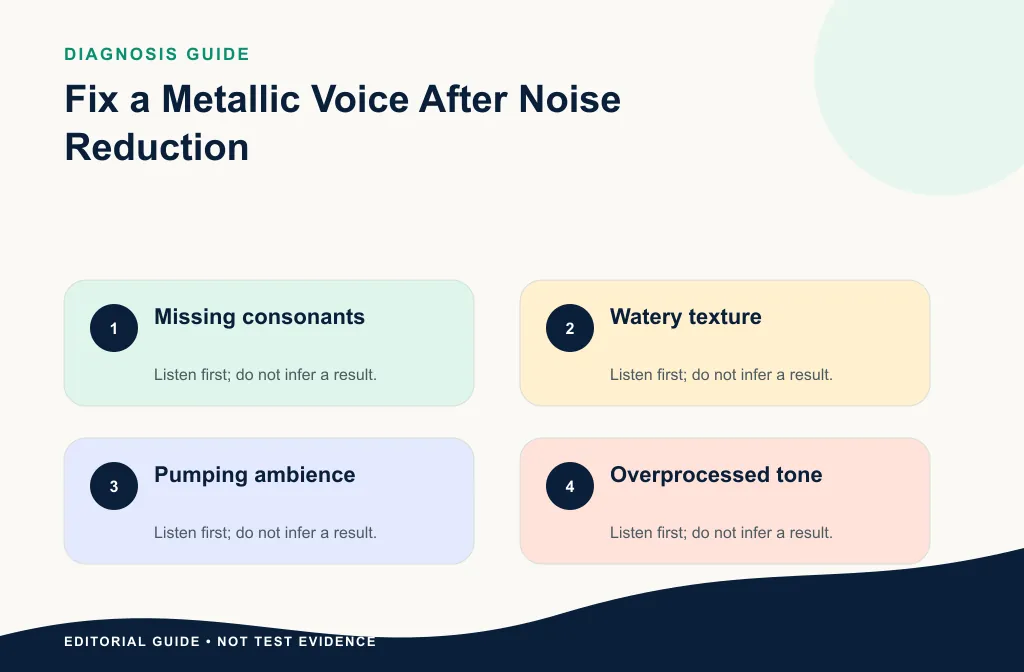
Check whether the problem appears only after processing, whether it affects quiet consonants more than vowels, and whether ambience pulses around words. Use the Before-and-After review guide to compare the exact passage.
Separate metallic texture from adjacent artifacts
Pumping sounds like the background rises and falls around speech. Gating chops quiet words or closes too abruptly. Dullness removes brightness without the tiny tonal fragments listeners call metallic. Clipping is harsh distortion tied to overloaded peaks. More than one can occur after a stacked chain, so bypass stages and identify the first change.
Listen to a pause, quiet consonants, a sustained vowel, and a complete sentence. The full sentence reveals whether the voice remains natural; the short sounds help identify what changed.
Return to the earliest clean source
Find the original recording or the least processed version. Do not start from a file that already has aggressive noise reduction, normalization, compression, and another enhancer unless no better source exists. Preserve the damaged version for diagnosis but make the new attempt from the original.
For a method choice, compare AI noise reduction with a noise gate rather than adding both automatically.
Search project autosaves, recorder originals, camera files, cloud versions, and collaborator copies. A compressed original is still usually safer than an aggressively processed export. Label the best source and protect it from further destructive changes.
Rebuild the processing history
Write down every step applied in order, including software, versions, presets, settings, exports, and conversions. Bypass stages one at a time when the project allows it. The goal is to find the first point where the voice changes, not to invent a new chain immediately.
Include gates, expanders, noise suppression, compression, EQ, normalization, enhancement, sample-rate conversion, and platform export. If the artifact begins after one stage, remove or reduce that stage before changing later effects.
| What you find | Safer response |
|---|---|
| Artifact begins after strong reduction | Return to source and reduce the amount |
| Word endings vanish after a gate | Lower threshold or use gentler expansion |
| Pumping begins after stacked dynamics | Bypass stages and rebuild one at a time |
| Only one click caused the original problem | Repair that event locally |
| Original speech is already clipped | Use another take or specialist repair |
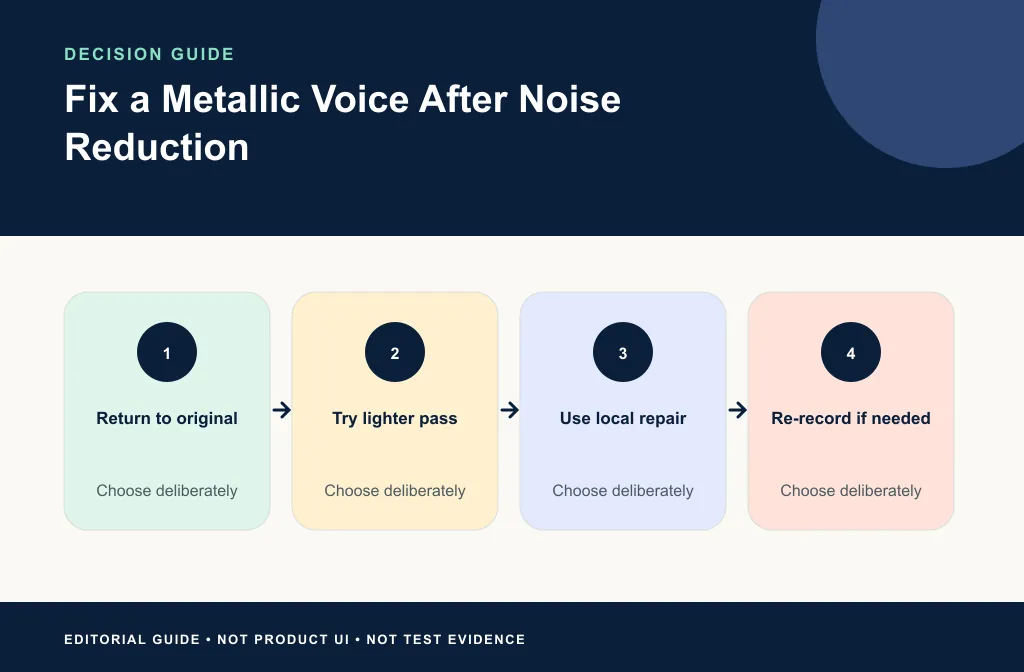
Try the safer branch
- Restore the untouched or least-processed source.
- Mark a 10–20 second passage with the artifact and its clean reference.
- Apply one lighter cleanup method.
- Compare the same words at a similar level.
- Listen to speech, breaths, pauses, and room continuity.
- Keep residual noise when removing more would damage the message.
- Use local repair for isolated events.
- Re-record when critical speech is already missing and the take can be replaced.
Run one controlled retry
Choose a passage containing quiet and normal speech plus the original noise. Make one light attempt from the original. If you use Noise Cleaner, use only the controls that exist in the current saved-file workflow. If you use an editor, save the setting and keep bypass available. Do not add compression, enhancement, or normalization until the cleanup decision is approved.
Compare at a similar level. Keep the retry only when speech is more usable, consonants remain complete, ambience does not pulse, and the improvement survives an ordinary speaker. If not, accept more residual noise or switch to local repair.
Software-specific recovery choices
OBS users should bypass live filters one at a time using the OBS noise-filter guide. Audacity users can audition the Residue option and reduce settings using the Audacity workflow. For isolated keyboard clicks, follow the keyboard-noise repair guide.
Premiere Pro users should bypass Essential Sound repairs one at a time and compare a rendered proof, not only timeline playback. Podcast editors should return to separate speaker tracks when one voice is damaged more than another. The software changes, but the recovery rule stays the same: find the earliest clean source and rebuild the smallest chain.
When you cannot fully undo the damage
An exported processed file may not contain enough information to reverse the artifact. If the original is gone, preserve the best available version, try a gentle local repair, and avoid promising restoration. For an irreplaceable interview, a specialist may be more appropriate. For a short repeatable line, re-recording is often clearer and faster.
Limitations and artifact risks
- An overprocessed export may no longer contain the removed speech detail.
- Another enhancer can disguise the texture while creating new damage.
- Strong noise overlap may force a tradeoff between residual noise and natural voice.
- Level differences can bias the comparison.
- A clean pause does not prove consonants were preserved.
- Repeated lossy exports can add uncertainty to the diagnosis.
Do not promise that metallic speech can always be restored. State the best available source, the attempted repair, and what still sounds wrong.
Prevent the problem on the next pass
- Save a bypassed original before processing.
- Test a representative sentence before the whole file.
- Change one stage at a time.
- Use the lowest strength that meets the listening goal.
- Check quiet speech and noise under speech.
- Stop when the voice begins to change.
- Keep the processing history with the project.
Troubleshooting
The lighter retry still sounds metallic
Return to the original again and try local repair, a different method, or no broad cleanup. The source may not support the desired amount of reduction.
The damaged version is the only file left
Duplicate it, try one gentle repair, and compare with the untouched damaged copy. For important speech, consult a specialist or use a transcript rather than claiming restored words.
The voice is natural in one passage but watery elsewhere
Conditions changed across the file. Use section-level treatment and approve several representative passages before processing the whole recording.
Frequently asked questions
Can another enhancer fix metallic speech?
It may change the sound again, but stacking processes can make the damage worse. Return to the earliest source first.
Is some background noise acceptable?
Yes. Natural speech with modest residual noise is often more usable than aggressively cleaned speech with missing detail.
Should I normalize before comparing?
Match playback presentation carefully, but do not use loudness to hide artifacts. Record any adjustment.
Is a little room noise better than a metallic voice?
Usually yes when the noise is tolerable and speech remains easy to understand. Naturalness and intelligibility outrank complete silence.
Can I process the already damaged export again?
Only as a limited salvage attempt when no earlier source exists. Do not expect a second automatic pass to recreate information removed by the first.
Related guides
- Compare AI reduction and a noise gate
- Review Before and After cleanup
- Reduce keyboard noise
- Configure OBS filters conservatively
- Use Audacity Noise Reduction
Sources and test notes
- Audacity Noise Reduction documents artifact risks and the Residue listening method.
- OBS Noise Suppression Filter warns that stronger suppression can distort other sounds such as the voice.
These official sources support conservative processing and bypass review. They do not prove that a particular damaged recording can be restored.
Final recovery choice
Return to the original, test one lighter path, and keep more background noise if that protects speech. Use Noise Cleaner only from the earliest clean saved file and compare the same words. Choose local repair for isolated events, a specialist for irreplaceable material, or re-recording for a short repeatable line. Stop as soon as the voice begins to sound less human.