Hiss, Hum, or Static? Diagnose the Noise Before Cleaning Audio
Distinguish hiss, hum, and static by sound pattern and trigger, check the recording chain, and choose a safer cleanup or repair path.

Hiss usually sounds like a steady airy wash, hum like a stable low or tonal drone, and static like irregular crackles, dropouts, or electrical breakup. Listen to a pause and to speech before choosing a repair. Preserve the original and test one change at a time. Noise Cleaner may fit a saved recording with steady background noise, but it is not the correct answer for every electrical fault, intermittent connection, clipped source, or missing word. Diagnosis matters because the wrong broad process can leave the real cause untouched while damaging the voice.
Use the sound pattern as a starting hypothesis, then test the recording chain. If changing a cable, port, power source, fan, or gain changes the problem, fix that cause before another session. For an existing file, choose the smallest repair that matches the symptom.
A practical listening comparison
| What you hear | Likely category | First check |
|---|---|---|
| Continuous airy “shhh” | Hiss | Gain, microphone distance, preamp or recording chain |
| Stable low drone or tone | Hum | Power, grounding, cables, and hardware path |
| Crackles, bursts, or interruptions | Static | Connectors, cable movement, wireless link, or damaged recording |
| Broad wash plus a changing tone | Fan noise | Fan speed, airflow, placement, and overlap with speech |
| Harsh flattening on loud words | Clipping | Original input level and waveform peaks |
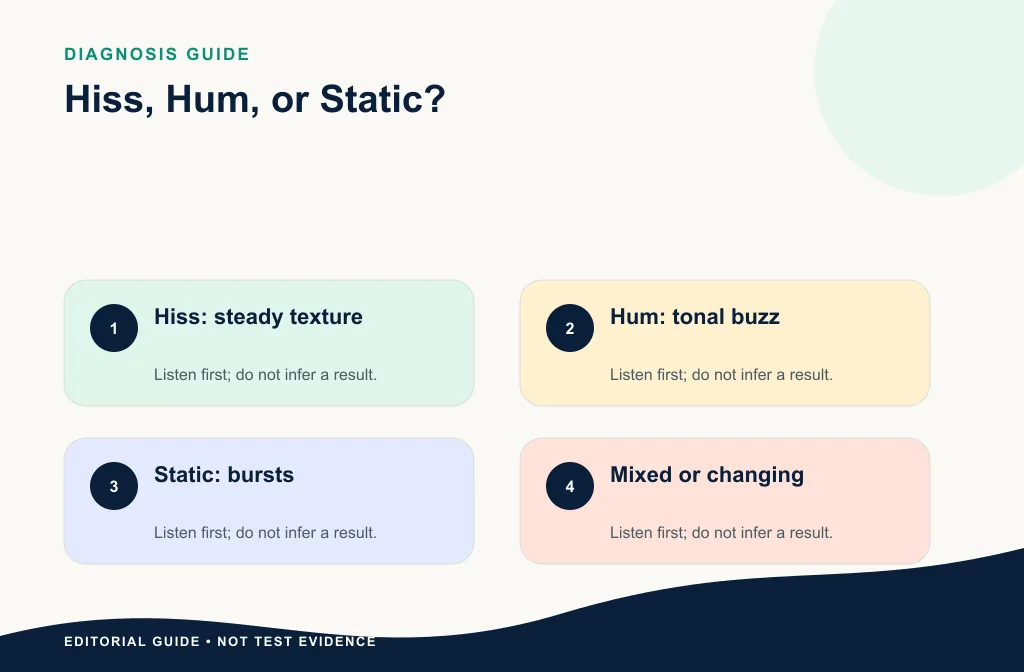
These descriptions are starting points, not measurements. If you need the hiss-specific workflow, see how to identify and reduce hiss. For fan wash or mechanical tone, use the fan-noise guide.
Listen in three conditions
First play a pause. Then play quiet speech. Finally play a louder phrase. Hiss often remains as a similar texture in all three. Hum often feels tonal and stable. Static may react to movement, load, or connection changes. Clipping usually appears when the source becomes too loud and affects the shape and clarity of peaks.
Do not diagnose from a silent gap alone. The repair must protect speech, so the decisive question is how the noise and voice interact.
Check the recording chain before processing
Reproduce the problem with a short test when possible. Change one element at a time: cable, port, adapter, gain, power source, microphone placement, or nearby fan. If the noise changes before software processing, the cause may be upstream hardware or environment.
Do not prescribe a frequency notch or exact gain setting without measuring the actual system. Hardware-specific recommendations require the official manual for the microphone, interface, recorder, or computer involved.
Use a controlled substitution test when recording again is possible:
- keep microphone position and speaking level stable;
- change only one cable, port, adapter, or power condition;
- record the same short script;
- label the file immediately;
- compare at a similar playback level.
If the noise disappears after one change, repair the chain instead of processing every future recording. If it remains only in the old file, move to file repair with realistic limits.
Build three diagnostic samples
For publication, use rights-cleared examples of hiss, hum, and static. Each sample needs the source chain, file details, noise description, and a passage with speech. Compare the samples at a similar playback level and label editorial observations separately from technical facts.
If the voice is unusually quiet, the quiet-voice cleanup guide explains why raising level can also raise noise.
For a saved-file comparison, create one 15–30 second test passage containing a pause, quiet consonants, normal speech, and the problem under words. Keep a short transcript. A visual spectrum may support a measured diagnosis, but do not invent exact frequencies from an editorial graphic.
Choose the repair path
- Preserve the original file.
- Identify the most likely noise category.
- Correct the recording chain when you can reproduce the problem.
- Use local repair for isolated crackles.
- Use a documented notch or hum method only after confirming a tonal problem.
- Test saved-file cleanup for suitable steady noise.
- Compare the same words and return to the original if speech is damaged.

Match the repair to the pattern
For hiss, test conservative steady-noise reduction and protect consonants. For confirmed hum, use a measured tonal repair or hardware fix rather than an arbitrary notch. For isolated static, repair the individual events or replace the failing connection. For repeated dropouts, use an alternate take. For clipping, find another source or specialist repair; a background-noise pass is not the right tool.
Use Noise Cleaner on a copy only when the saved file and noise pattern fit the actual workflow. Compare the same words and keep residual noise when stronger processing makes speech dull, metallic, or gated.
For a downloaded meeting, continue with the Zoom recording workflow after diagnosis. For keyboard transients, use the keyboard-noise guide.
Review the result without fooling yourself
Match playback level reasonably. Switch between the same sentence, then listen through several phrases. Check quiet consonants, breaths, and room continuity. A quieter file may seem cleaner even when voice-to-noise balance did not improve. A clean pause is irrelevant if noise under speech remains.
After download, verify the full file, duration, and channels. If the recording will replace a video track, check sync separately.
When cleanup is not the first answer
Fix the cable or power problem when static or hum is being created during capture. Re-record a short line when the source is clipped or repeatedly interrupted. Use specialist or manual repair when irreplaceable speech contains local damage. A broad cleanup pass should not be used to hide an unresolved hardware fault.
Limitations and artifact risks
- One recording can contain hiss, hum, static, fan noise, and clipping together.
- Noise names describe perception; they are not measurements by themselves.
- Strong broadband reduction can dull wanted speech.
- Tonal repair can remove wanted tone when the diagnosis is wrong.
- Intermittent connection faults may create missing data that cannot be restored.
- A processed file does not fix the hardware or environment for the next recording.
When several symptoms coexist, correct the capture fault first for future work and repair the saved file in stages. Keep a bypass reference after every stage.
Troubleshooting
The hum changes when the laptop is unplugged
Treat that as evidence about the power path, then consult the device and interface manuals. Do not apply a fixed filter without confirming the source.
Static appears only when a cable moves
Stop using that connection until it is inspected or replaced. For the saved file, repair isolated bursts locally and use another take for missing speech.
Hiss gets louder after normalization
The gain change raised the noise with the voice. Return to the earlier source, approve cleanup first, and make final level decisions afterward.
The voice became metallic
Return to the original and reduce the strength or scope of processing. Use the artifact recovery guide.
Frequently asked questions
Can I identify noise from a waveform alone?
Not reliably. Listen to the recording and inspect the real setup. A waveform can support diagnosis but should not replace it.
Why did noise reduction make the voice dull?
Wanted speech detail may overlap the noise. Return to the original and use a lighter or more targeted method.
Is fan noise a type of hiss?
It can share a broad airy component, but fan noise may also include mechanical tones and changing speed. Treat it as a separate diagnosis when those features matter.
Can one tool remove hiss, hum, and static?
One tool may offer several repair methods, but the symptoms still need different decisions. Choose a method from the diagnosed pattern, not from a promise of universal cleanup.
Should I re-record?
Re-record a short critical passage when clipping, dropouts, or static removed speech and the take can be recreated. It is often safer than aggressive restoration.
Related guides
- Reduce fan noise
- Reduce keyboard noise
- Identify and reduce hiss
- Clean a quiet voice recording
- Clean a Zoom recording after the meeting
Sources and test notes
- Audacity Noise Reduction distinguishes constant-noise cases and notes separate treatment for hum or whistles.
- Shure SM57 placement guidance documents practical source aiming, unwanted-sound rejection, handling-noise care, and outdoor windscreen use.
These sources support diagnosis and capture principles. Device-specific faults still require the official manual for the actual microphone, interface, recorder, cable system, or computer.
Final diagnostic action
Name the pattern, test the chain, and preserve the source before processing. Use local repair for static events, measured tonal repair for confirmed hum, and conservative saved-file cleanup for suitable steady noise. Test Noise Cleaner only on a copy and keep the result when speech stays natural. If the fault removed data or will recur, fix the hardware or re-record instead of hiding it with stronger processing.