How to Clean an M4A Voice Recording Before Editing
Clean an M4A voice recording from a preserved working copy, avoid unnecessary conversion, compare the same words, and verify editing compatibility.
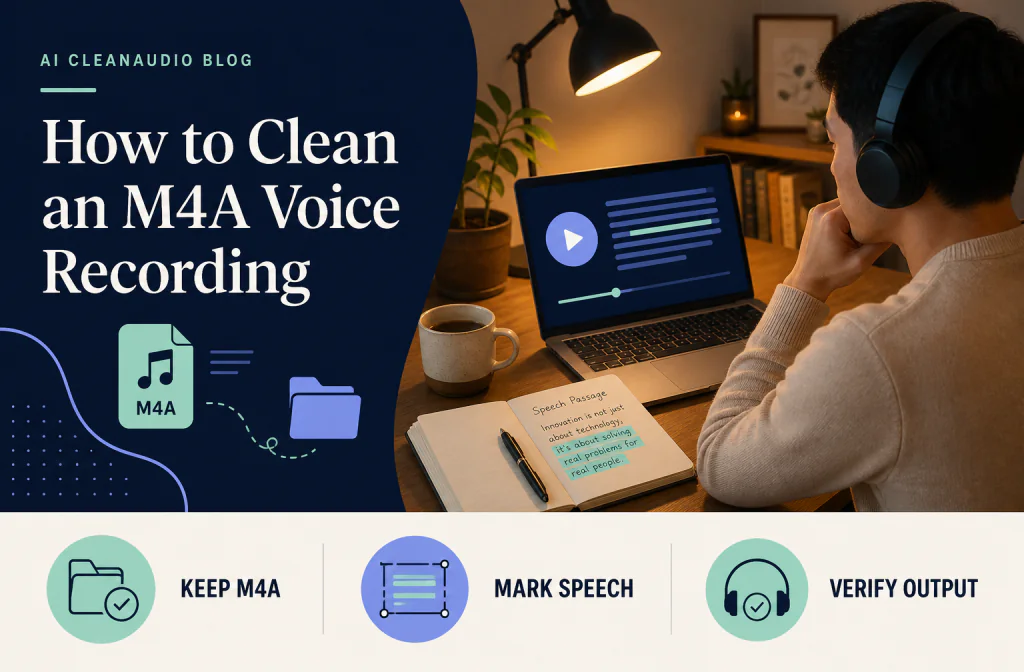
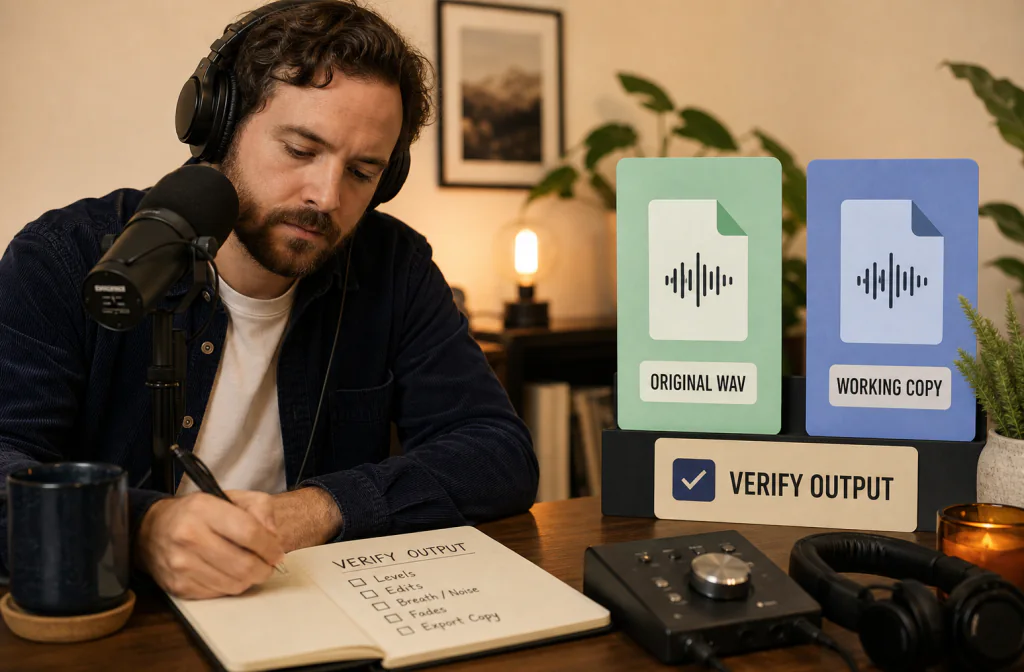
To clean an M4A voice recording before editing, preserve the device or meeting original, record where it came from, and verify that the current cleanup workflow accepts that exact file. Test a short passage where noise overlaps speech, compare the same words, and inspect the downloaded output before importing it into an editor. Noise Cleaner can support a saved-file workflow, but exact M4A input and output behavior must be confirmed in the current build. Converting the file does not restore clipped or masked speech, and repeated conversion complicates the handoff.
The safest source is the least altered usable recording, not automatically the file with the most familiar extension. Find the device, app, or meeting export that created the M4A and preserve that history before you convert or rename anything.
Identify where the M4A came from
An M4A may be a phone voice memo, meeting export, recorder file, or editor output. Record the source app or device, duration, channel layout, and any visible codec details. Check whether an earlier original or separate track exists before converting.
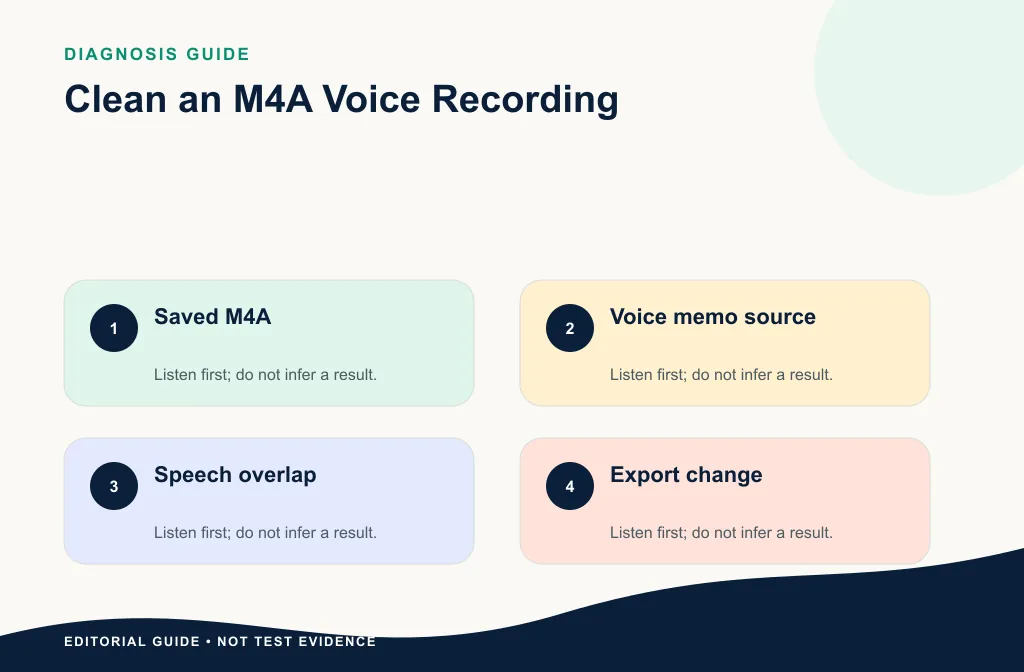
If the source is a Zoom recording, use the Zoom post-meeting workflow. For format alternatives, compare the MP3 guide and WAV guide based on the best source you actually have.
Inspect the recording before conversion
Play the start, problem passage, and end. Confirm that the file opens, has the expected duration, and contains the intended speaker or meeting. Check channels in the editor when visible. If one channel is silent or noisy, solve that routing issue before global cleanup.
Write a short provenance note: original app or device, whether the file was shared or re-exported, earlier processing, and the next editor. An M4A downloaded from Zoom, exported from a voice memo, and created by an editor may all require different checks.
Decide whether conversion is necessary
Do not convert just because the extension is unfamiliar. First verify the product and editor requirements. If conversion is required, keep the original and document the tool, output format, and reason. A WAV made from an M4A can simplify editing in some workflows, but it does not recreate information lost earlier.
Convert once, at a documented handoff, when the next tool requires it. Preserve the M4A and name the converted copy clearly. Avoid making MP3, then WAV, then another compressed file merely to try different apps.
| Situation | Better first move |
|---|---|
| Product accepts the exact M4A | Test a working copy directly |
| Editor requires WAV | Convert once from the preserved M4A |
| Meeting folder includes separate tracks | Compare those tracks before conversion |
| M4A came from an already compressed source | Do not expect conversion to restore detail |
| File fails to open | Return to the source app or backup |
Mark a listening passage
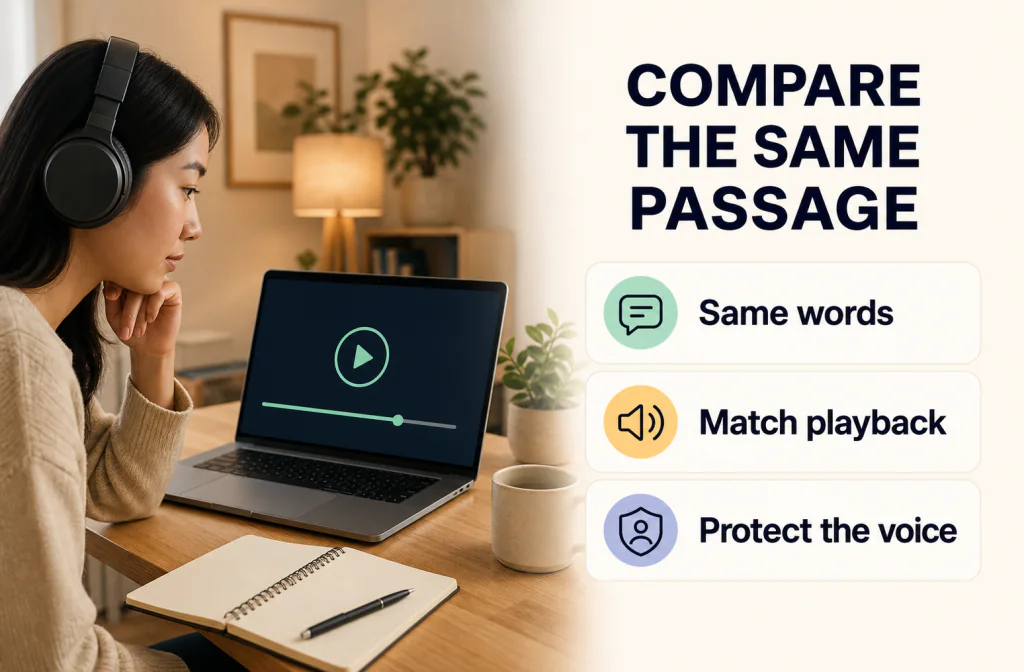
Choose 15–30 seconds with a pause, normal speech, quiet speech, and the main noise under words. Record the transcript and timestamps. Compare at a similar playback level.
Use the Before-and-After review guide to check speech integrity, residual noise, and artifacts.
Include a quiet consonant, a normal sentence, a pause, and the main noise under words. Add a clean reference passage from the same speaker when available. Compare at a similar level so a louder or quieter output does not decide for you.
Process the working copy
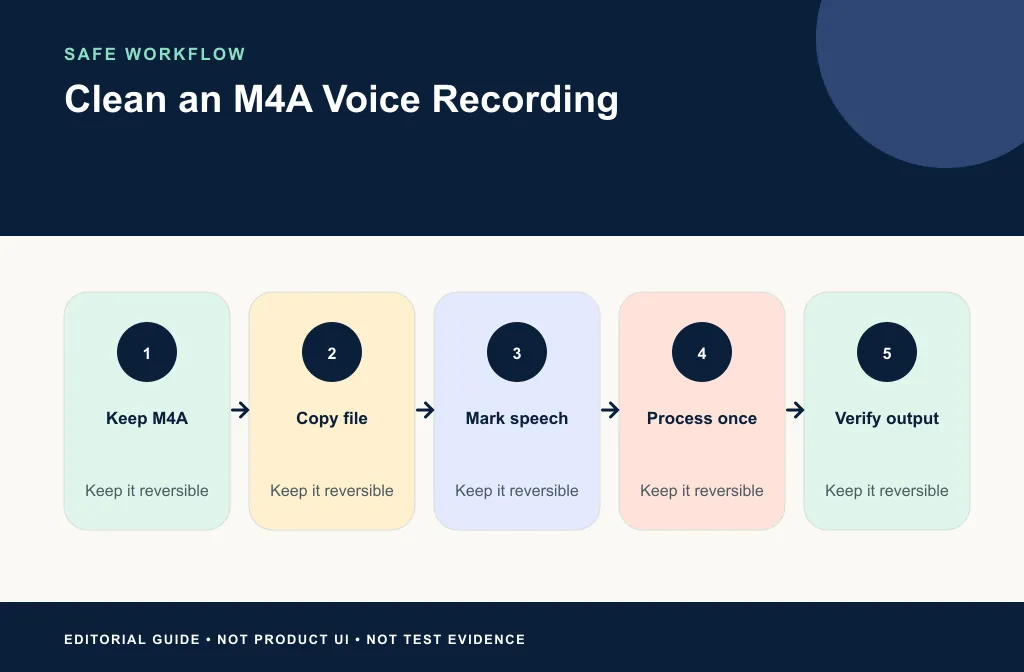
- Duplicate the M4A and preserve the source.
- Record file and device details.
- Verify current input acceptance.
- Upload the authorized copy through Noise Cleaner.
- Preview the marked passage and compare the same words.
- Download the result and record its actual format and duration.
- Import the reviewed output into the editor.
- Keep the original through final delivery.
Review the actual downloaded output
Do not stop at a browser preview. Open the download in a second player and the intended editor. Check the marked sentence, a quiet section, and a loud section. For long recordings, sample the beginning, middle, and end. Confirm duration, channels, and the file type actually returned.
Keep the result only when noise under speech is less distracting, the speaker remains natural, and the editor accepts the file without an unexpected conversion. If the voice becomes metallic or word endings disappear, return to the M4A source and use a lighter path.
Review compatibility before editing
Open the downloaded file in the actual editor and confirm the full duration, channels, and playback. If the source came from a meeting, names and quiet speakers deserve a separate check. If it will become part of a webinar, continue with the webinar recording workflow.
For a video replacement, preserve the original project start and compare beginning, middle, and end sync. An audio-only file can sound correct while being unusable under the picture if its start or duration changed.
When an editor is safer
Use an editor for local clicks, trimming, fades, channel routing, or exact export. A manual noise-reduction workflow may also be better when you have a representative noise-only section and want to audition what is removed. Follow the Audacity guide for a conservative profile-based path.
Limitations and failure cases
- M4A is a container label; actual encoding and source history vary.
- Conversion does not reconstruct clipped or masked speech.
- A quiet voice may reveal more noise when level is raised.
- Strong cleanup can alter consonants and breaths.
- Output format, channels, and duration require inspection.
- An editor import proves compatibility only for that tested workflow.
Use local repair for isolated events and another take for critical missing speech. Do not process the whole recording harder to solve one click or alert.
Common mistakes
- Deleting the device original after conversion.
- Assuming every M4A uses the same encoding.
- Testing only a silent gap.
- Comparing files at different playback levels.
- Importing the output without checking its full duration.
- Applying another enhancer before identifying an artifact.
Also avoid deleting the meeting folder or voice-memo original after the first successful import. Keep rollback until the edit and delivery are complete.
Troubleshooting
The M4A is rejected by the cleanup tool
Return to the verified input requirements. If conversion is necessary, make one documented copy from the original and keep the source untouched.
The output opens but sounds metallic
Compare the same words at a similar level, then return to the M4A and reduce processing. Do not enhance the damaged output again.
The editor imports the wrong duration or channels
Inspect the actual output and export settings. Recreate the handoff with an intentional layout rather than patching it blindly.
The meeting M4A has only the mixed audio
Check the original recording folder for separate participant files. If they do not exist, use section-level review and do not assume speaker separation.
Frequently asked questions
Do I need to convert M4A to MP3?
Only when the tested product or next editor requires it. Conversion is a workflow choice, not a quality repair.
Is M4A lower quality than WAV?
The answer depends on the actual codec and source history. Use the least altered source available and avoid unsupported generalizations.
Can cleanup fix a very quiet voice?
It may reduce distraction, but raising a quiet recording can also expose noise. Review intelligibility and artifacts carefully.
Is M4A the same as AAC?
Do not infer the exact codec from the extension alone here. Inspect the file information supplied by the source app or a trusted media inspector.
Should I convert to WAV before every edit?
No. Convert only when the actual editor or handoff requires it. Many workflows can use the preserved source directly.
Related guides
- Clean an MP3 recording
- Clean WAV audio
- Review a Before-and-After result
- Clean a Zoom recording
- Clean webinar recording audio
Sources and test notes
- Audacity Export Audio documents that M4A workflows may depend on FFmpeg in Audacity; this does not prove Noise Cleaner support.
- Zoom recording-format documentation documents M4A as the audio-only format in Zoom recording outputs.
Use the official source-app documentation for the actual M4A. These sources explain export context but do not prove support or improvement for a particular file.
Final handoff decision
Preserve the original M4A, document its source, and convert only when the verified workflow requires it. Use Noise Cleaner on an authorized working copy, compare the same words, and test the real download in the intended editor. Keep the result only when speech remains natural and format, duration, channels, and sync still fit the next step.