How to Clean an MP3 Recording and Check the Result
Clean an MP3 recording without overwriting the source. Compare the same passage, verify the download, and avoid unnecessary lossy conversions.

Quick Answer
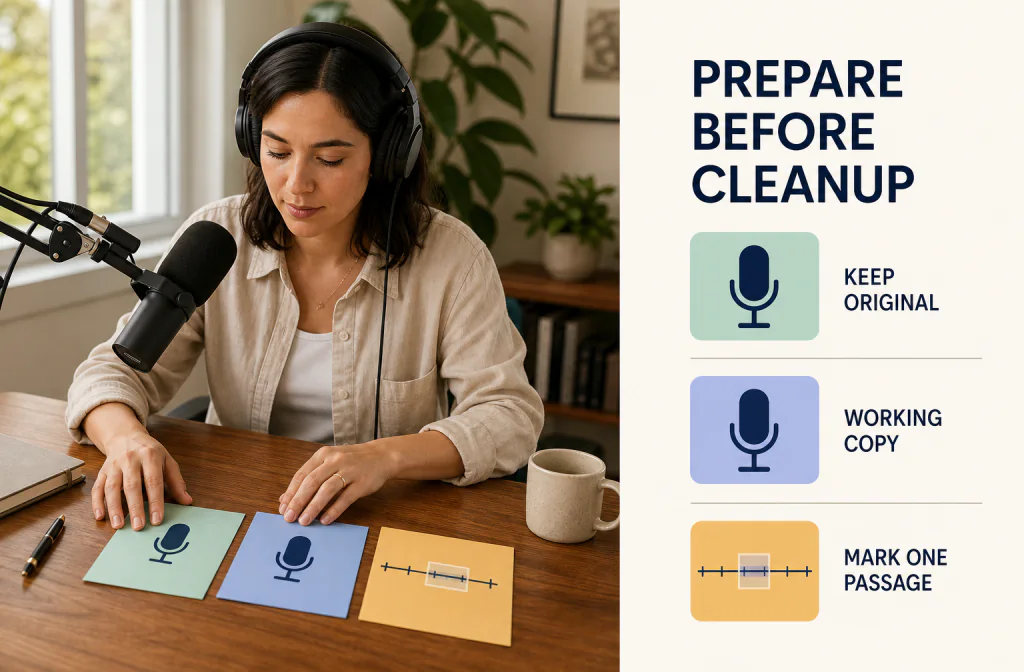
To clean an MP3 recording safely, keep the original, make one working copy, and mark a short passage where the real noise overlaps speech. If you still have an earlier lossless or editor source, preserve that too. Verify that your exact MP3 is accepted before processing, compare the same words at a similar playback level, then open and review the downloaded file independently.
The current Noise Cleaner audio cleaner accepts MP3 input with mono or stereo audio, but an extension alone never guarantees acceptance: the current account byte allowance and the versioned container and channel policy also apply. Cleanup may make unwanted sound less distracting, but it cannot restore detail lost at capture or during an earlier lossy encode.
Practical rule: Avoid unnecessary conversions. A larger or higher-bitrate file made from an MP3 does not recreate information that an earlier encode discarded.
Inspect the MP3 Before You Clean It
An .mp3 filename tells you the delivery format, not the recording's full history. The file may have been recorded directly, exported from an editor, downloaded from a meeting platform, or encoded several times. That history affects how much useful speech information is still available.
Write down what you can confirm without guessing:
- filename and duration;
- mono or stereo channels;
- sample rate and bitrate, if your file inspector reports them;
- the app or device that created the file;
- whether an editor project, WAV, M4A, or earlier source still exists;
- the main unwanted sound and whether it overlaps words;
- the editor or publishing service that must open the final file.
If the recording came from a microphone and you also hear clicks, room reflections, fan wash, or clipping, the saved microphone diagnosis helps you separate those problems before treating the MP3 as one generic noise issue.
Define What “Clean” Means for This File
Choose a listener-facing goal. You may need an interview with less distracting fan noise, a voice memo with quieter room tone, or narration whose words are easier to follow. Then define what must not change:
- every spoken word;
- the speaker's natural-enough tone;
- timing and full duration;
- any stereo information required by the project;
- compatibility with the next editor or publisher.
Avoid goals such as “studio quality” or “lossless restoration.” Processing works with the decoded information that remains in the MP3. It cannot reverse clipping, restore frequencies removed by an earlier encoder, or recreate a syllable masked during recording.
Choose One Representative Test Passage
Mark a 20–30 second window containing the real problem underneath speech. Include a natural pause, a quiet phrase, a louder phrase, and one cleaner reference sentence when possible. Record the timestamps and a short transcript.
This prevents two common mistakes: testing only silence, where almost any method appears effective, and comparing different words in the source and output. For a consistent source-file and listening setup, begin with the recording preparation checklist.
| What is in the MP3 | Reasonable first step | Important limit |
|---|---|---|
| Steady fan or room noise under speech | Test broad cleanup on a copy | Speech tone may change with the noise |
| Low noise mainly in pauses | Test a gentle gate or expander | Noise can return while speech opens it |
| A few isolated clicks | Repair locally in an editor | Whole-file processing may be excessive |
| Clipped speech | Use another take or specialist repair | Missing peak detail cannot be guaranteed |
| Several MP3 generations | Find the earliest source | A new export cannot restore prior losses |
| Playback or file-identification problem | Verify the source first | Blind conversion can hide the actual issue |
Step-by-Step: Clean One MP3 Working Copy
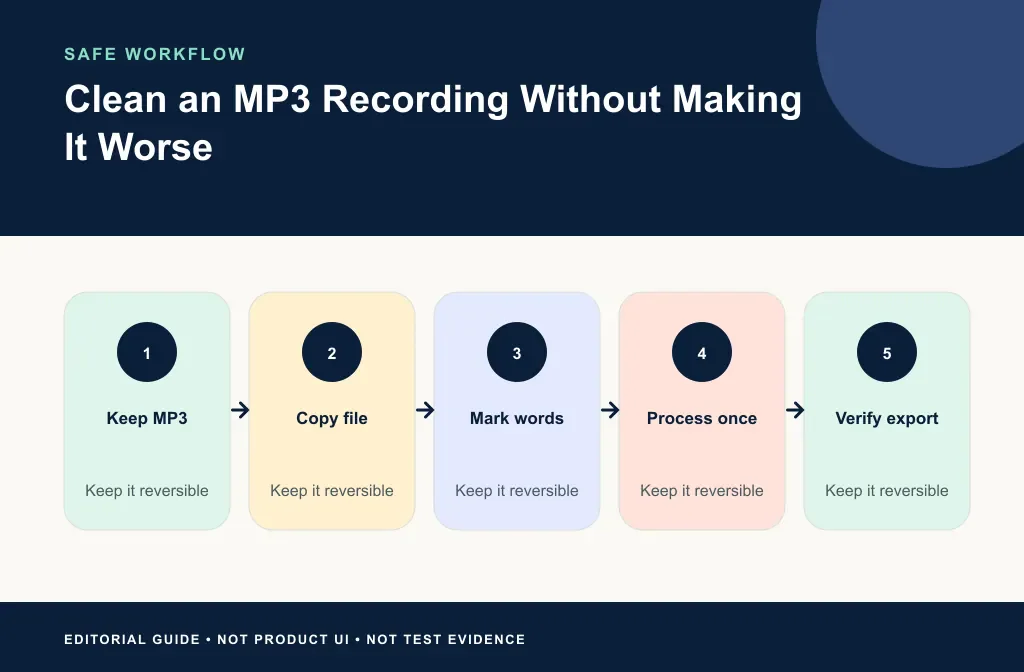
1. Preserve the earliest source
Keep the original MP3 and, if available, the editor project or lossless recording. Do not overwrite the only copy. Give the working file a useful name such as interview-source-copy.mp3 instead of relying on “final-final” filenames.
2. Confirm the exact input
Open the audio cleaner and select the working copy. Check the current upload guidance rather than assuming every MP3 uses a supported channel layout or fits the current account's byte allowance. If the upload is rejected, stop and identify the real source format. Convert only when a verified next step requires it.
At the time this article was reviewed, Noise Cleaner's versioned capabilities listed MP3 with mono and stereo layouts. The service policy and your account limits remain authoritative at upload time.
3. Run one cleanup pass
Use one processed version for the first comparison. Reprocessing an already cleaned MP3 adds another variable and may add another lossy encode. If the first pass sounds wrong, return to the untouched source rather than stacking cleanup on the damaged output.
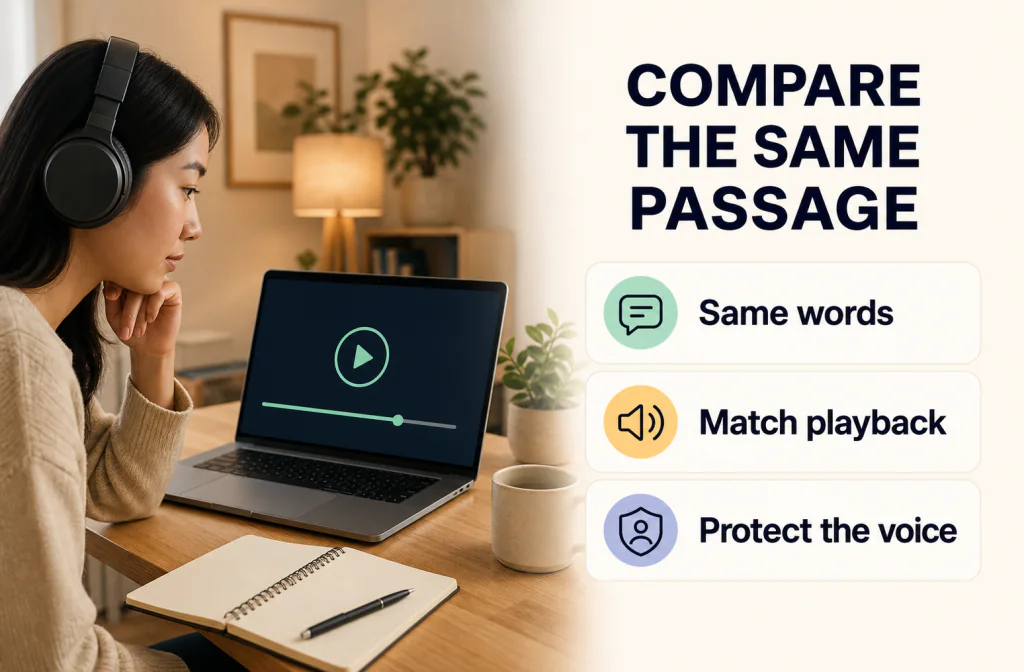
4. Compare the same words
Return to the marked passage. Use the same playback device and a consistent volume position. If one version is noticeably louder, match the listening level before choosing; louder audio can feel more detailed even when the actual speech is less natural.
Listen in separate passes:
- Words: Are beginnings, endings, and quiet consonants complete?
- Noise: Is the unwanted sound less distracting during speech, not just in pauses?
- Voice: Does the speaker still sound natural enough for the intended use?
- Ambience: Does the background pump, chirp, or disappear abruptly?
The Before-and-After review guide turns those checks into a repeatable keep-or-return decision.
5. Download and inspect the actual file
If the preview passes, download the result and open it in the application that comes next in your workflow. Check the beginning, marked passage, a later difficult moment, and the end. Confirm that it plays for the full expected duration and that the channel layout works for your next editor or publisher.
Do not infer the download's properties from the browser player. The file you hand to an editor or upload to a platform is the deliverable that must pass.
Why Repeated MP3 Conversion Matters
MP3 is a lossy format. Its encoder removes information to reduce file size, and decoding the file later does not restore what was discarded. Exporting that decoded audio to MP3 again applies another lossy generation.
Audacity's official MP3 Export Options manual notes that MP3 re-encoding loses quality and advises editing the original source where possible instead of repeatedly exporting an already encoded file. It also documents bitrate modes and export controls, but no bitrate choice can restore data removed from the input (Audacity Manual: MP3 Export Options).
This does not make MP3 unusable. It is a common delivery format. It means you should preserve the earliest source, avoid conversions that solve no real compatibility problem, and wait until the delivery stage before choosing another lossy export when possible.
Converting MP3 to WAV does not restore a lossless source
An editor may be easier to use with WAV, but a WAV created from an MP3 contains the decoded MP3 information. The file can be larger without containing the original detail that was removed. Label it as a working conversion, not as an original master.
A higher bitrate does not prove recovered quality
A high-bitrate export can reduce additional loss in a new MP3 generation, but it cannot restore information missing from the input. Judge the actual voice and delivery compatibility rather than file size alone.
When a Waveform Editor Is the Better Choice
Choose Audacity or another editor when you need:
- a precise repair for one click;
- trimming, fades, or timeline changes;
- manual channel inspection;
- a documented noise-profile method;
- explicit sample-rate, channel, format, or bitrate controls;
- a lossless working export before final delivery.
Audacity's Noise Reduction manual describes its effect as better suited to steady noise than irregular clicks and warns that stronger reduction can damage wanted audio. It recommends using the lowest effective reduction and reviewing for artifacts. That is editor-specific guidance, not evidence of Noise Cleaner performance, but the same listening discipline is useful (Audacity Manual: Noise Reduction).
Common MP3 Cleanup Mistakes
- Overwriting the only source.
- Converting several times without a workflow reason.
- Testing silence instead of noise under speech.
- Assuming every MP3 has the same channel layout or encoding history.
- Treating a larger output as restored quality.
- Approving the browser preview without checking the downloaded file.
- Applying another enhancer before identifying which stage caused an artifact.
- Forgetting that audio extracted from video must be returned to the correct timeline and checked for sync.
Different MP3 Scenarios
Podcast interview
Keep multitrack or lossless sources if they exist. Treat MP3 as the delivery copy when the platform requires it, not automatically as the production master. Review every speaker, especially quieter voices.
Voice memo or meeting export
Preserve the earliest downloaded file and note its source platform. Verify what your next editor accepts before converting it.
Narration received from someone else
Ask for the source project or an earlier export when possible. If the file has passed through unknown encoders, make one conservative test and listen closely to soft consonants and sibilants.
Audio extracted from video
Preserve the video and original timing. A clean audio export is not a completed video workflow until the replacement track passes duration and sync checks.
Frequently Asked Questions
Should I convert MP3 to WAV before cleanup?
Not automatically. The conversion does not restore information already removed by MP3 encoding. Convert only when the tested tool or next editor requires it, and keep the original MP3.
Can Noise Cleaner accept my MP3?
The current capabilities list MP3 for mono and stereo audio. Actual acceptance also depends on the current account byte allowance and versioned media policy, so check the upload interface for your exact file.
Can I download the cleaned result as MP3?
For an accepted formal MP3 project, the current service policy keeps MP3 as the output container. Verify the actual downloaded file before delivery because policy, account state, and project completion—not the input extension alone—determine what you receive.
Can noise reduction repair clipping?
No general cleanup workflow can guarantee recovery of clipped peaks or speech detail that was not captured cleanly. Return to another take or use specialist repair for valuable material.
What if the cleaned file sounds quieter?
Match playback level before judging. Loudness and noise reduction are separate questions.
Why check the download after the preview?
The final file is what your editor or publishing platform will receive. Confirm playback, full duration, channels, and compatibility before choosing it.
Sources and Verification Notes
- Audacity Manual: MP3 Export Options, accessed August 15, 2026 — documents lossy re-encoding, bitrate modes, and MP3 export behavior.
- Audacity Manual: Export Audio Dialog, accessed August 15, 2026 — documents format, channel, sample-rate, and encoding choices in Audacity.
- Audacity Manual: Noise Reduction, accessed August 15, 2026 — documents steady-noise fit and artifact risk for Audacity's effect.
- Noise Cleaner versioned capabilities and media-policy catalog, checked August 15, 2026 — list MP3 input and formal MP3 output for mono or stereo audio, subject to current account and policy limits.
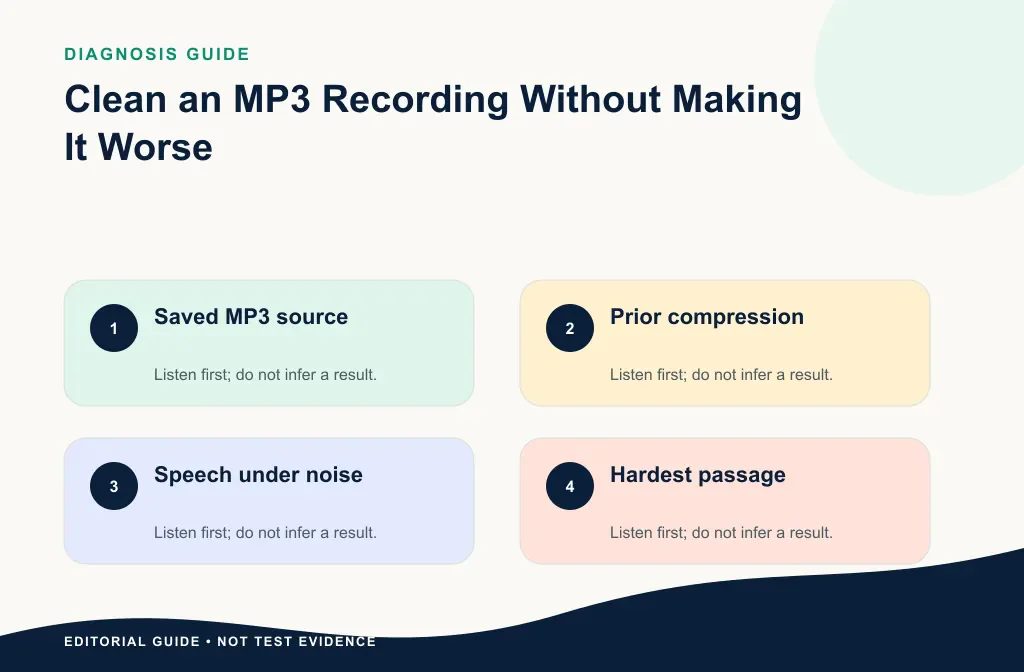
The editorial images explain the workflow; they are not product screenshots or sample-specific cleanup evidence. No percentage reduction or universal quality result is claimed.
Choose the Next Action
Start from the earliest useful source, preserve it, and mark one difficult passage. Verify the working copy on Noise Cleaner, compare the same words, and inspect the downloaded output in your real next application. If an earlier lossless source exists, prefer it for continued production; if it does not, keep the MP3 and avoid conversions that do not solve a specific need.