Remove Background Noise in iMovie on Mac: Native Steps and Export Review
Use iMovie for Mac's current background-noise controls, export a short check, and choose a saved-file fallback without losing speech or sync.

Quick answer
For removing background noise in iMovie on Mac, preserve the untouched media, select a representative passage, and make the smallest reversible change first. In Apple's current iMovie for Mac guide, select the audio or video clip in the timeline, click the Noise Reduction and Equalizer button, select Reduce background noise, and move the slider while you play the same passage back. Start lightly: 0% applies no reduction and 100% is the maximum setting described by Apple. If a saved file still needs a separate cleanup test, the video noise remover is the primary Noise Cleaner path for this guide. It processes saved media; it is not a live-call filter or a replacement for editing, recording, or timeline work.
The goal is clearer speech with natural pauses and wanted sound still intact, not an empty-sounding track. Save each attempt under a new name, review the difficult words, and keep the least aggressive version that solves the actual distraction.
Where to find iMovie's native control
Apple's iMovie audio guide gives the current Mac route:
- Open the project and select the audio or video clip in the timeline.
- Click the Noise Reduction and Equalizer button above the viewer.
- Select Reduce background noise.
- Drag the reduction slider while playing the passage you want to judge.
- Play the result again and adjust the amount until the voice is easier to follow without sounding processed.
The slider is a control for one selected clip, not a measurement of how much noise was removed. A higher value can also remove room tone, breaths, music, or consonants. If your version uses a different label or layout, check Apple's current guide and the controls in the installed app before following an older tutorial.
Start with the source and the exact problem
Make a duplicate of the project or source clip before you touch the slider. Record the file format, duration, sample rate if known, channel layout, and where the problem is easiest to hear. For video, also note the frame rate and one visible sync cue. Cleaning a complete mix can change wanted music, effects, room tone, or another speaker along with the noise.
Before changing anything, follow the guide to prepare a reversible recording copy. Then use the separate method to compare the same passage before and after cleanup. Those checks create a stable baseline: the original remains available, and every later judgment refers to the same words at a similar listening level.
Listen in at least four places: a pause, quiet speech, ordinary speech, and the noisiest overlap. Headphones can reveal watery or chirping artifacts, while a laptop or phone speaker can reveal whether the cleaned voice still reads in normal playback. Do not approve a setting from a quiet pause alone.
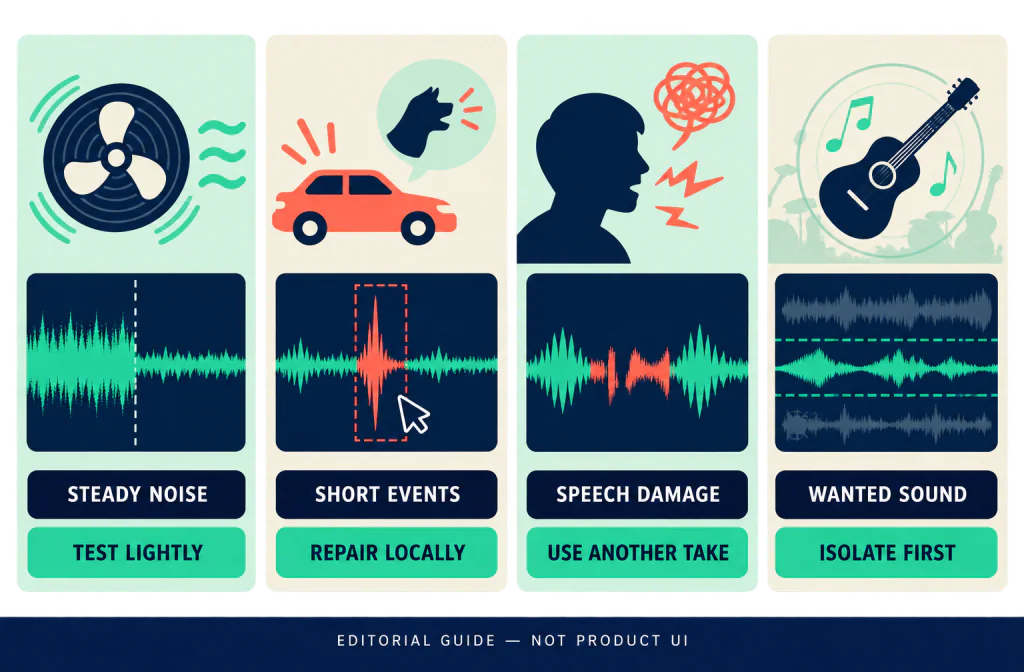
| What you hear | What it suggests | Safer first action |
|---|---|---|
| Steady bed beneath speech | Continuous environmental or electronic noise | Test light reduction on a copy |
| Short clicks, bumps, or rustle | Local events | Repair or mute the local event when possible |
| Noise mainly in pauses | A level or edit problem | Compare a gate or manual edit with reduction |
| Flattened peaks and harsh distortion | Possible clipping | Use another take or specialist repair |
| Another voice, music, or effects under speech | Wanted and unwanted sound overlap | Isolate tracks or accept a limited result |
Make a short, reversible test
Choose 15–30 seconds containing the real problem and complete words, with a few seconds of context on both sides. Duplicate the project or clip and name the copy clearly. Test one change at a time and write down the setting. Avoid repeated format conversions before the first comparison because each conversion adds another variable.
In iMovie, select the copied clip, open Noise Reduction and Equalizer, enable Reduce background noise, and begin near the low end of the slider. Bypass the change, play the same words, then enable it again. Listen for word endings, soft consonants, breaths, and the transition from silence into speech. If the voice becomes metallic, watery, thin, or strangely quiet, return to the original copy and reduce the amount.
If you are testing the video noise remover, upload only media you are allowed to process, keep the original outside the workflow, and review the returned file before making any editorial replacement. Check the tool page for accepted inputs rather than assuming that a filename extension proves compatibility.
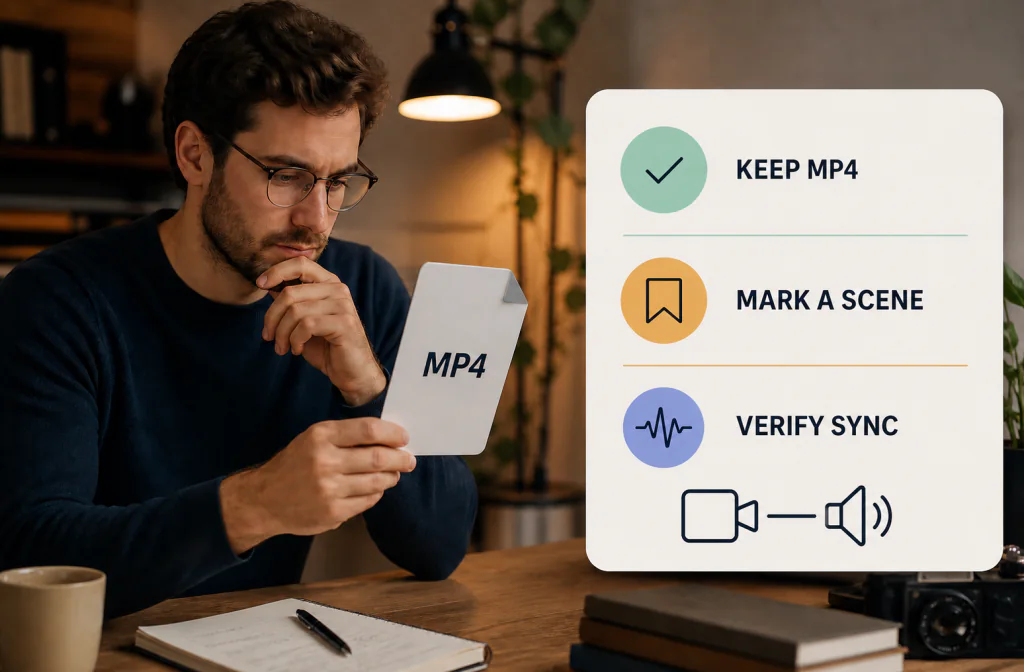
For a compressed source, check an MP4 audio workflow before stacking another export. For a larger or less compressed source, protect video and audio sync provides a companion file-preservation check.
Export a copy and check it outside iMovie
When the short comparison is acceptable, use Apple's iMovie export guide to make a review file. Choose File > Share > File, then select the format, whether to include video and audio or audio only, the resolution, and the quality or compression options. Click Next, choose a new filename and location, and click Save. Apple notes that the exported file can open in QuickTime after the export completes.
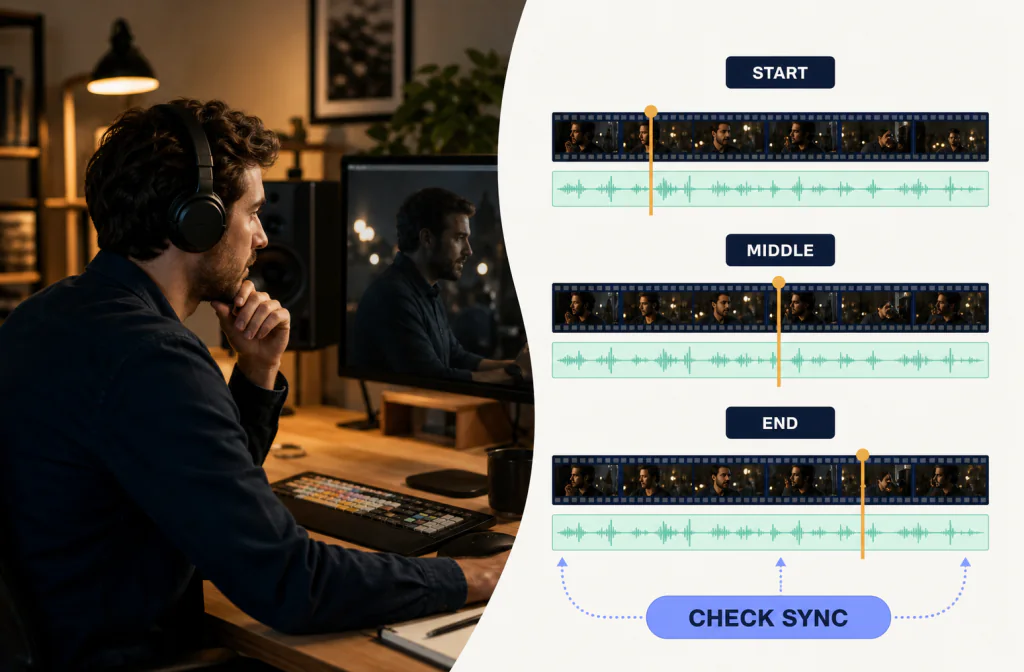
Treat this export as a separate verification step. Play it in another player and check the same passage, the complete duration, and any music or second speaker that must remain. If the clip belongs to a larger edit, reimport the exported copy onto a new track and check a sync cue near the beginning, middle, and end. Do not replace the untouched track until the exported file passes those checks.
A practical iMovie review sheet
Use a small review sheet so a setting is judged by the recording rather than by the slider position:
| Check | What to write down | Keep the change when |
|---|---|---|
| Source | Filename, duration, format, and clip name | The working copy is clearly separate from the original |
| Noise | Where the noise starts and whether it is steady or intermittent | The chosen control addresses that specific distraction |
| Speech | One quiet phrase, one normal phrase, and one difficult phrase | Word endings and soft consonants remain understandable |
| Texture | Room tone, breaths, music, and other speakers | Wanted sound stays continuous instead of pumping or disappearing |
| Export | Format, resolution, quality, and output filename | The saved file matches the expected duration and opens normally |
| Sync | Start, middle, and end cues after reimport | No drift or offset appears at any of the three points |
If you are working on a long interview, repeat the short test after a change in speaker, room, microphone, or background. One slider value can be appropriate for a quiet introduction and too aggressive for a later section. Apply the setting to a new copy only after the representative passages agree. Keeping these notes also makes it easier to return to the earliest untreated source when a later export sounds worse.
Choose the path that fits the recording
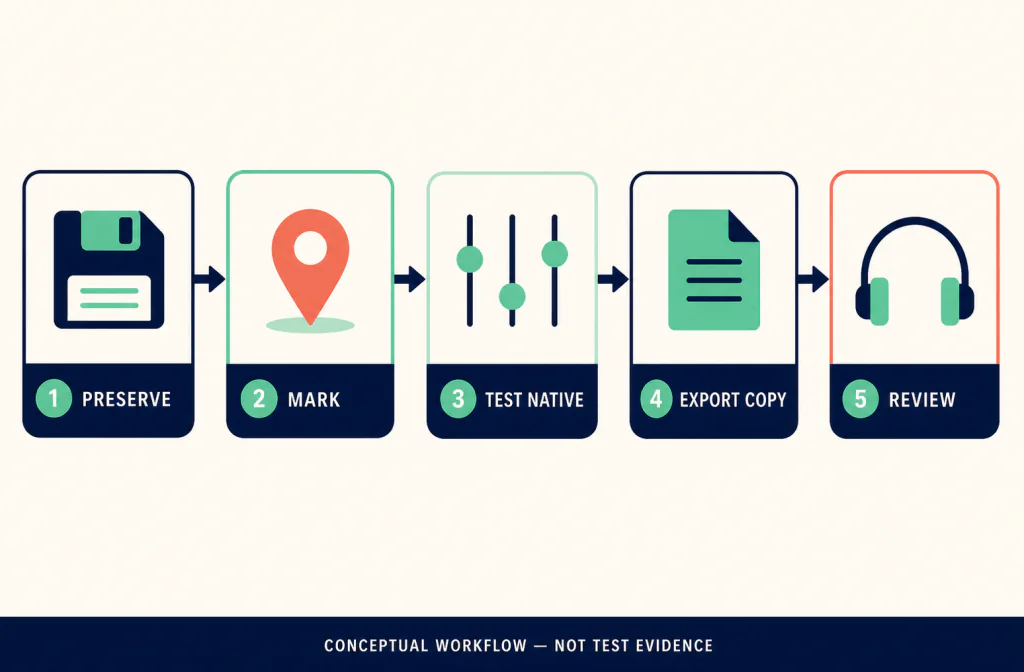
Keep the native iMovie path when it improves the marked passage, preserves wanted sound, and survives a real export. Choose a saved-file handoff only when the native result is insufficient and the media can leave the editor without losing timing, channels, or edit context.
For video, do not separate audio casually. If you export a track, record its exact start, duration, sample rate, channel layout, and frame-rate context. Reimport it onto a new track, preserve the original, and compare sync at three points before rendering a full delivery.
Do not stack processors simply because each one makes the waveform look quieter. Every stage should solve a named problem and survive a bypass comparison. If a later stage only compensates for damage caused by an earlier one, return to the source and simplify.
Review speech, residue, and failure patterns
Listen for metallic tone, watery texture, flutter, pumping ambience, missing syllables, or a sudden change in room sound. Match perceived loudness before deciding that one version is clearer: a louder file can seem more detailed even when it has more artifacts. When the tradeoff is close, prefer the version that preserves the voice.
| Result | Likely issue | Next action |
|---|---|---|
| Voice sounds metallic or watery | Reduction is too aggressive | Return to the original and test a lighter amount |
| Word beginnings disappear | Quiet speech is being suppressed | Reduce the effect or use a local edit |
| Noise changes or pumps | The source varies more than one setting expects | Split the problem into sections or accept residue |
| Music or another speaker fades | Mixed content is being treated as unwanted noise | Isolate the target track before processing |
| Export differs from preview | Render or encoding state changed | Compare the actual exported file and document settings |
| Reimport drifts from picture | Duration, sample rate, speed, or range changed | Restore timing and verify three sync points |
If the first attempt fails, do not process the failed output again. Return to the earliest untreated source. A second generation can magnify artifacts and hide which decision caused the damage.
Limitations and when to stop
No cleanup path can guarantee restoration of missing information. Clipped peaks, completely masked words, strong room reflections, close competing speech, and severe wind buffeting may remain limited even when the background becomes less obvious. Local repair, a backup track, subtitles, or re-recording can be more honest choices.
iMovie features, labels, availability, and export behavior can change by macOS release and app version. Confirm the current official documentation and the installed interface before following exact menu instructions. Process only media you are authorized to use, and do not upload confidential conversations to any service without the appropriate permission and policy review.
Frequently asked questions
Should I remove every trace of background sound?
No. Some residual sound is safer than damaged speech. Keep the least aggressive result that makes the recording easier to follow.
Should I process the entire file immediately?
No. Start with a representative passage, verify the result, and then review the full file. Long recordings can change microphones, speakers, rooms, or noise conditions halfway through.
Can this workflow recover clipped or completely covered words?
It cannot promise that. Use another take, a backup microphone, local repair, captions, or a re-record when essential information is missing.
Is Noise Cleaner a live filter for iMovie?
No. Noise Cleaner is a saved-file workflow. Keep live suppression, editor controls, routing, recording, and timeline work in the application that owns them.
How do I know which version to keep?
Keep the version that improves the named distraction while preserving complete, natural speech, wanted sound, file behavior, and sync. If the tradeoff is unclear, keep the original and ask a second listener.
Related guides
- Prepare a reversible recording copy
- Compare the same passage before and after cleanup
- Choose between continuous reduction and a gate
- Preserve a WAV source safely
- Check an MP4 audio workflow
- Protect video and audio sync
- Remove Background Noise in Filmora
Official sources
- Apple: Correct and enhance audio in iMovie on Mac documents the Noise Reduction and Equalizer button, Reduce background noise, and the reduction slider.
- Apple: Export a movie, trailer, or clip as a file in iMovie on Mac documents File > Share > File, format choices, quality, and saving the exported file.
- Apple: iMovie User Guide for Mac is the guide index for current Mac workflows.
These official pages were checked on September 20, 2026. They support the control names and export path described here; they do not prove an improvement for a particular Mac, account, project, or recording. The three images in this article are conceptual editorial media, not Apple UI, measured waveforms, or Before/After evidence.
Final checklist
- The untouched source is preserved.
- One representative passage is marked.
- Reduce background noise was tested lightly before stronger settings.
- The same words were compared at a similar level.
- Wanted sound, duration, channels, and sync were checked.
- The exported file was played outside the working view.
- A less aggressive result or another source remains available.
When a compatible saved file still needs a separate cleanup test, use the video noise remover from the original working copy and keep the simplest result that protects the recording.