Remove Background Noise in Descript: Studio Sound, Effects Controls, and Export Review
For a saved Descript project, choose the voice-containing layer or sequence track, open the Properties panel, add Studio Sound from Audio effects, then…
Quick answer
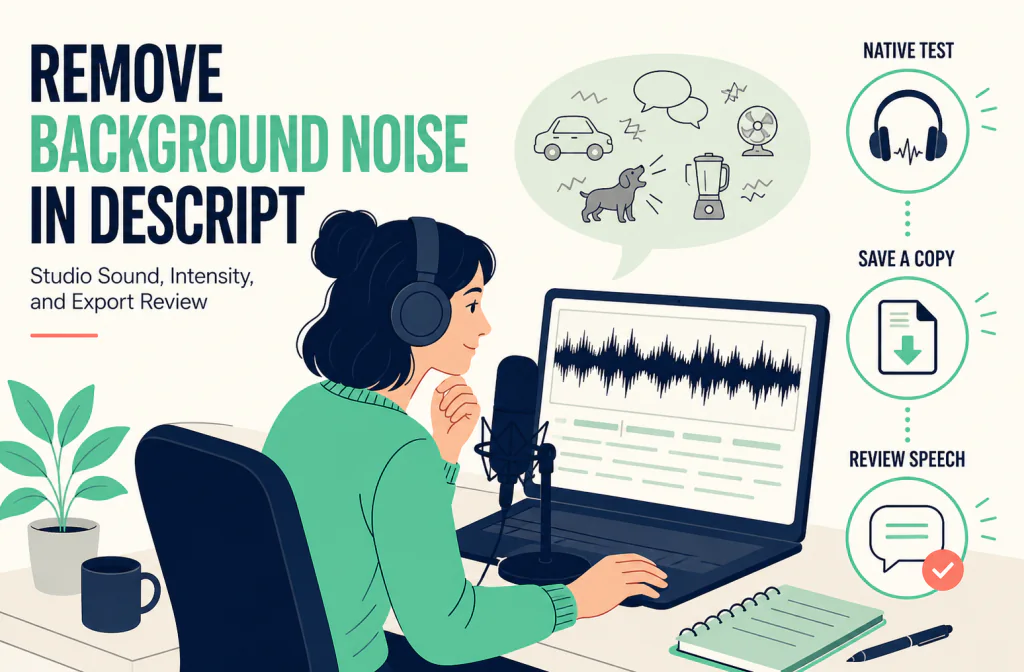
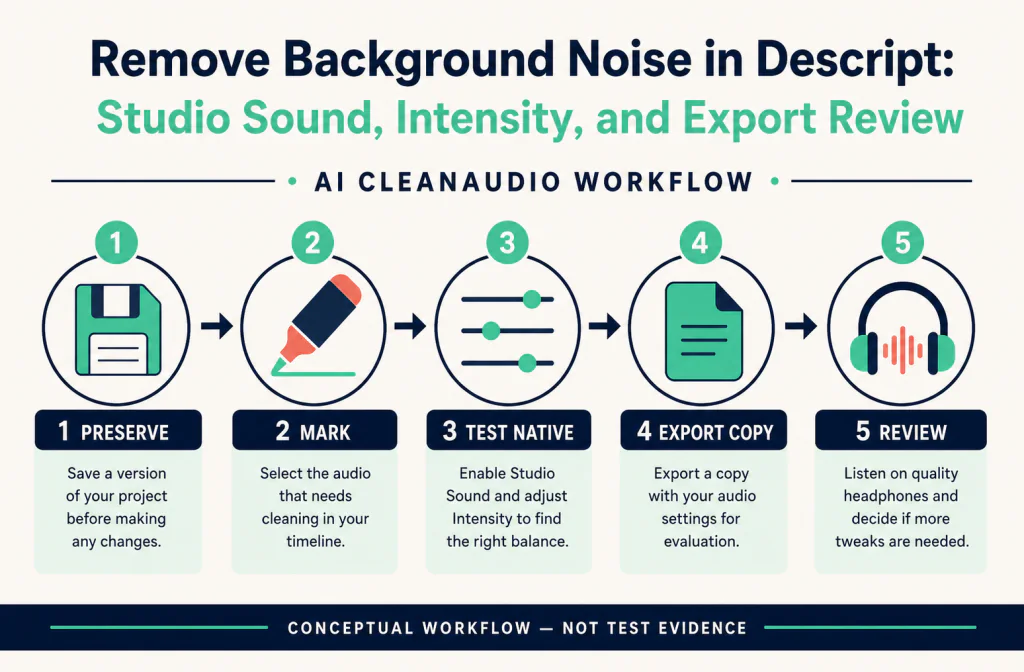
For a saved Descript project, choose the voice-containing layer or sequence track, open the Properties panel, add Studio Sound from Audio effects, then compare the effect with the original before exporting. Descript says Studio Sound improves audio by reducing background noise and enhancing clarity, but it consumes AI credits and its result depends on the source. Do not assume it is free, unlimited, or available in every plan. If you need to inspect a separate authorized export after trying Descript’s native effect, use the Audio Cleaner as a saved-file workflow—not as a Descript plug-in, a browser stream, or a live-call filter.
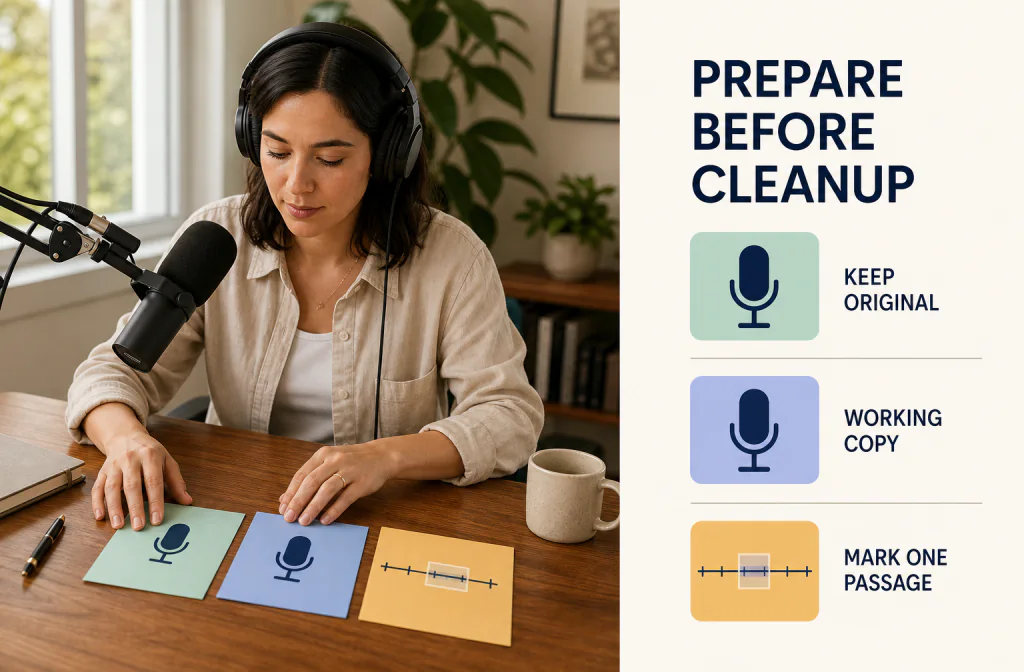
The aim is a more usable recording that still sounds like the speaker. Keep the original layer and make the first comparison on the same difficult sentence, not only during silence.
Confirm the environment before you edit
Descript supports its current release and versions released within the previous three months. Its system requirements list macOS 14 or later and Windows 11 or later for the desktop app. For the web version, Descript recommends Chromium-based browsers and officially supports Chrome, Edge, and Opera. Treat desktop and web as separate environments, and record the app/browser version, operating system, and plan before relying on a particular control.
This is not a mobile-editing walkthrough. Start with a duplicate project or a duplicated layer and retain the original media outside the edit. The recording-preparation checklist is a useful way to preserve the source before an effect or export changes your options.
Add Studio Sound to the correct item
Descript’s getting-started guide says you can bring in existing media or record in the app. Its effects guide gives two current paths for an audio effect:
- Script layer: select the script layer in the scene editor or Layer list, then click the + beside Audio effects in Properties and choose the effect.
- Sequence track: open the Sequence Editor, select a track, then click the + in Audio effects and choose the effect.
Choose Studio Sound from that list when it is available to the current account. The Properties panel is selection-aware, so a missing control can mean that the wrong layer or track is selected. Do not turn a non-matching screen into a guess about the UI.
Once the effect is added, Descript documents expanding its controls with the sliders icon and using the effect switch to disable it. If the current interface exposes an adjustable amount, make a small change and compare it with the disabled state. Do not write a fixed “Intensity” step unless the present interface and account display one.
Compare the native effect fairly
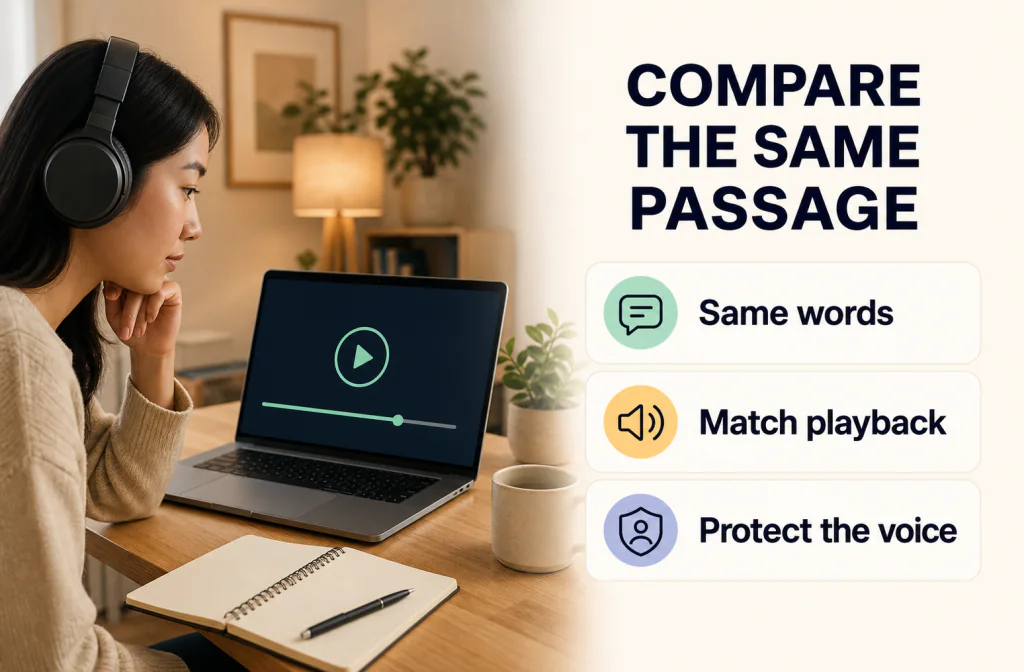
Use a short segment with normal speech and the background problem you want to address. Toggle Studio Sound on and off, match playback loudness as closely as practical, and listen for:
- softened consonants or missing word endings;
- a metallic, watery, or over-smoothed voice;
- changed room tone at the start and end of a phrase; and
- unintended changes to music, another speaker, or an important sound effect.
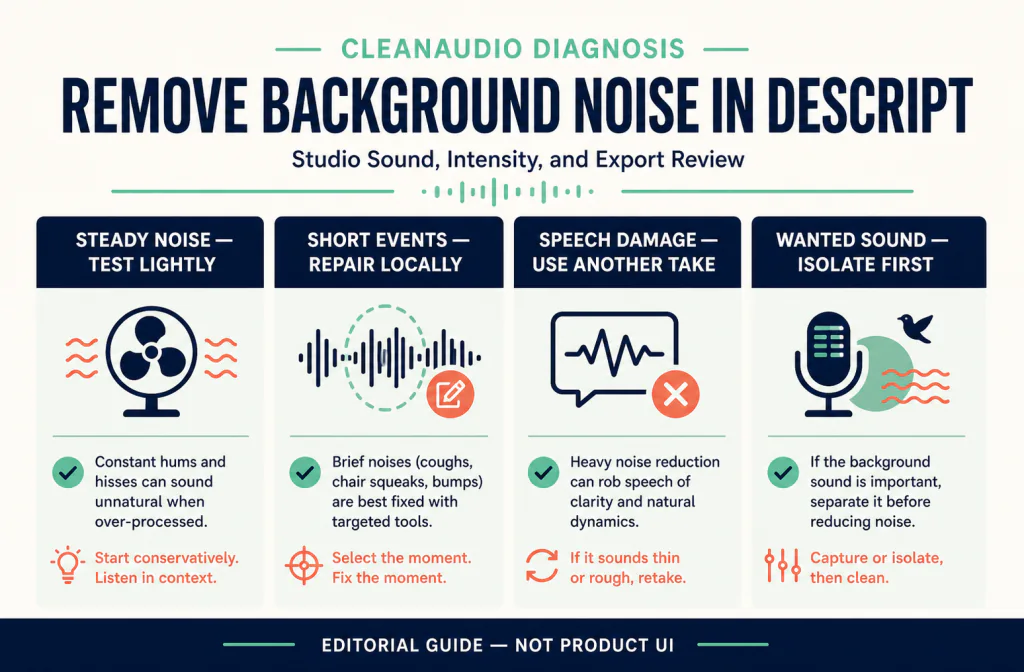
The before-and-after review guide keeps the comparison tied to the same words. If the issue is mainly between speech phrases, a gate or local edit may be more appropriate than broad suppression; see AI noise reduction versus a noise gate.
Export locally before you decide
Descript’s getting-started documentation lists local exports such as MP4, MP3, WAV, and GIF. A share link is not the same thing as a local download, so use a local export when you need to inspect the actual file. Export a short section, play it in another player, and reimport it into a duplicate project before replacing the original audio.
For video, verify a visible sync cue at the beginning, middle, and end. The MP4 audio workflow and sync review checklist cover that handoff. If you have a WAV master, the WAV preservation guide helps you avoid turning a source-protection decision into an extra conversion.
When a separate file pass makes sense
If Studio Sound leaves an authorized export with a distraction you can still hear, save a separate copy and check the current Audio Cleaner upload screen for compatibility. Keep that result outside the Descript project until you have reviewed speech, duration, channels, and—when video is involved—sync after reimport.
This is file processing after a recording exists. It cannot change Discord, Zoom, or another application while a call is live, and it cannot promise recovery of clipped words, strongly overlapping voices, or severe room reflections.
Make the test match the layer you are editing
Descript projects can contain more than one kind of editable item. Before you apply or assess Studio Sound, identify whether the voice is on a script layer, a sequence track, or part of a more complex composition. Applying an effect to the wrong selected item can make it look as though the feature does nothing—or worse, can change sound you meant to leave alone.
Create a duplicate project or duplicate the relevant layer. Then choose a 20–30 second segment with normal speaking, a quieter phrase, and the noise that motivated the edit. Keep the playhead in that region while you compare the effect enabled and disabled. A test based only on silence tells you very little about whether the speaker has lost detail.
Listen for the full sentence, especially consonants at the beginning and end of words. Also listen for pumping room tone, odd breath sounds, metallic texture, and sudden changes when the speaker begins or stops. If the project contains music, another speaker, or an intentional ambient bed, make sure that content has not been reduced just because it overlaps with voice.
Use a second playback path after the first listening pass. Headphones can reveal subtle artifacts; a normal laptop or phone speaker can expose whether the dialogue is still easy to follow. Match playback loudness before choosing a winner. A louder version can seem clearer even when it has lost more detail.
Keep credits and effect choices visible
Studio Sound uses AI credits, so it is worth checking the current account before you begin a long workflow. Do not assume that a previous project, a different workspace, or an old tutorial has the same credit availability. If the effect is unavailable, record the account condition rather than substituting another effect and calling it Studio Sound.
Avoid applying an effect to a whole project merely because it sounded good on one easy passage. For a long interview, course, or podcast-style recording, test more than one section: an introduction, a quiet explanation, and a difficult moment with the actual background sound. Changes in microphone distance, room acoustics, or speaker level can make a single setting behave differently later in the timeline.
If a small effect change makes the voice less natural, return to the original layer. A lighter adjustment, a local edit, a cleaner backup track, captions, or a re-record can be a better answer than an aggressive all-project pass. No effect can reconstruct speech that was clipped or completely covered by another sound.
Review the local export you will actually deliver
Treat a local export as a new file, not as proof that the project preview was correct. Name it clearly, play it outside Descript, and compare the same region with the version in the project. For a video, check visible sync cues at the beginning, middle, and end. For audio, check duration, starts and endings, and any place where a word or edit boundary may have shifted.
If the exported file comes back into a duplicate project, place it beside the original rather than overwriting the source. That preserves a simple on/off comparison and makes it easier to detect a timing change. Avoid making several export, cleanup, and reimport generations before you decide: each pass can obscure whether a later artifact came from the native effect, a delivery setting, or the handoff itself.
Different deliverables need different checks. A short social video may need a quick phone-speaker dialogue review. A teaching video needs clear numbers, names, and commands. A spoken interview with another voice or music needs extra care because a voice-focused effect may change material that is intentionally part of the mix.
Frequently asked questions
Why can’t I find the effect controls I expect?
The Properties panel changes with your selection. Confirm whether you selected a script layer or a sequence track before you conclude that a feature is missing.
Is Studio Sound an unlimited free feature?
No. It uses AI credits. Check the current plan and account availability before including it in a repeatable workflow.
Is a Descript share link the same as an export?
No. Use a local export when you need to review the actual MP4, MP3, WAV, or GIF file.