Remove Background Noise in Clipchamp: Noise Suppression, Export, and a Safe File Handoff
Clipchamp’s documented native route is to import the media, detach audio first when the noise is embedded in a video, select the audio clip, then turn on…
Quick answer
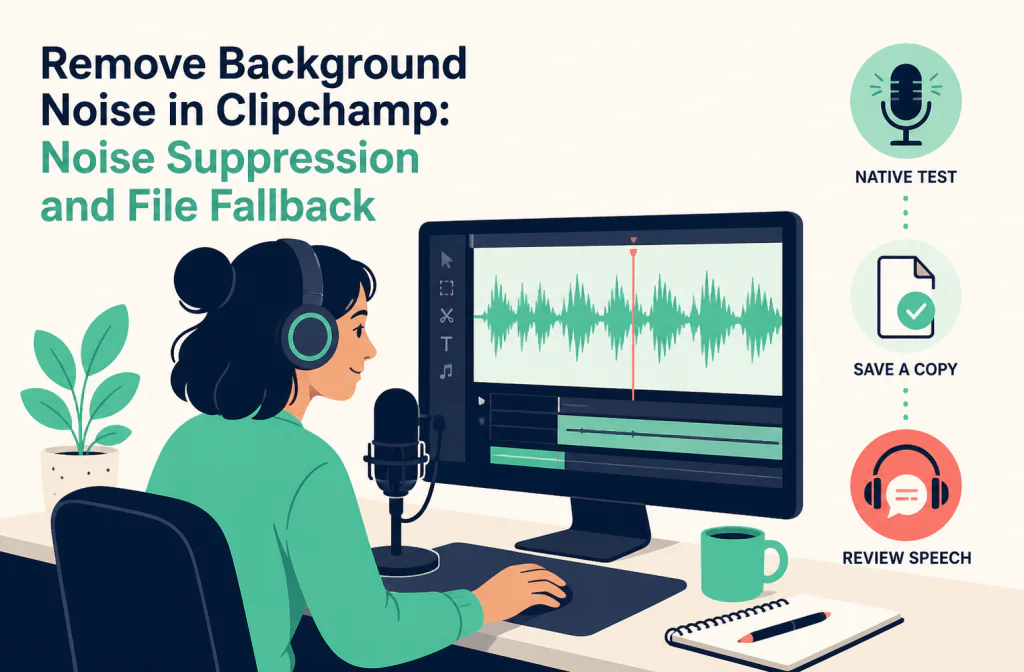
Clipchamp’s documented native route is to import the media, detach audio first when the noise is embedded in a video, select the audio clip, then turn on Noise suppression in the Audio section of the right Properties panel. Turn it off to return to the original clip and compare the same spoken phrase before exporting. If the native result is not suitable, you can evaluate a separate, authorized audio export with the Audio Cleaner. That handoff happens after recording; it is not a live filter inside Clipchamp.
The first decision is whether the track still sounds like the original speaker. A lower noise floor is not useful if quiet words, music, or a second speaker are damaged.
Capture the account context
Before following any menu path, record whether you are using a personal account or a work/school account, which browser you used, and the date. Microsoft’s support article applies to both account types but states that its step-by-step tutorial is for the personal editor; work and school projects have different storage behavior.
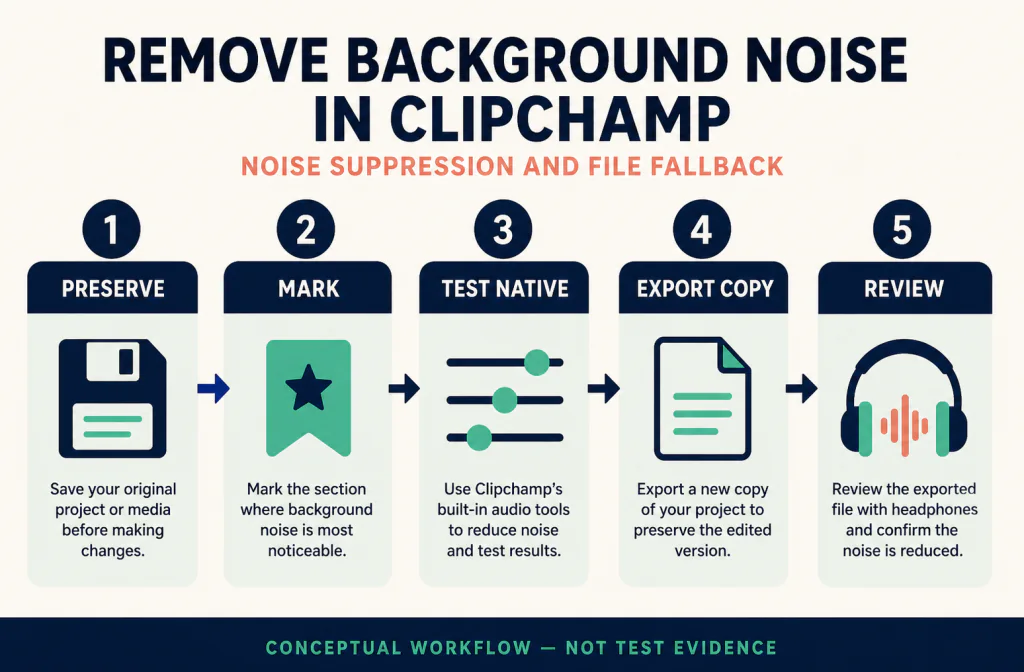
Keep the original media untouched and work in a duplicate project. For a video, note a visible sync event at the start, middle, and end. The recording-preparation checklist is a useful way to keep a reversible source copy.
Use Noise suppression on the selected audio
Microsoft’s Noise suppression instructions describe this path:
- In My media, choose Import media, add the video or audio file, and drag it to the timeline.
- For a video with embedded sound, select the video, open the right Properties panel’s Audio tab, and choose Detach audio.
- Select the resulting audio clip on the timeline.
- In Audio, turn Noise suppression on.
- Toggle it off to restore the original state for comparison.
Microsoft describes the feature as working with audio clips, detached audio, and audio recordings. Its article also lists noise, hum, and echo among the sound it attempts to suppress. That is not a guarantee of echo removal or a promise that every recording will improve, so keep the bypassed clip and judge the actual spoken passage.
Compare the part that matters
Pick a short passage containing normal speech plus the distraction you want to reduce. Listen to it with suppression on and off at similar loudness. Check soft consonants, breaths, room tone, and any sound that must remain.
The before-and-after review method gives a fair comparison routine. If the unwanted sound occurs mostly between words, first consider whether a gate or a small local edit is more suitable than continuous suppression; the noise reduction versus noise gate guide explains why those jobs differ. If you start from a high-quality audio master, the WAV preservation guide can help you avoid unnecessary conversions.
Export a review copy and reimport it
Microsoft’s Clipchamp export guide documents MP4 video export at 30 fps and M4A for audio-only projects. Personal projects download to the device after export; work and school projects store project material in OneDrive or SharePoint, with finished videos in an Exports folder.
Export a short section before committing to the whole project. Play it outside Clipchamp, then import the output into a duplicate project. For video, use the MP4 audio workflow and the sync review checklist to verify that a sound choice has not turned into a timing problem.
When to use a separate saved-file pass
If the native comparison leaves an authorized audio file with a problem you can still hear, export a copy and check the current Audio Cleaner upload screen for compatibility. Keep the original Clipchamp clip and the exported test separate. Review the returned file before you replace the timeline audio, and for video verify duration, channels, and sync again.
This path cannot change the microphone during a call, repair clipped speech, or separate every overlapping voice or music bed. When essential words are obscured, a backup take, local repair, captions, or re-recording may be the better choice.
Test one selected clip, not a vague project impression
Clipchamp’s panel follows the selected item. Before you assume Noise suppression has failed, confirm that the timeline selection is the audio clip you intend to change. For a video, that usually means the detached audio track, not the muted picture track. For imported audio, make sure you have not selected a music bed, an empty space, or another voice track by mistake.
Choose a short test region that contains the noise under actual speech. Include a normal sentence, a softer phrase, and a pause. Turn suppression on, listen to that exact region, then turn it off and listen again. A quick toggle helps you notice whether the apparent improvement is really a volume difference, a change in room tone, or a loss of voice detail.
Make notes about what you hear in plain terms: “fan still audible but words intact,” “quiet word ending lost,” or “music pulls back when speech starts.” Those notes make it possible to choose between the native setting, a different local edit, and an untouched original without relying on a memory of which waveform looked smaller.
Use more than one listening path. Headphones can reveal watery or metallic texture, while a laptop or phone speaker can reveal whether the dialogue still reads in ordinary playback. For an audience-facing video, the latter check matters: clean silence is not useful if instructions, names, or a spoken call to action become hard to follow.
Treat account storage and delivery as part of the workflow
Personal and work/school accounts can place the finished file in different places, but the editorial decision should be the same: retain the source, create a short output, and play the actual exported media. Do not rely only on a timeline preview or a progress indicator. A finished MP4 should be checked in a separate player before it replaces the original project media.
For a work or school project, keep the project’s Assets and Exports context clear when you hand the file to someone else. The project file is not itself a finished video, and a link to an internal location may not be the same thing as an accessible delivery file. Confirm the exact file someone should review and preserve a copy that has not been changed by a later edit.
For an audio-only project, do not infer that a video export review proves the M4A version behaves the same way. Play the specific output you intend to use. Check its duration and listen at the beginning and end, where a trim or range mistake can be easy to miss. If the result will go back under picture, bring it into a duplicate project first and align it to the original visual cue.
Choose the least aggressive corrective path
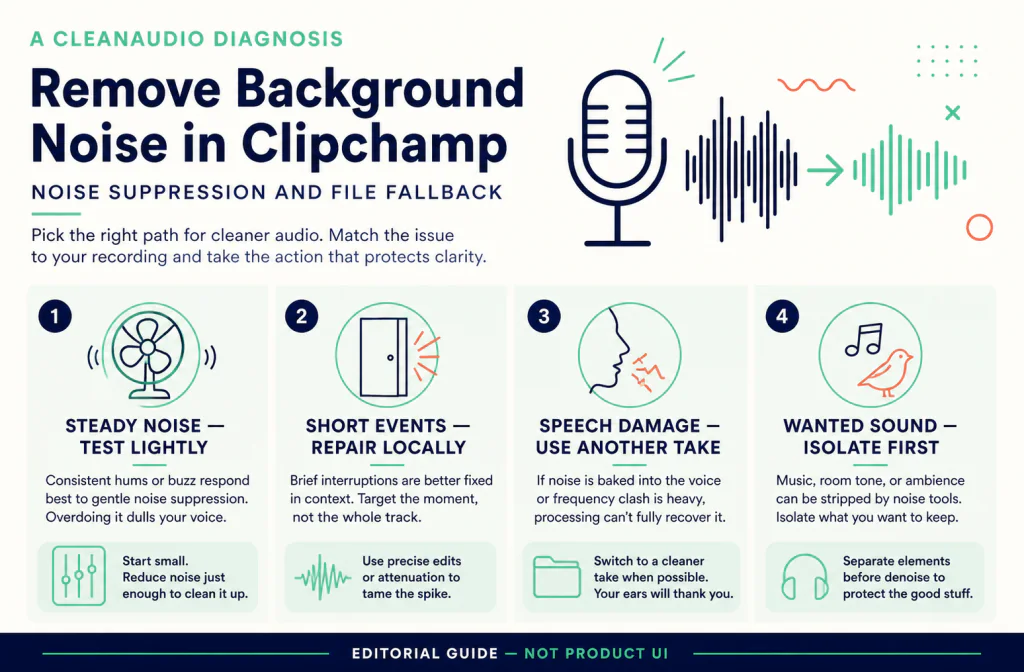
Noise suppression is most useful when non-speech sound competes with a clear recording. It is less predictable when another voice, music, applause, clipping, or strong reflections occupy the same time as the words you need. In those cases, a small cut, a replacement take, captions, or keeping some audible room sound can be more transparent than pushing one switch harder.
Do not stack a second processor just to hide a problem introduced by the first. If the voice turns thin or artificial, toggle Noise suppression off and start again from the original clip. If the native setting improves a short representative section but not the full piece, evaluate the difficult section separately instead of assuming one control is safe for a whole long recording.
Troubleshooting
| Problem | What to do next |
|---|---|
| The option is missing | Confirm the selected item is an audio clip or a detached audio track. |
| Speech sounds too processed | Turn suppression off, return to the original, and avoid stacking another processor. |
| The output seems fine in preview but not after export | Make a short MP4 or M4A review file and listen outside the editor. |
| The reimported video has drift | Restore the original timing and check start, middle, and end sync events. |
Frequently asked questions
Do I need to detach audio from a video?
For an embedded video track, Microsoft documents detaching the audio before turning on Noise suppression.
Can I reverse the native setting?
Yes. The documented control can be toggled off, which restores the original audio state for comparison.
Does Clipchamp export WAV or guarantee a particular MP3 workflow?
This guide only relies on Microsoft’s documented MP4 video and M4A audio-only export paths. Check the current export panel rather than assuming another format.