Remove Background Noise in Adobe Podcast: Enhance Speech, File Limits, and a Safer Export Review
Adobe Podcast's Enhance Speech is a post-recording option for an uploaded audio or video file. Use it on a copy of the recording, check the accepted…
Quick answer
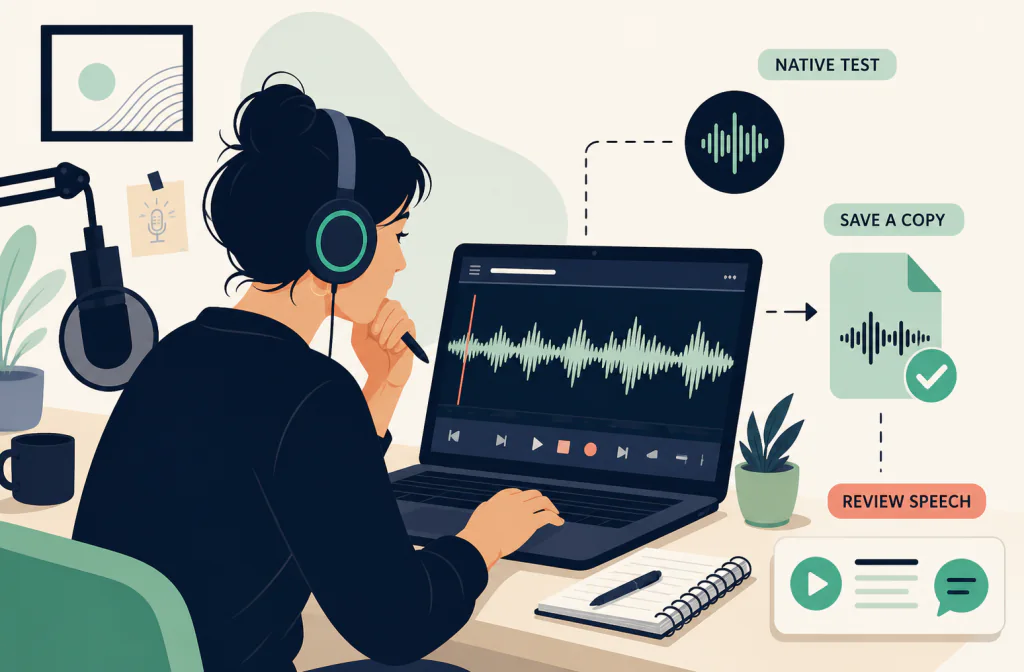
Adobe Podcast's Enhance Speech is a post-recording option for an uploaded audio or video file. Use it on a copy of the recording, check the accepted format and account limits in the current Adobe documentation, and compare the returned file against the same spoken passage before replacing an edit. It can be useful when the recording is intelligible but carries unwanted noise or artifacts; it cannot promise to restore words hidden by another speaker, clipping, or a poor original capture.
For a separate comparison after the native Adobe Podcast workflow, use a compatible copy with Noise Cleaner's podcast-cleaning route. This guide treats both as saved-file workflows, not live-call noise suppression or a substitute for multitrack editing.
Preserve the source before you upload
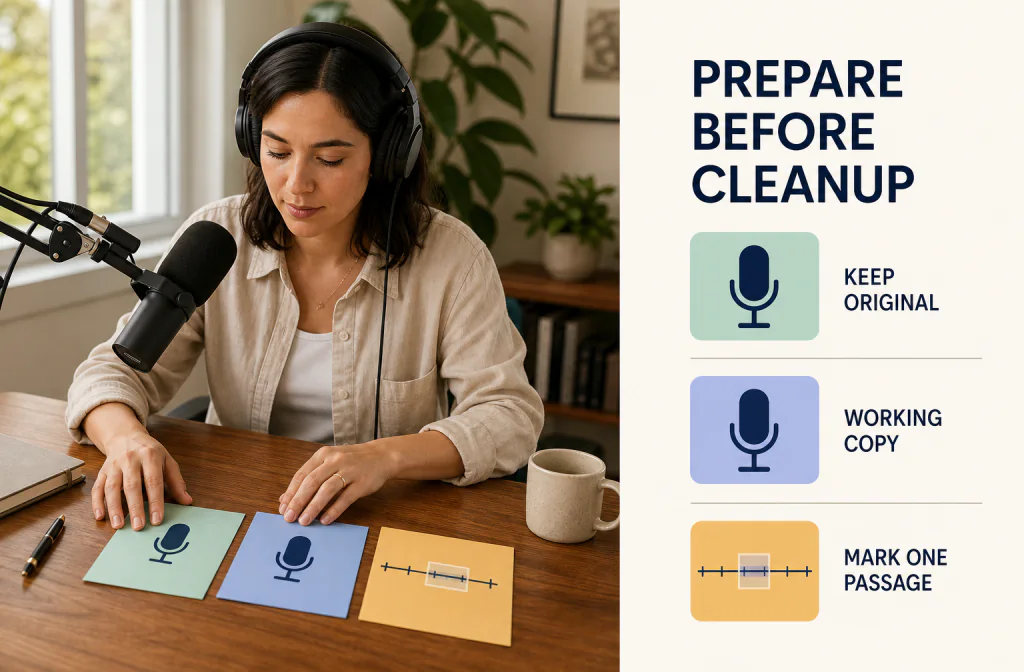
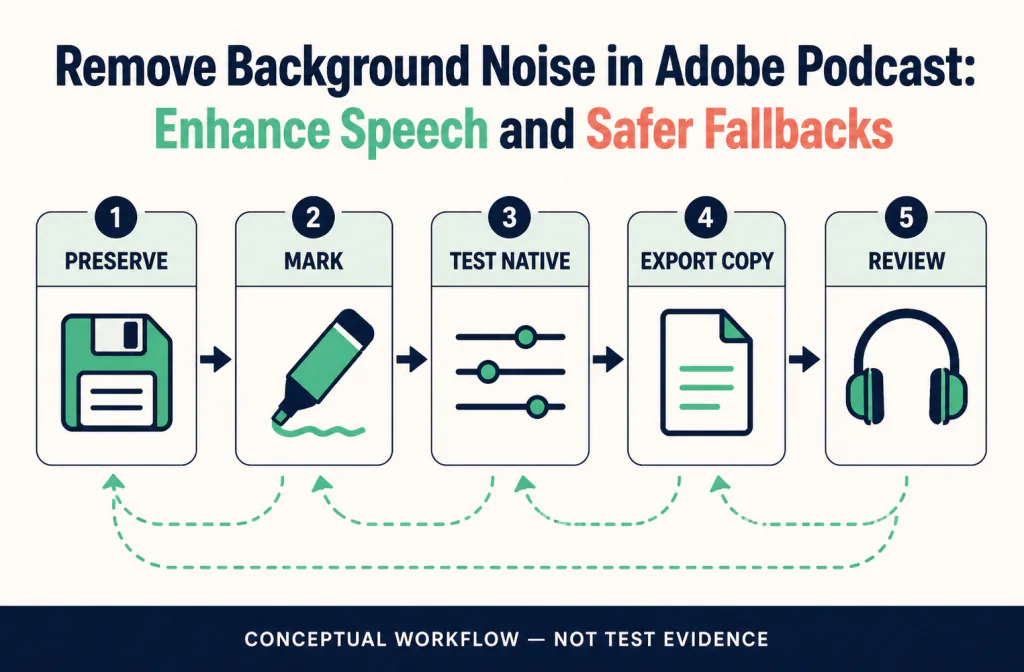
Keep the original recording and any multitrack session before creating an enhanced copy. If an interview has separate speaker tracks, preserve them separately; a combined mix gives you fewer choices when one voice, music bed, or room sound needs different handling. Mark a review passage containing a quiet line, normal conversation, the real noise problem, and a difficult overlap. Include a few seconds of context before and after the marked words.
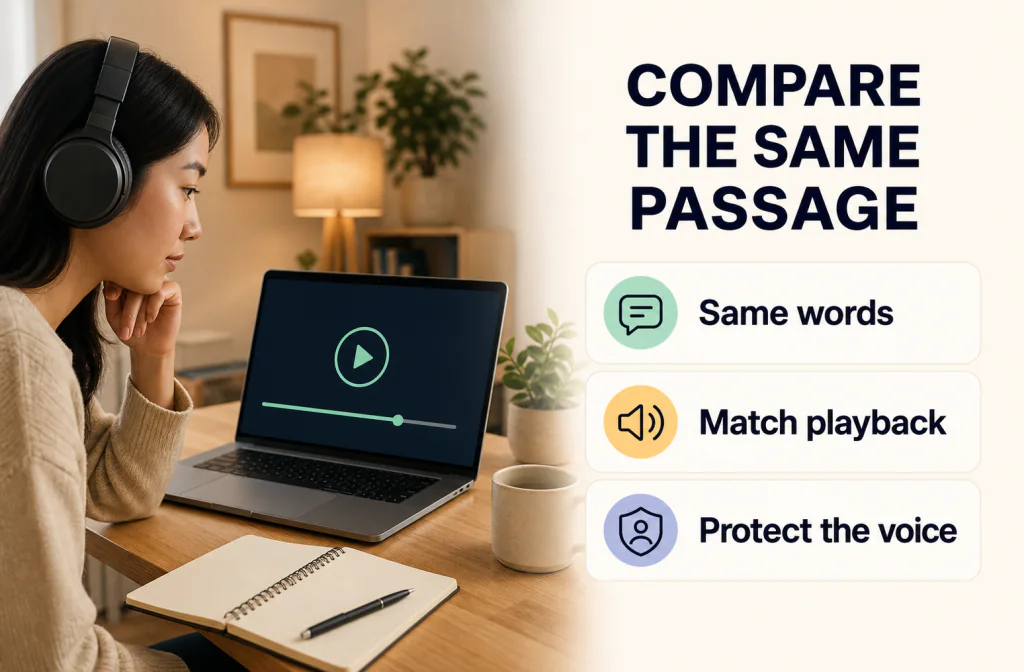
The reversible recording-copy guide explains why the original should remain available. Use the same-passage comparison guide to avoid deciding from silence or loudness alone. A quieter pause does not establish that speech is more natural or more intelligible.
Check the current Enhance Speech context
Adobe's What is Enhance Speech? guide and Adobe Podcast features page describe the product-level Enhance Speech context. Account and page limits are current account/page facts to inspect when using the service; they do not make Enhance Speech live filtering or an API. Before choosing a file, inspect the current page for its accepted-input and account information rather than assuming an older workflow still applies.
Use Adobe Podcast only with a copy you are entitled to upload. If a file does not meet the current requirements, do not rename its extension or convert it repeatedly just to force a handoff. Instead, return to the editor, make one deliberate export, and document what changed. The WAV preservation guide is useful when you can retain a higher-quality audio copy; the MP4 audio workflow helps when the source is a video or has already been encoded.
Run Enhance Speech as a controlled native pass
The current native entry sequence is straightforward:
- Open
podcast.adobe.com/enhanceand use a copy of the chosen source file. - Select Choose files, then confirm the file and current account/page information shown in the experience. Adobe's Podcast FAQ is the official reference to recheck when account behavior or help guidance changes.
- Select Enhance and wait for the native processing flow to finish. Keep the original and the file name that identifies the pre-processing version.
- Download the resulting file under a new name. Do not overwrite the original source or a multitrack session.
- Compare the same marked words at a similar playback level. Listen to consonants, breaths, pauses, speaker changes, music, and room tone.
- Keep the native result only when it reduces the specific distraction without creating a more serious problem in the voice or edit.
Know the boundary between enhancement and editing
Adobe's Podcast FAQ is the current official reference for product behavior and help guidance. That is an important reason to compare an ordinary spoken sentence, not only the cleanest pause, and to preserve separate tracks whenever the original production gives you that option.
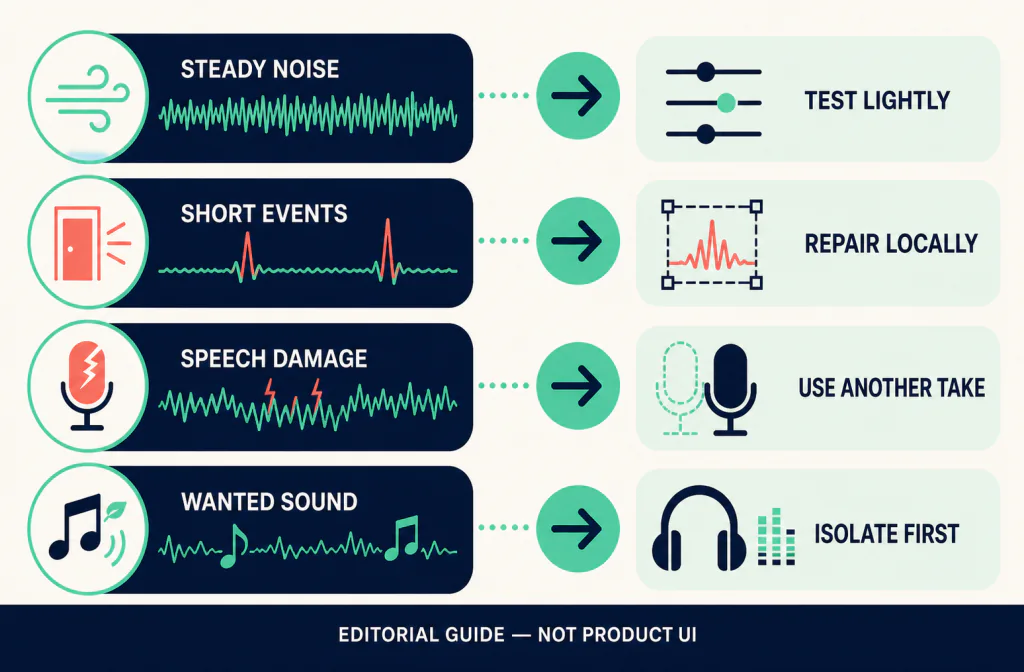
If there is a single steady background bed, the native pass may be a reasonable first comparison. If the problem is mostly in pauses, a noise-reduction versus gate decision can help you decide whether the editor should handle it differently. If another voice, music, or a room reflection overlaps the words, no one-button enhancement should be assumed to separate it safely.
| Recording problem | First decision | What can make the result unreliable |
|---|---|---|
| Steady hiss or constant room bed | Compare one native pass on a copy | Soft speech may acquire an artificial edge |
| Noise only between phrases | Consider a level-based editor decision | A gate can remove word endings or room continuity |
| Two speakers on a mixed track | Preserve the mix and inspect both voices | One speaker may change more than the other |
| Loud music under dialogue | Use the edit or source tracks first | Wanted music can be treated as unwanted sound |
| Clipped or fully covered speech | Look for another source or take | Missing detail cannot be promised back |
Export, compare, and keep project context
Adobe's Podcast FAQ says the downloaded output uses the same format as the input. Same-format output alone does not prove a good result, correct timing or channels, or reimport suitability. Play the returned file in a second player and note its actual duration and channels. For a video, check a visible cue near the beginning, middle, and end; use the video/audio sync review before replacing an asset in a timeline.
When the source comes from Adobe Podcast Studio, keep the original project and its individual tracks, if present. A final download is a deliverable, not a replacement for the source material or edit history. Export or download each candidate under a meaningful new name and keep a small record of which path produced it.
Compare an additional saved-file route without losing the original
If the Adobe Podcast version is still not the best candidate, take an authorized, compatible copy to Noise Cleaner's podcast-cleaning route. Check that route's current file policy before uploading. The link is a file-handling option, not an assertion that it supports every Adobe Podcast format, plan, or result.
Once you have another candidate, compare it against both the original and the Adobe Podcast result using the same passage. Match perceived loudness before deciding that one version is clearer. Then import the candidate into a duplicate project or adjacent timeline track. Confirm timing, duration, channel behavior, and the relationship between voice and music before substituting it for anything in the working edit.
Review artifacts and decide what to keep
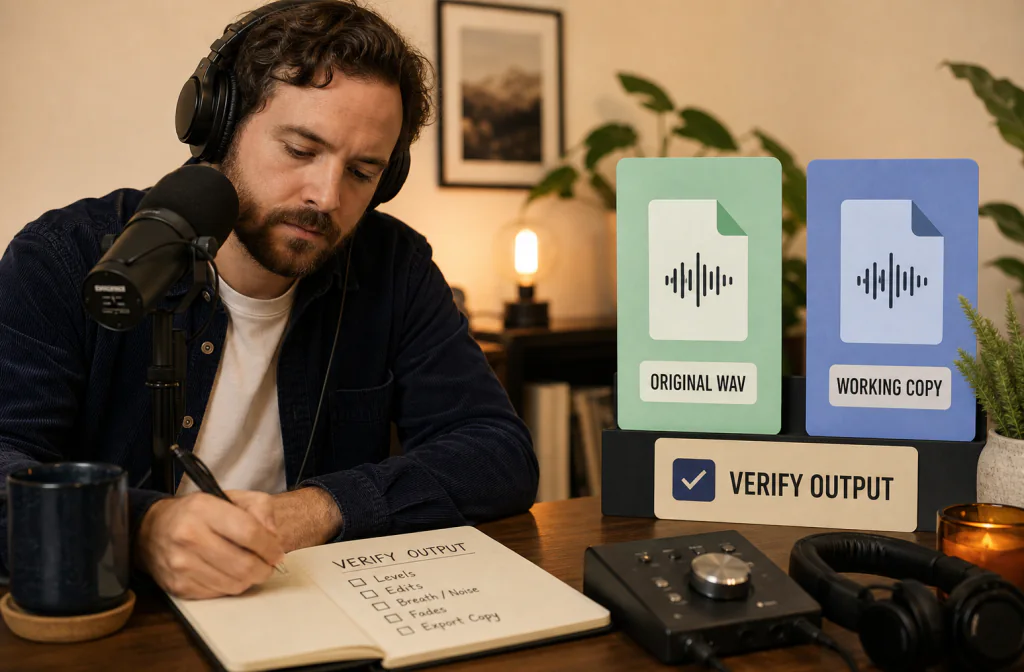
Listen first for the things listeners rely on: the beginning and end of a word, quiet questions, breaths, laughter, room continuity, and a speaker change. Then listen for familiar failure signs: a metallic or watery edge, pumping ambience, missing syllables, a changed music balance, or a sudden shift in loudness. Check on headphones and on a normal speaker; a single playback device can hide a problem.
| What you hear after processing | Safer next action |
|---|---|
| A brittle or synthetic voice | Use the original or a less altered candidate |
| A background that surges between words | Preserve more room sound or edit smaller sections |
| Different treatment of each speaker | Return to separate tracks or choose a native mix decision |
| A video that no longer matches speech | Stop and investigate the file before reimport |
| An uncertain improvement | Keep the original available and ask for another listening review |
Do not feed an already processed result back through the same workflow repeatedly. Each stage makes it harder to distinguish a recovery from a new artifact.
Limitations, rights, and when to re-record
Enhancement is not a guarantee of clean dialogue. It cannot recover clipping, turn a distant recording into a close microphone, reliably remove a competing conversation, or make an unauthorized file safe to upload. A better edit, a backup microphone, captions, local repair, or a new take can be the more responsible result.
Adobe Podcast browser support, file limits, and account availability are current-product questions. Recheck official documentation and the interface you are using rather than relying on a previously saved tutorial. Do not upload confidential interviews or recordings without the permissions and policy review they require.
Frequently asked questions
Does Enhance Speech return a particular file type?
Adobe's FAQ says the downloaded output uses the same format as the input. Still inspect the actual download: matching format alone does not establish a good result, correct timing/channels, or suitability for reimport. Keep the original source until the new file has passed a practical edit review.
Can I enhance one speaker in a Studio project?
Adobe's FAQ says a Studio project can currently be enhanced at the project level. Preserve separate tracks so you retain an editing alternative when one speaker needs different treatment.
Is the cleanest-sounding pause enough to approve a result?
No. Compare the same speech segment, including quiet words and noisy overlap. Silence alone does not show whether intelligibility or naturalness was preserved.
When should I use another saved-file route?
Only after you have saved and reviewed the native Adobe Podcast candidate. Use the podcast file handoff with a compatible copy, then compare it alongside—not in place of—the original sources.
Official sources and test notes
Adobe's What is Enhance Speech? guide and features page establish product-level context. Its Podcast FAQ is the official help reference for the podcast.adobe.com/enhance entry sequence and same-format downloaded output. Neither source proves an outcome for a specific recording.
This guide does not report a first-party result, a current interface capture, or a same-segment before-and-after result. Recheck the Adobe Podcast interface, plan availability, source documentation, and file-handoff route before applying a version-specific workflow to production media.
Decision summary
Use Adobe Podcast Enhance Speech on a preserved copy, then review the returned file against the same spoken passage before editing anything. Keep source tracks and project context, check export timing and channels, and use a separate saved-file comparison only when it can be reimported without changing the recording's essential context.