Remove Background Noise in Adobe Express: Enhance Speech, Export, and Review the Video
For a spoken video in Adobe Express, select the clip or its audio track, use the Audio panel's Enhance speech option when it is available in your account,…
Quick answer
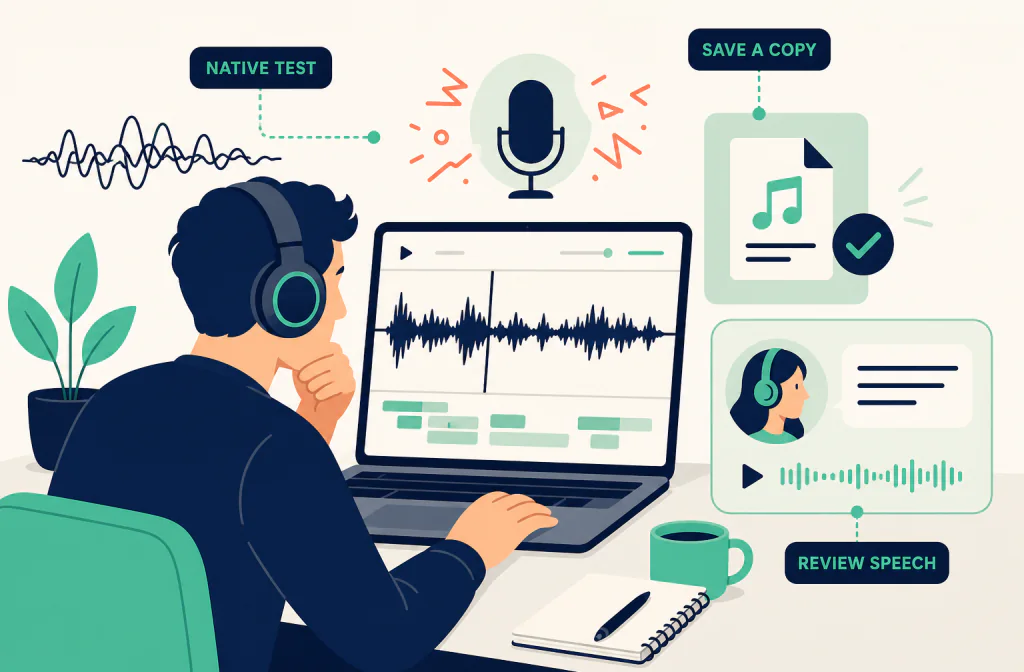
For a spoken video in Adobe Express, select the clip or its audio track, use the Audio panel's Enhance speech option when it is available in your account, then listen to the actual downloaded video before publishing. Adobe describes Enhance speech as a way to reduce background noise and echoes for clearer sound, but it is not a guarantee that every voice, room, or background will survive unchanged. Keep the original project and video, and make the decision from the same spoken lines rather than from a silent section.
When an exported video still needs a separate post-recording cleanup review, use a compatible copy with Noise Cleaner's video-cleaning route. That handoff is for a saved file; it does not clean a live call, replace timeline editing, or recover speech that was never captured.
Check the project before changing the sound
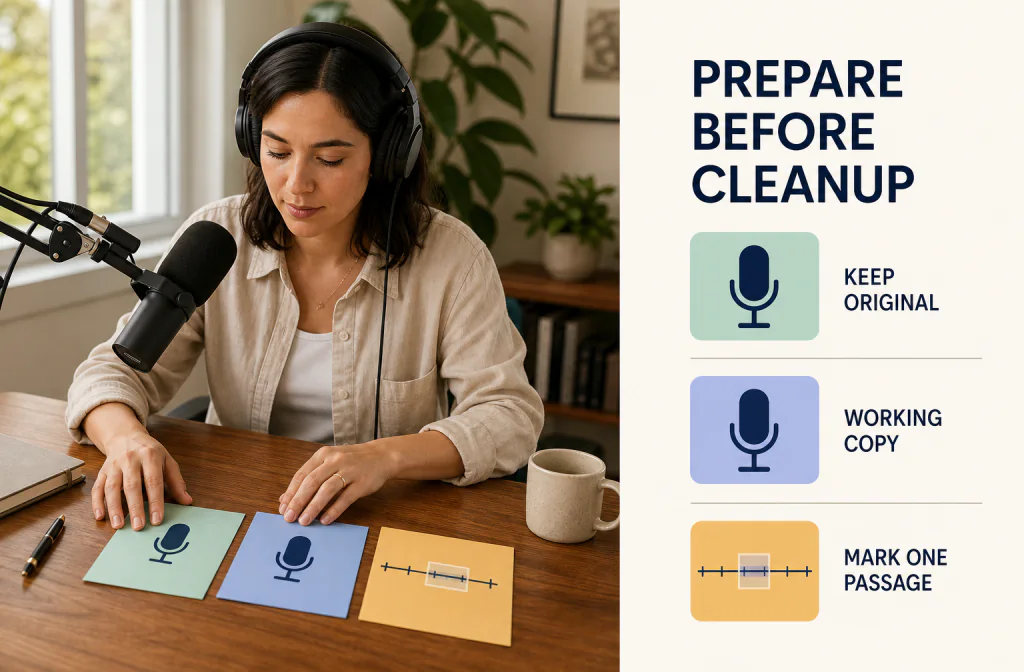
Duplicate the Adobe Express project or preserve an untouched download first. Note the original video dimensions, visible sync cue, and the section where the problem is strongest. If the timeline contains music, a second speaker, or intentional ambience, decide whether it belongs in the same audio track as the voice. A voice-oriented operation applied to a full soundtrack can change wanted material too.
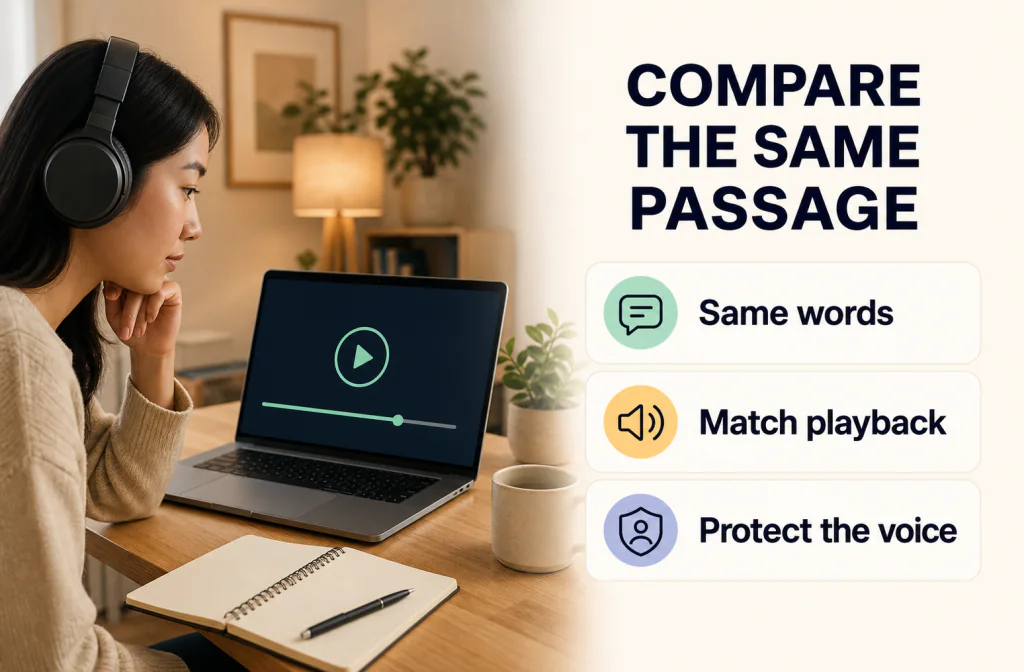
Create a short review segment with a quiet phrase, ordinary speech, the loudest background, and a visible mouth or clap cue. The reversible recording-copy guide is a good starting point. Use the same-passage review method to compare the exact words at similar playback loudness; a louder export can sound clearer even when it has more artifacts.
Find Enhance speech in the current editor
Confirm the device context against Adobe's Adobe Express technical requirements. Adobe's allowed regional audio guidance describes Enhance speech as a Premium feature that reduces background noise and echoes, and describes selecting a video clip or audio-track layer in the Audio panel. Availability still needs checking in the current region, account, and English-language editor: that regional help page does not consistently evidence every English-locale UI configuration. Use the current panel in your project rather than an old screenshot.
- Open a video project that contains the spoken clip you need to review.
- Select the video on the canvas, or select its audio-track layer when the current project presents one.
- In the Audio panel, choose Enhance speech if the control is present.
- Play the representative passage. Listen not only to the pauses but also to consonants, breaths, room changes, music, and the first word after a pause.
- Toggle or undo the change and compare the exact same phrase. Keep the native option only when it reduces the named distraction without making the wanted sound less believable.
- Preserve an editable project copy before downloading a new video file.
What the native control can and cannot decide
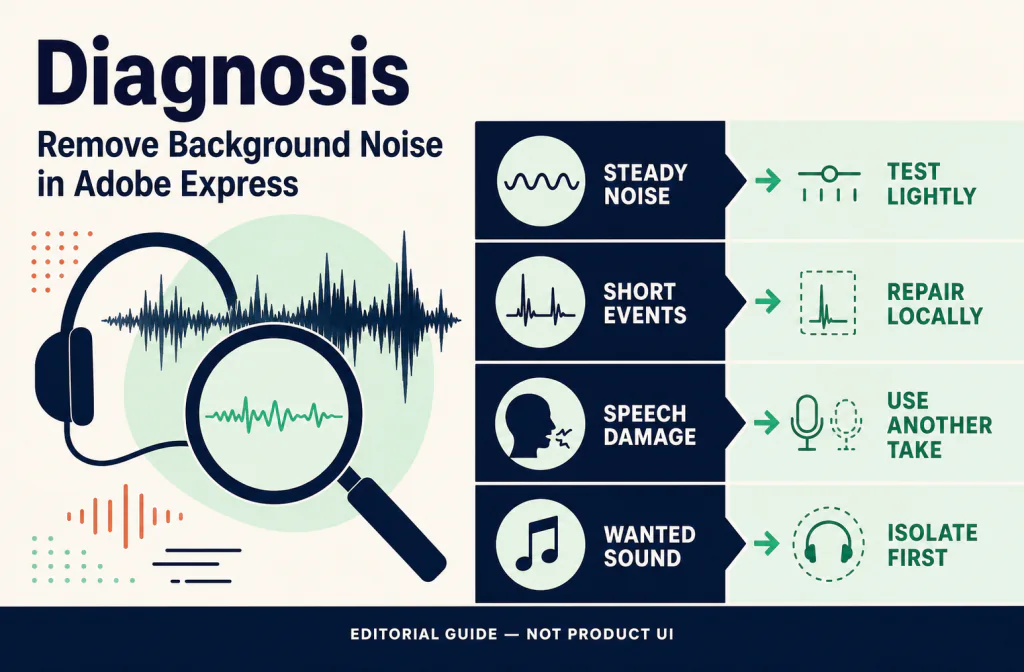
Enhance speech is a sensible native path when the main job is making a single spoken source easier to hear. It is not a diagnosis tool. First identify whether the problem is steady noise, intermittent bumps, rumble, a second voice, clipping, or room reflection. An operation that makes the background quieter may still be a poor choice if it changes the speaker, removes intentional music, or leaves a distracting transition.
Use the noise reduction versus gate explainer when background noise is mainly in pauses: a level-based gate and speech enhancement solve different problems. If the source is a previously encoded video, the MP4 audio workflow explains why a new download must be reviewed as a new file rather than assumed to match the original.
| What you hear | First action in Express | When to choose another path |
|---|---|---|
| A single talking voice with a steady bed | Try Enhance speech on a copy | The voice gets brittle or the background overlaps every word |
| Separate soundtrack music | Keep it separate from the voice review | The tool changes music needed in the edit |
| One click, pop, or short handling sound | Mark the point and consider local repair | The problem is too brief for whole-track processing |
| Two people on one combined track | Review the mix carefully | One speaker fades or changes unpredictably |
| Clipped speech or severe wind | Preserve the original and assess alternatives | Important detail is already missing |
Download a review copy and check the picture
Adobe's Express audio guidance describes downloading a design as MP4 from the Download menu when it contains audio. In this workflow the Download output is an MP4 video, not an audio-only export. Download under a new name so that you can distinguish the original from the enhanced version. Do not assume the editor preview is the final video; playback after download is the material you will publish.
Check the downloaded file in a second player. Confirm the start, an in-sentence consonant around the middle, and a cue near the end. The video and audio sync checklist gives a simple three-point review. Also verify that the dimensions, intended duration, captions, and audience-visible content are still correct. If a cut, fade, or level adjustment changed while exporting, return to the project copy instead of attempting to patch the downloaded file blindly.
For a version that must be retained as a separate sound asset, keep a clean source alongside any transcodes. The WAV preservation guide is useful when an audio-only master is part of the workflow, even though the Adobe Express download is a video deliverable.
Make a separate saved-file comparison only when it fits
If the native Adobe Express result is not enough, use a compatible copy of the exported video with Noise Cleaner's video-cleaning route. Check the route's current file and upload requirements before selecting a copy; neither the video extension nor a previous successful export establishes compatibility. Keep the source project and Express download unchanged.
After a separate result is available, import it into a duplicate Express project or compare it in a second player before replacing anything. Align it to the original using a visible sync cue and listen at matched loudness. Confirm that duration, picture, audio channels, and speech timing remain workable. If the video is out of sync, do not stretch it to force alignment; return to the saved copy and locate the difference in the handoff.
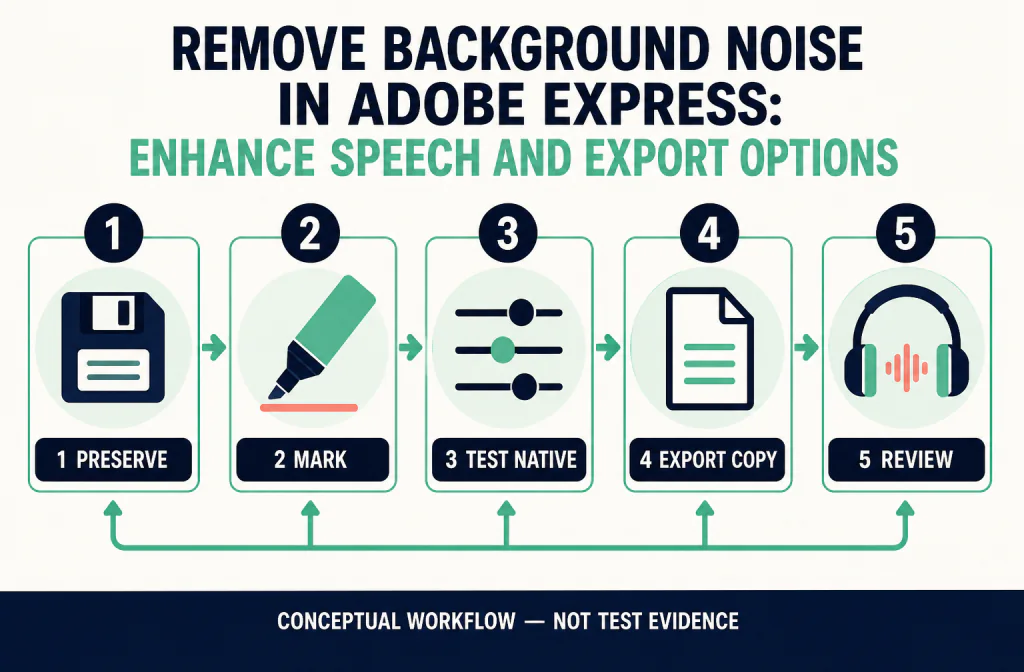
Review artifacts in context
Listen once with headphones and once on an ordinary device. Headphones make metallic texture, chirps, and abrupt room-tone changes more apparent; a phone or laptop speaker reveals whether the speech remains understandable in normal viewing. Compare at similar perceived loudness and use the same loop point. A difference in volume is not evidence that a version is cleaner.
| Result after enhancement or export | Safer response |
|---|---|
| Voice sounds thin, robotic, or metallic | Undo and use a less aggressive or different native approach |
| Background rushes in and out | Preserve more room tone or use a smaller edit region |
| Music or a second speaker changes | Separate the tracks or keep the original mix |
| Downloaded video differs from preview | Recheck the selected clip, export settings, and final file |
| Picture drifts from speech | Stop and investigate the export or handoff before reimport |
Do not run an already degraded export through several consecutive processes. Return to the original project, make one defensible change, and compare it with the original again.
Limitations and safer alternatives
No speech enhancement step can reliably separate all sounds that occur at the same time as the words. It cannot recreate clipped syllables, remove a competing conversation without risk, or turn strong reverb into a close-miked recording. For those cases, keep a little residue, edit locally, use a better source track, add captions, or record again.
Adobe Express product controls and export behavior change over time, and account access can affect what appears in the editor. Do not treat an editorial image or a prior project as proof of the control in your account. Use only material you are allowed to upload, especially where interviews or client video are involved.
Frequently asked questions
Do I have to extract audio first?
Not necessarily. Adobe's documentation describes selecting either the video clip or an audio-track layer for Enhance speech. Extracting audio can be useful when you need to inspect the audio as a separate timeline object.
Will Enhance speech remove every background sound?
No. It is intended to make speech clearer by reducing background noise and echoes, but overlapping sound, clipping, and strongly changing noise require careful review and may remain limited.
Why review the downloaded MP4 instead of the editor preview?
The downloaded file is the delivered asset. It may reveal a timing, encoding, or mix change that is not obvious while editing.
When should I try a separate saved-file route?
After you have reviewed the native result and have an authorized, compatible exported copy. Use the video file handoff as a comparison, then confirm sync before bringing any file back into the project.
Official sources and test notes
Adobe's technical requirements establish the device context. Its allowed regional audio guidance documents Premium Enhance speech, its background-noise and echo-reduction description, and the MP4 download path. Recheck the current region, account, and English-language editor before relying on availability. These sources do not establish a result for a particular video.
This guide contains no first-party processing result, interface capture, or before-and-after outcome. Recheck the current Adobe Express project interface, account access, export behavior, and saved-file route before depending on a particular control or handoff.
Decision summary
Use Enhance speech only after isolating the spoken material you need to protect. Download a named MP4, review sound and sync outside the editor, and keep the original project ready for reversal. If an export still needs a separate comparison, use a compatible saved copy and reimport only after timing and wanted sound have been checked.