Remove Background Noise in Adobe Audition: Use a Noise Print Carefully, Then Export a Review Copy
Adobe Audition's Noise Reduction process is most appropriate when a recording contains a reasonably steady unwanted sound and you can find a short section…
Quick answer
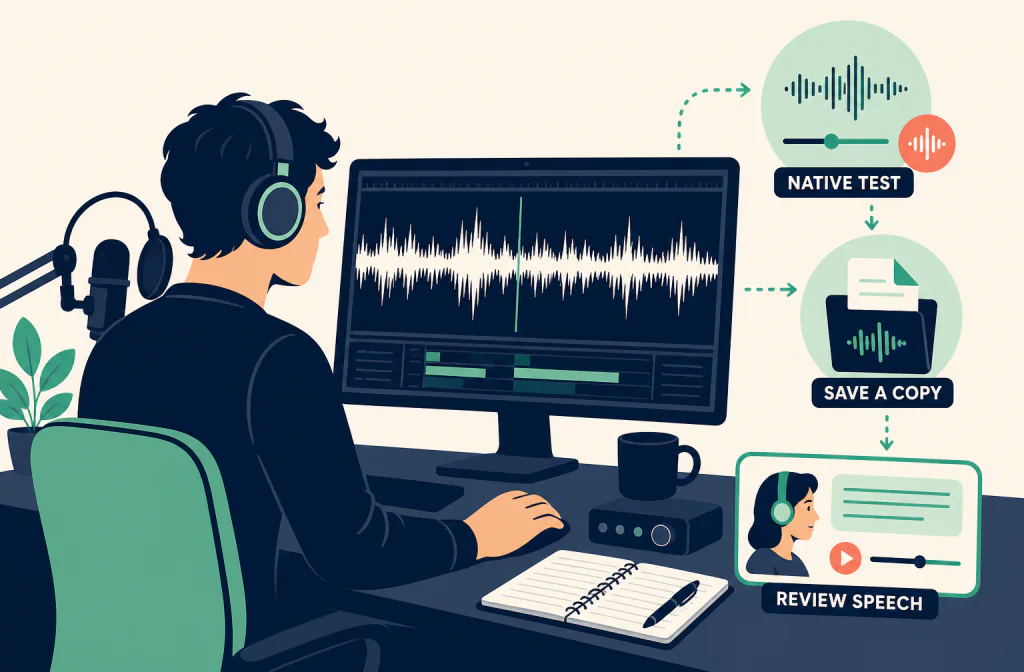
Adobe Audition's Noise Reduction process is most appropriate when a recording contains a reasonably steady unwanted sound and you can find a short section that contains that sound without the wanted voice or music. Capture a noise print from that section, apply the process conservatively to a copy, and preview the same words before saving. It is not a cure for clipping, changing crowd noise, a second speaker, or a badly reverberant room.
If the native process leaves a saved file that deserves another comparison, you can use a compatible exported copy with Noise Cleaner's audio-cleaning route. Treat that as a separate post-recording workflow: it does not run inside Audition, and it cannot restore information absent from the source.
Prepare a controlled Audition session
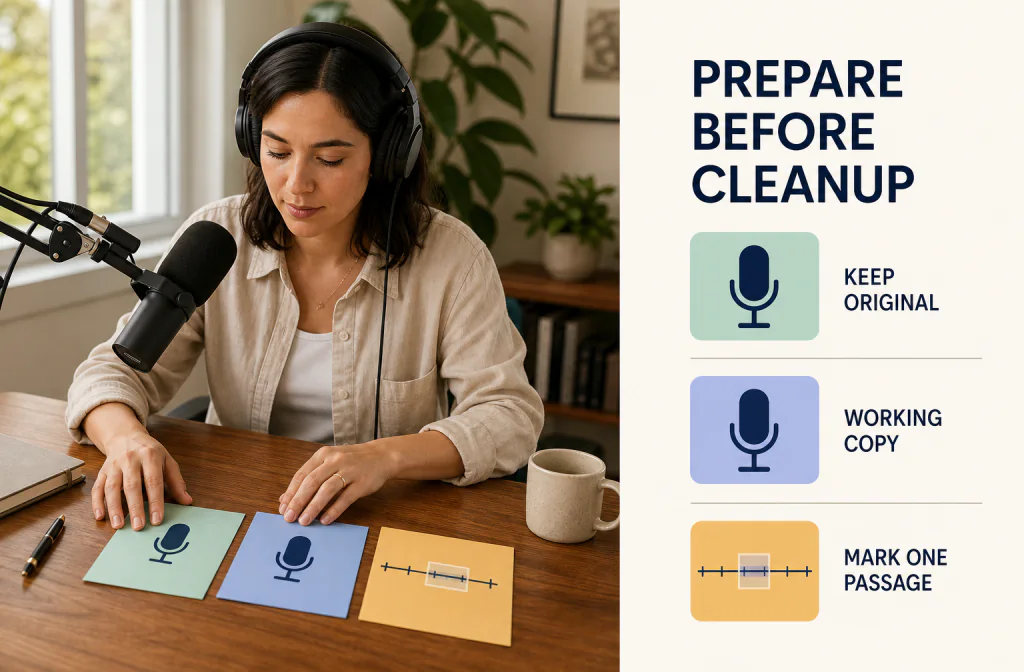
Confirm the installed application against Adobe's Audition system requirements, then open the file in the Waveform Editor when you want to use the offline Noise Reduction process. Adobe's current documentation distinguishes that process from real-time restoration effects and notes that the standard Noise Reduction effect is available in the Waveform Editor. Start by making a copy of the audio file or saving a separate session version. For multitrack work, do not flatten the session merely to test a noise setting; preserve the session and test on a duplicate render.
Choose a short review passage with a low voice, normal speech, a pause, and the noisiest overlap. Write down the source format, sample rate, channel configuration, and the noise you are trying to reduce. The reversible source-copy workflow keeps that baseline available, while the same-passage comparison workflow is a better test than looking at a quieter waveform.
Capture a representative noise print
Adobe's Noise Reduction and Restoration guide documents the Noise Reduction process for constant background and broadband noise. It describes Adaptive Noise Reduction as the native choice for variable broadband noise. A noise print should contain the unwanted sound you want the process to learn—not a breath, a word ending, music, or a different room tone.
- In the Waveform Editor, find at least 0.5 seconds of noise-only audio: the unwanted steady sound must be audible without the wanted source.
- Select only that noise-only section. If it includes speech, undo the selection and find a cleaner sample instead of trying to compensate with a heavier effect later.
- Use Effects > Noise Reduction/Restoration > Capture Noise Print. Keep the original file and the location of the selected sample documented so the choice can be revisited.
- Select the passage you actually need to review, or the whole file only after a short test has been acceptable.
- Open Effects > Noise Reduction/Restoration > Noise Reduction (process). Preview a conservative setting on the representative passage first. For variable broadband noise, assess the native Adaptive Noise Reduction path rather than treating a fixed noise print as the only option.
- Compare the same words with the effect bypassed. Listen for wispy consonants, metallic texture, missing breaths, altered ambience, a lisp-like edge, or a sound that is flanged or out of phase.
- Apply only if the named noise is less distracting and the wanted material remains credible. Save the result under a different name.
Do not ask a noise print to solve the wrong problem
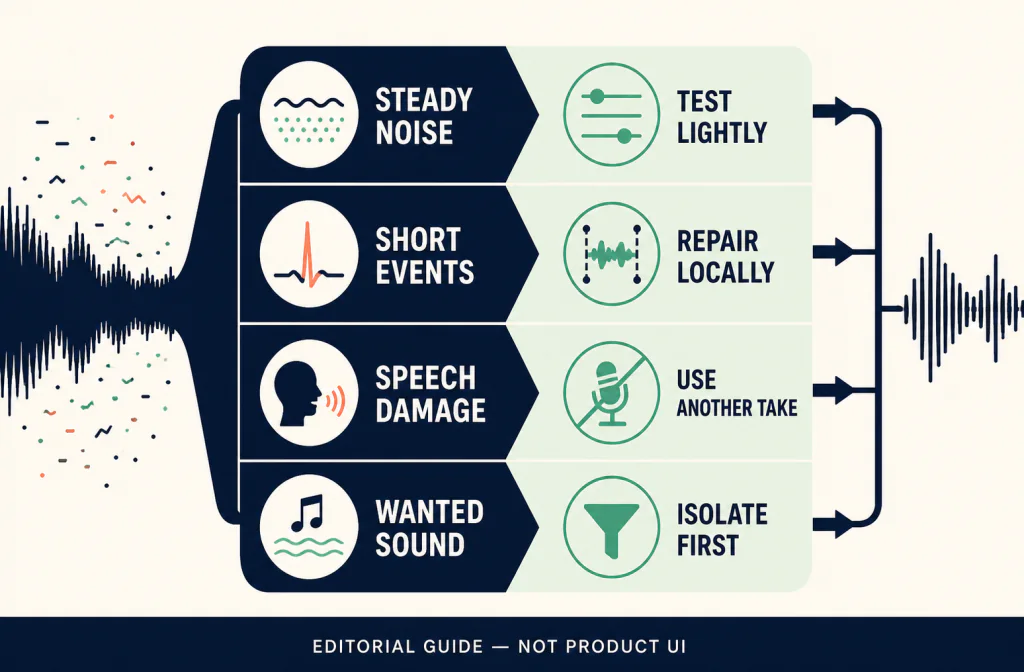
The process can be useful for constant hiss, power-related hum, or a stable background bed. It is less predictable when the noise changes with every word or shares the same frequency and time as the voice. Audition also has real-time restoration effects, spectral tools, and diagnostics; choose the smallest tool that matches the symptom rather than stacking several fixes just because each makes the track appear quieter.
The noise reduction versus gate guide is relevant if the unwanted sound is mainly between sentences. A gate can control gaps but may cut soft endings; a noise print can affect the whole selected waveform. For a single click or bump, a local repair or alternate take may be safer than treating the entire interview. If the file contains video dialogue, preserve the video edit and use the sync review checklist after every render.
| Symptom | First Audition decision | Stop and reassess when |
|---|---|---|
| Steady hiss or hum | Capture a clean noise print and preview lightly | Speech acquires a watery or metallic edge |
| Low rumble | Identify the problem before using broad reduction | The voice loses weight or plosives become unstable |
| Changing keyboard, traffic, or crowd noise | Work in smaller sections, if at all | The unwanted sound overlaps the words |
| Isolated crackle or click | Repair locally or use another take | A global process changes clean speech |
| Clipping and distortion | Keep the original and assess alternative material | The waveform detail is already missing |
Set a review order before adding other effects
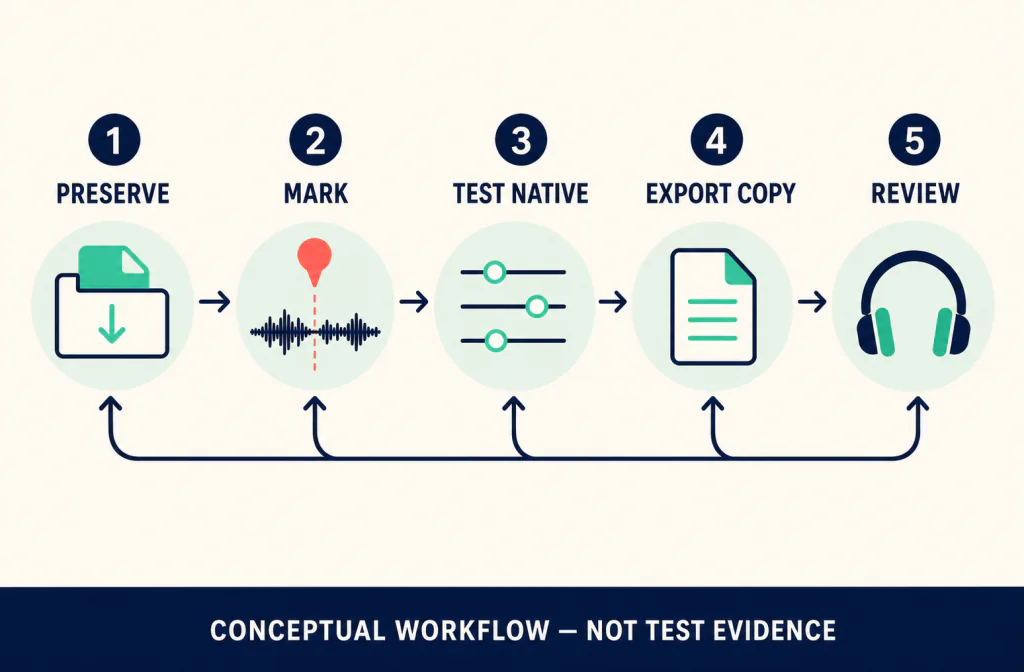
Noise reduction changes the input that later effects receive. For that reason, do a short native reduction test before committing an EQ, compressor, limiter, or loudness step. Make the review copy, compare it with the untreated source, and only then decide whether another effect has a clear, named job.
Use the same monitoring chain for both versions. Check a quiet syllable, an ordinary sentence, and a phrase with the strongest noise. Then listen in the full session, because a change that sounds acceptable in solo can leave an audible hole when music or room tone returns. Keep notes such as “noise print from pause before answer” rather than relying on a vague memory of a slider position.
For a lossless handoff or archival copy, the WAV preservation guide covers the questions to check before the file leaves the editor. For a compressed audiovisual source, use the MP4 audio workflow to distinguish the source encoding from a change caused by the cleanup process.
Export a named file instead of overwriting the source
Adobe's current Save and export audio files guide describes saving under a different filename and exporting a file while keeping the current file open. Use that approach for a review copy. In a multitrack session, retain the SESX session and export or mix down a separately named file rather than using the export as the only working asset.
Before export, write down the intended destination: a new Audition version, an editor timeline, a client review, or an additional cleanup comparison. Preserve sample rate and channel layout where the destination supports them. For video, document a visual sync cue before rendering. After export, play the file outside Audition and confirm its duration, channels, and intelligible content before accepting it as the new candidate.
Compare a saved-file handoff and reimport it safely
If the native Audition version still leaves an issue you want to examine, upload only an authorized, compatible copy to Noise Cleaner's audio-cleaning route. Check the current upload requirements there before you choose a file. Do not infer compatibility from the filename alone, and do not delete the Audition source after upload.
Download any returned file under a new name, then import it beside the Audition-native version. Align the first transient or spoken consonant and compare the same passage at similar loudness. Confirm duration, channel behavior, and timing before replacing anything in a session. If it differs, return to the exported source and isolate the file or format change; avoid stretching a result to conceal a mismatch.
Troubleshoot artifacts before processing again
| What you notice | Likely reason | Safer next step |
|---|---|---|
| Speech sounds phasey, flanged, or out of phase | Reduction is too aggressive or the print is not representative | Undo, choose a cleaner print, and lower the amount |
| A word loses its first or last sound | Wanted speech entered the print or received too much reduction | Return to the source and make a smaller test |
| The room turns on and off | The process is treating changing ambience as constant noise | Use local editing, lighter treatment, or retain ambience |
| A mix changes unexpectedly | The process was applied to a combined file | Work from the isolated track when possible |
| Reimport changes timing | Export or file settings changed | Verify the export first; do not overwrite the session |
One additional processing pass is not automatically a repair. Repeated treatment can make artifacts harder to identify and harder to reverse.
Limits and responsible choices
Noise reduction cannot guarantee a natural result for speech covered by another person, severe wind, clipping, or strong reflections. If the result makes the message harder to understand, prefer the original, a local edit, another microphone, subtitles, or a new take. The goal is a usable recording, not an empty noise floor.
Audition interface routes and available controls can change. Check the installed application and Adobe's current documentation before relying on a version-specific label. Process only recordings you have permission to edit and share.
Frequently asked questions
Do I need a silent section to create a noise print?
You need a section that represents the unwanted steady sound without wanted content. It does not need to be perfectly silent, but it should not contain the voice or music you are trying to protect.
Should I apply Noise Reduction to the whole file first?
No. Begin with the short passage that contains the real problem, preview it, and compare the same words. A long file may contain several rooms, microphones, or noise conditions.
Can Audition restore clipped words?
No native noise setting can promise to restore detail that was not captured. Look for an alternate take or choose a manual recovery plan.
When is a separate file handoff useful?
When you have reviewed the native Audition copy and still need another post-recording comparison. Use the audio file handoff only with a compatible copy and reimport it alongside—not over—the original work.
Official sources and test notes
Adobe's system requirements establish the installation context. Its noise reduction and restoration documentation is the source for the Waveform Editor process and intended use, while its save and export guide supports the separate-file workflow. These sources do not establish a result for any particular recording.
No first-party test result, software capture, or same-segment comparison is reported in this article. Recheck the installed Audition interface, the official source pages, and the current file-handoff route before treating a setting or upload behavior as current.
Decision summary
Use a clean, representative noise print for constant noise and make a conservative preview on a short passage. Export a separately named review copy, compare it with the original at matched loudness, and reimport any further file comparison alongside the source. Stop when the voice or the mix loses more than the unwanted sound.