How to Remove Background Noise From a Voice Recording
Remove background noise from a voice recording, compare the same passage, hear a real example, and know when to repair or re-record.
Quick Answer
To remove background noise from a voice recording, keep the original untouched, choose a short passage where noise overlaps speech, process a working copy, and compare the same words before and after cleanup. The Noise Cleaner audio cleaner handles saved files: upload the recording, let the service process it, review the result, and download only the version you want to keep. The main limitation is that cleanup cannot reliably recreate speech detail that was clipped, masked, or never captured. If the voice becomes metallic, incomplete, or harder to understand, return to the original and use local repair, specialist restoration, or a new recording when possible.
Review rule: A quieter pause is not enough. Keep the cleaned recording only when the important words remain complete and the voice still sounds natural enough for its intended use.
Diagnose What You Hear Before Cleaning
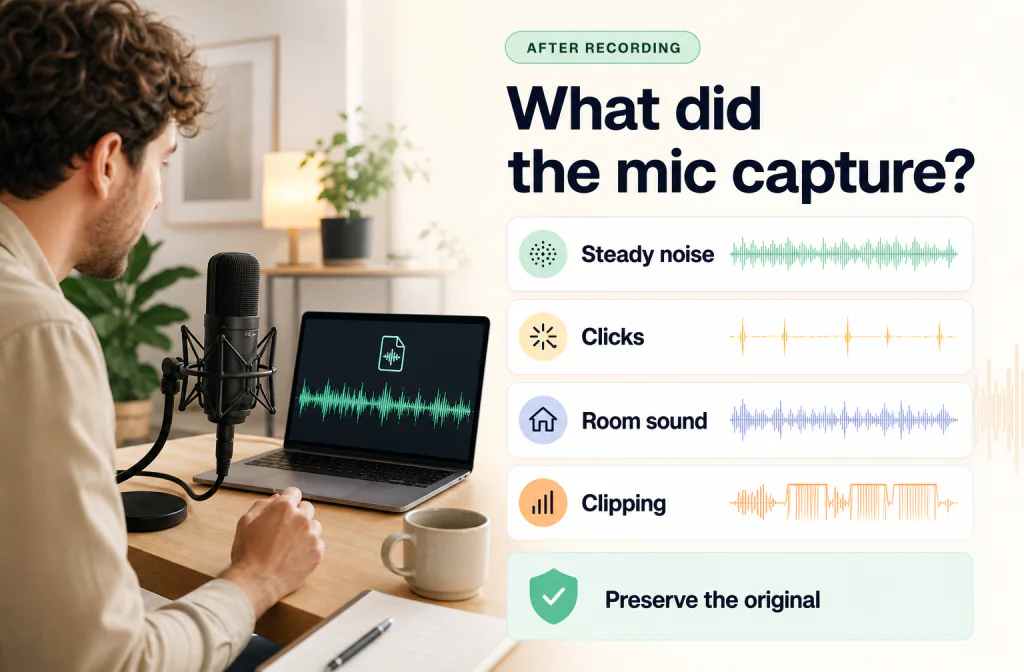
“Background noise” can describe several different problems. A steady computer fan is not the same as a keyboard click, another speaker, a hollow room, or clipped speech. Identifying the problem first helps you avoid processing the entire file when a smaller repair would be safer.
Listen to three parts of the untouched recording:
- A pause that exposes the background sound.
- A normal sentence with the unwanted sound underneath it.
- The hardest moment, such as a quiet word, loud peak, or sudden event.
The pause helps you identify the noise. The sentence tells you whether cleanup preserves speech. The hardest moment shows where the recording may need another method.
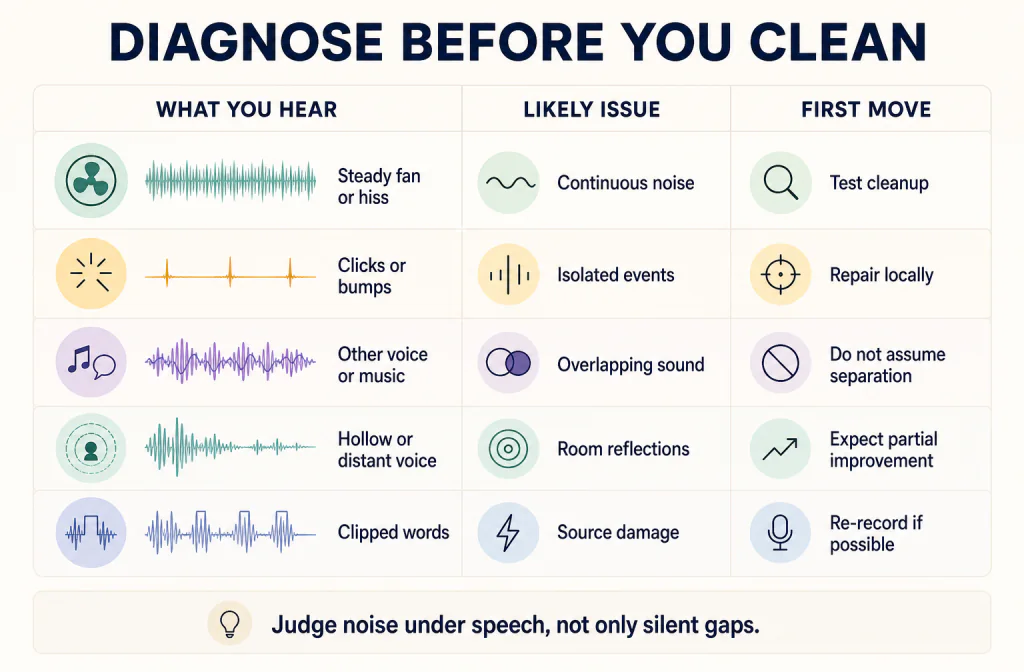
| What you hear | Likely issue | Sensible first move |
|---|---|---|
| Steady fan, air conditioner, hum, or broad hiss | Continuous background noise | Test cleanup on a working copy |
| Keyboard taps, handling bumps, or a door closing | Isolated events | Mark each event; use the keyboard-noise repair guide when typing is the main problem |
| Another voice or music over the main speaker | Overlapping sound | Do not assume general cleanup can separate it |
| Hollow or distant voice | Microphone distance and room reflections | Expect a limited result; consider manual repair or re-recording |
| Flattened, harsh, or crackling loud words | Clipping or source damage | Return to the original; denoising is not the main repair |
| Noise that changes with every phrase | Variable noise or earlier processing | Compare complete phrases and listen for pumping or tonal change |
Audacity’s official Noise Reduction manual makes a useful general distinction: its conventional effect is intended for constant background sounds such as hum, hiss, and fan noise, not individual clicks or irregular traffic. It also warns that satisfactory removal may be impossible when the noise is loud or variable, or when speech is not much louder than the noise. That guidance describes Audacity’s effect—not a Noise Cleaner result—but it explains why diagnosis and a clear failure boundary matter (Audacity Manual: Noise Reduction).
Protect the Original and Choose a Fair Test Passage
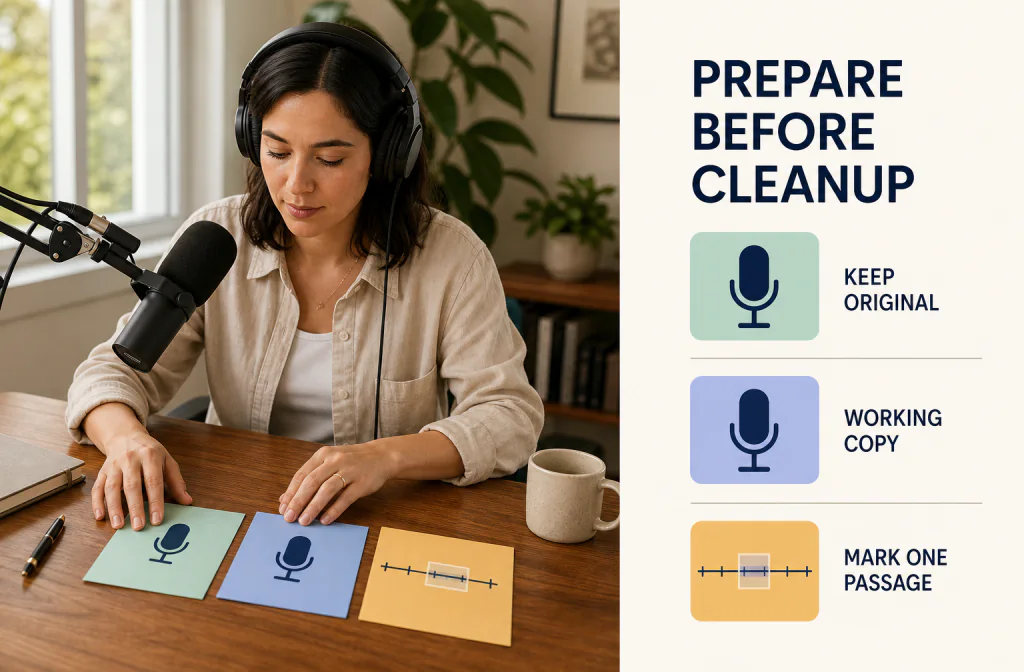
Before uploading anything, duplicate the source and give the copy a name that clearly separates it from the original. Do not trim, normalize, convert, or overwrite the only copy. If the cleaned voice sounds worse, the untouched recording is your reliable way back.
If you are unsure which source file to use, follow the recording preparation checklist first. It explains how to choose the version closest to the original capture, create a working copy, and record basic file facts without guessing.
Next, choose a 12–20 second comparison passage. Include:
- one complete sentence;
- a short pause;
- representative noise under speech; and
- at least one word or phrase that would matter if it became unclear.
Write down the start and end times. Add a short transcript if the recording contains names, numbers, instructions, or soft words. Mark anything that is already unclear so you do not accidentally credit the cleaned version with information the source never contained.
Use the same device, player, and volume position for each comparison. If one file is noticeably louder, adjust playback before choosing a winner and make a note of the change. ITU-R BS.1770-5 defines methods for measuring programme loudness and true-peak level when objective measurements are needed, but a measurement still does not decide whether a particular voice sounds natural or intelligible (ITU-R BS.1770-5).
How to Clean a Saved Voice Recording
1. Confirm That the File Is Suitable for This Workflow
Start with a saved recording in which the speech is still understandable and unwanted background sound is the main distraction. AI cleanup is not the right first tool for words lost to severe clipping, a second speaker talking over the main voice, or a file whose essential content is already missing.
The current service capability response lists MP3, WAV, M4A, FLAC, MP4, MOV, and WEBM inputs. Actual acceptance also depends on the signed-in account’s byte allowance and the file’s container and channel layout, so an extension alone does not guarantee acceptance. If the current upload screen rejects the file, return to the source application and make one deliberate supported export instead of creating a chain of random conversions. For an MP3 source, follow the MP3 preservation and download-check workflow before adding another lossy conversion.
2. Upload the Working Copy
Open the audio cleaner for saved recordings and select the working copy, not the only original. Check that you chose the intended file before starting. Avoid uploading media you do not own or have permission to process.
Guest and signed-in flows are different. A guest receives one real preview of up to 30 seconds before choosing a single-file export. A signed-in user with enough Processing Minutes goes directly to formal processing. In either case, judge only the result the current interface actually provides; do not assume a preview represents an unreviewed section of a long file.
3. Run One Cleanup Pass
Use one pass for the first comparison. Processing an already processed output again makes it harder to identify when speech damage began. It can also turn a mild artifact into a more obvious one.
While the recording is processing, keep your original and notes available. Your goal is not to make the waveform look quieter. Your goal is to decide whether the cleaned file is more useful without losing wanted speech.
4. Compare the Same Words
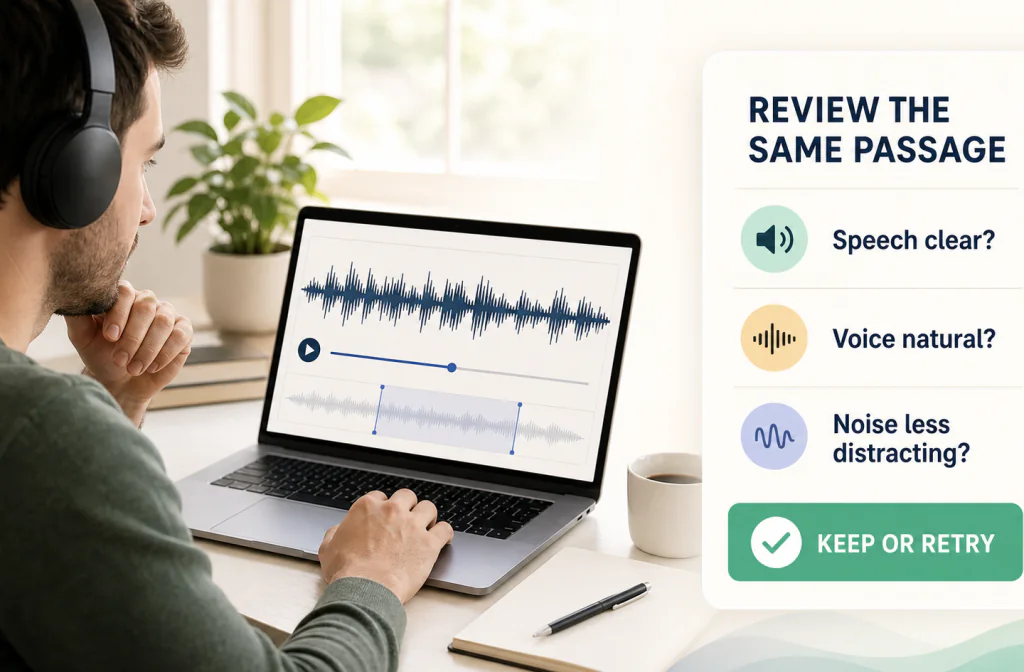
Return to the timestamps selected before upload. Listen several times with a different question each time:
- Speech: Are every important word, consonant, and word ending still understandable?
- Voice: Does the speaker still sound like the same person?
- Noise: Is the unwanted sound less distracting during speech, not only in pauses?
- Continuity: Does the ambience pulse, disappear abruptly, or change between phrases?
Do not approve the whole recording from one clean silent gap. Noise under speech is the harder and more useful test. If the source contains several noise conditions, review at least one passage from each condition before keeping the result.
5. Download and Check the File Independently
If the preview or processed result passes the comparison, download it and open the file outside the browser. Check the beginning, your marked passage, a difficult section, and the end. Confirm that the recording plays as expected and that you received the file you reviewed.
Keep the original and cleaned versions under different names. Do not replace the source until the final edit or publication has been checked. If speech sounds worse, reject the processed copy and return to the untouched original instead of applying another cleanup pass to the damaged output.
For a broader file-to-finish process that also covers manual editing and re-recording choices, use the complete background-noise cleanup workflow.
Hear a Real Voice Recording Before and After Cleanup
The players below use the same 30.38-second indoor podcast recording. The original and cleaned files are both stereo, 48 kHz M4A audio, and the complete clip is available in both players. The source was supplied for this Noise Cleaner example and processed with the registered FullSubNetPlus-b115416 model build. File durations and hashes were rechecked on August 15, 2026.
Original indoor voice recording
Cleaned indoor voice recording
Editorial observation: In this sample, the indoor background is less prominent in the cleaned version while some natural room character remains. This is one sample-specific observation, not a promise about another voice, room, microphone, or noise pattern. Listen to the speech texture as carefully as the background and reject the result if words, breaths, or consonants become less natural.
You can hear this audio pair and a separate outdoor video pair on the Noise Cleaner Before-and-After showcase.
Decide Whether to Keep, Repair, or Start Again
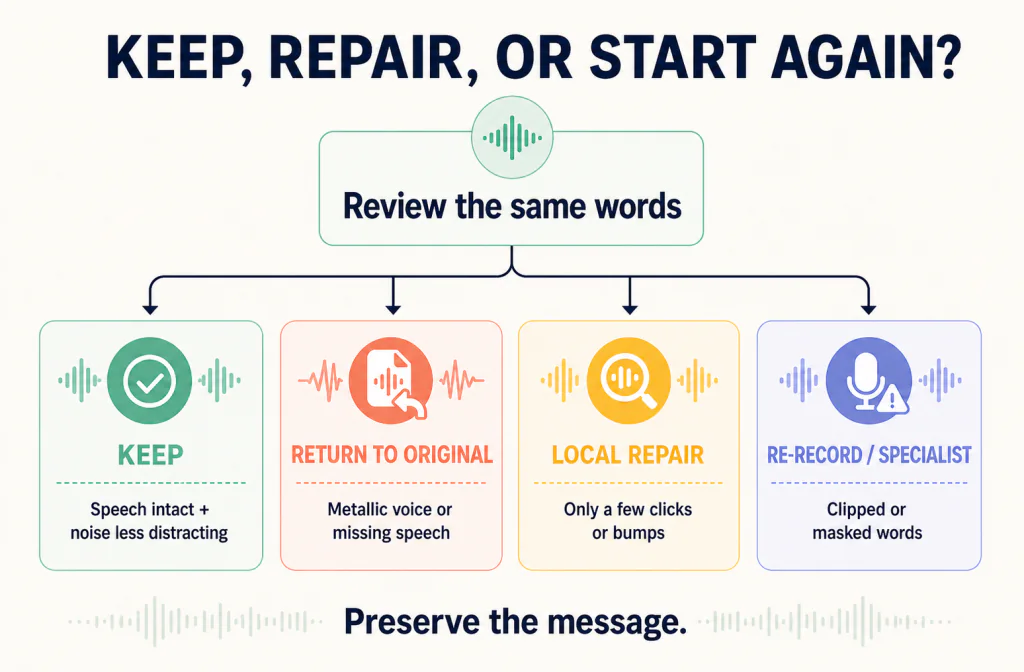
| What you hear after cleanup | Best next step | Why |
|---|---|---|
| Noise is less distracting and speech remains natural enough | Keep the cleaned copy and retain the original | The tradeoff fits the intended use |
| Some noise remains but every word is intact | Decide whether the residual sound is acceptable | A little noise may be safer than damaged speech |
| Pauses are cleaner but the voice sounds metallic or incomplete | Reject the result and return to the original | Speech preservation matters more than silent gaps |
| Only a few clicks or bumps remain | Repair those moments locally | Another full-file pass may damage unaffected speech |
| Another speaker or music masks important words | Consider specialist editing, an alternate take, or a transcript/caption correction | General cleanup is not reliable speaker or music separation |
| Words are clipped, distorted, or missing | Re-record or replace the damaged phrase when possible | Processing cannot recreate detail that was not captured reliably |
For an irreplaceable interview, family recording, lesson, or meeting, keep every intermediate version and favor reversible editing. A slightly noisy but understandable recording can be more valuable than an aggressively processed file with missing information.
Common Failure Cases and Safer Alternatives
Noise Overlaps Quiet Speech
When noise and voice happen at the same moment, stronger removal can also change wanted detail. Audacity’s manual recommends using the lowest reduction that reaches an acceptable noise level in its own effect because higher values may damage the remaining audio. Noise Cleaner does not expose the same manual control, but the review principle still applies: accept some residual noise when further reduction would make speech less natural or intelligible.
The Recording Is Clipped or Badly Distorted
Clipping is source damage, not ordinary background noise. If loud words were flattened during capture, do not describe denoising as restoring the missing waveform. Check another take, replace the phrase, use specialist restoration, or re-record when possible.
A Second Speaker or Music Covers the Voice
Another voice or music can resemble the sound you want to keep. Do not expect general background-noise cleanup to separate it safely. If the overlap affects only a few moments, local editing, another microphone track, subtitles, or a replacement line may be more useful.
The Voice Sounds Hollow or Far Away
A hollow or distant voice often combines room reflections, microphone distance, and background noise. Reducing the background does not turn distant speech into a close-miked recording. Manual repair may help, but a better take is usually the safer option when the recording can be repeated.
The Noise Happens Only a Few Times
Clicks, bumps, chair movement, and door sounds may be easier to repair one by one. Mark their timestamps and use a local editor rather than applying another full-file cleanup pass to every word.
For a microphone-specific diagnosis after capture, continue with the post-recording microphone cleanup guide.
Where This Workflow Helps Most
Voiceovers and Tutorial Narration
Choose a comparison sentence with normal pacing, breaths, and soft consonants. Keep the delivery and intelligibility more important than an unnaturally silent background.
Interviews and Podcast Tracks
If each speaker has a separate track, preserve and review those tracks separately. Different microphones, rooms, levels, and noise conditions may need different decisions. Do not let a good result on one speaker stand in for a review of every participant.
Lessons, Meetings, and Spoken Notes
Prioritize names, dates, instructions, questions, and answers. If cleanup makes a key detail harder to understand, the result fails the practical task even if the background sounds quieter.
Voice Memos and Field Recordings
Check handling noise, wind, traffic, and sudden level changes at their actual timestamps. A short, irreplaceable recording may deserve conservative processing and more manual review than a repeatable narration take.
Frequently Asked Questions
Can Background Noise Be Removed Without Changing the Voice?
Not always. The risk depends on the source, the noise, and how much they overlap. Compare the same words before and after. Accept some residual noise when further removal makes speech less natural or less intelligible.
Should I Test Only a Silent Section?
No. Use a pause to identify the noise, but include noise under speech in the comparison. A silent gap cannot reveal missing consonants, tonal changes, pumping, or lost word endings.
Does a Louder Cleaned File Mean It Is Better?
No. Loudness can change preference without improving clarity. Compare at a consistent listening level and judge speech, noise distraction, and artifacts separately.
Which Voice-Recording Formats Can I Upload?
The current service capability response lists MP3, WAV, M4A, FLAC, MP4, MOV, and WEBM. Acceptance also depends on the account’s byte limit and the file’s container and channel layout. Use the current upload guidance rather than assuming every file with one of those extensions will be accepted.
Can Cleanup Fix Clipped or Missing Words?
Do not assume so. Clipping and masking damage the wanted speech. Return to the original, check another take, replace the phrase, use specialist restoration, or re-record when possible.
Can I Use Noise Cleaner During a Live Call?
No. This is a post-recording workflow for a saved file, not a live microphone or call filter.
Should I Run Cleanup More Than Once?
Start with one pass. Reprocessing a cleaned file can compound artifacts and makes it harder to identify where speech damage began. Return to the untouched original before testing a different method.
Sources and Test Notes
- Audacity Manual — Noise Reduction (accessed August 15, 2026). Supports the distinction between steady and irregular noise and the general risk that aggressive reduction can damage wanted audio. It describes Audacity, not Noise Cleaner.
- ITU-R BS.1770-5 — Algorithms to measure audio programme loudness and true-peak audio level (approved November 22, 2023; accessed August 15, 2026). Supports the narrow description of objective loudness and true-peak measurement.
- Shure — How to Start a Podcast: Recording an Episode (published March 14, 2023; accessed August 15, 2026). Supports prevention guidance on room choice, test recording, monitoring, conservative levels, and clipping avoidance. It does not verify Noise Cleaner behavior.
- The Before-and-After players use the same user-supplied indoor podcast source and registered Noise Cleaner model build. Both public files are approximately 30.38 seconds long, stereo, and 48 kHz. No percentage-reduction, quality-score, or universal performance claim is made.
- The three RB-02 illustrations explain the review, diagnosis, and decision process. They are editorial graphics, not product screenshots, measured waveforms, or evidence that a sample improved.
Next Step
Use AI cleanup when the saved voice recording is still understandable and background noise is the main distraction. Choose local editing for isolated events, specialist repair for valuable damaged material, or re-recording when the source is repeatable and severely compromised.
Clean your saved voice recording with Noise Cleaner, compare the same words, and keep the download only when the voice remains acceptable.